
This screen is to make the registration request as an OFF (Office of First Filing).
| Expand | ||
|---|---|---|
| ||
| ||
Following , following the click of registration button a request will be posted to WIPO DAS system. The actual operation may take about 15 minutes, on successful registration and email is sent to the applicant's email address with DAS access code with a 4 digit hexadecimal characters. Once the request is processed its status with details will appear in the history screen. | ||
| Warning | ||
Due to the new infrastructure of DAS, the process for the "Registration" of a priority document has changed. You need to first go through the process of uploading the file (to DAS), then after the file is "uploaded" to the system, you will be able to register the information of the priority document (application number, filing date, applicant email, etc.) |
After login into the system and when you click on the registration tab, you will now see the following:
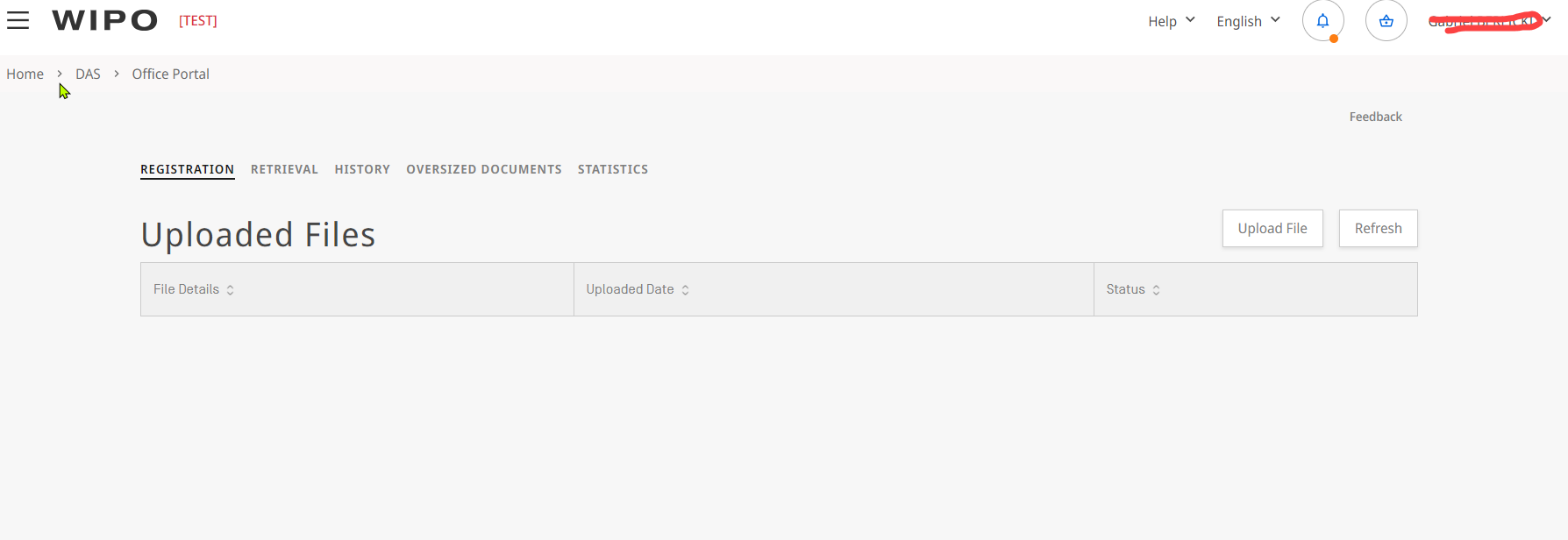

Due to the changes on the system, you now have to first upload the file to DAS, to be able (after is uploaded) to fill the form with the registration details:
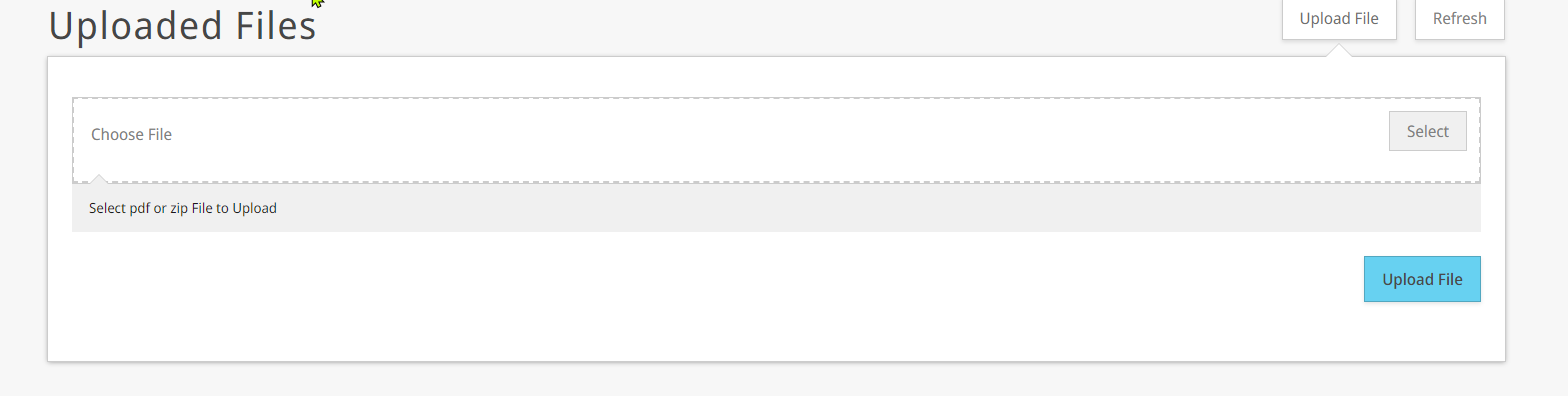
- you start by pressing in the "Upload File" button:
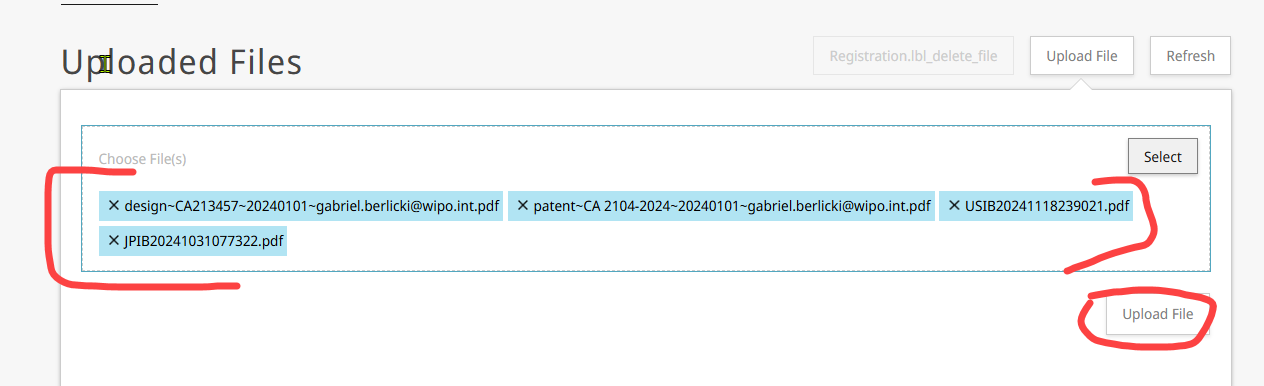
- The following "dialog" will be shown to allow you to upload the pdf file(s) of the document:
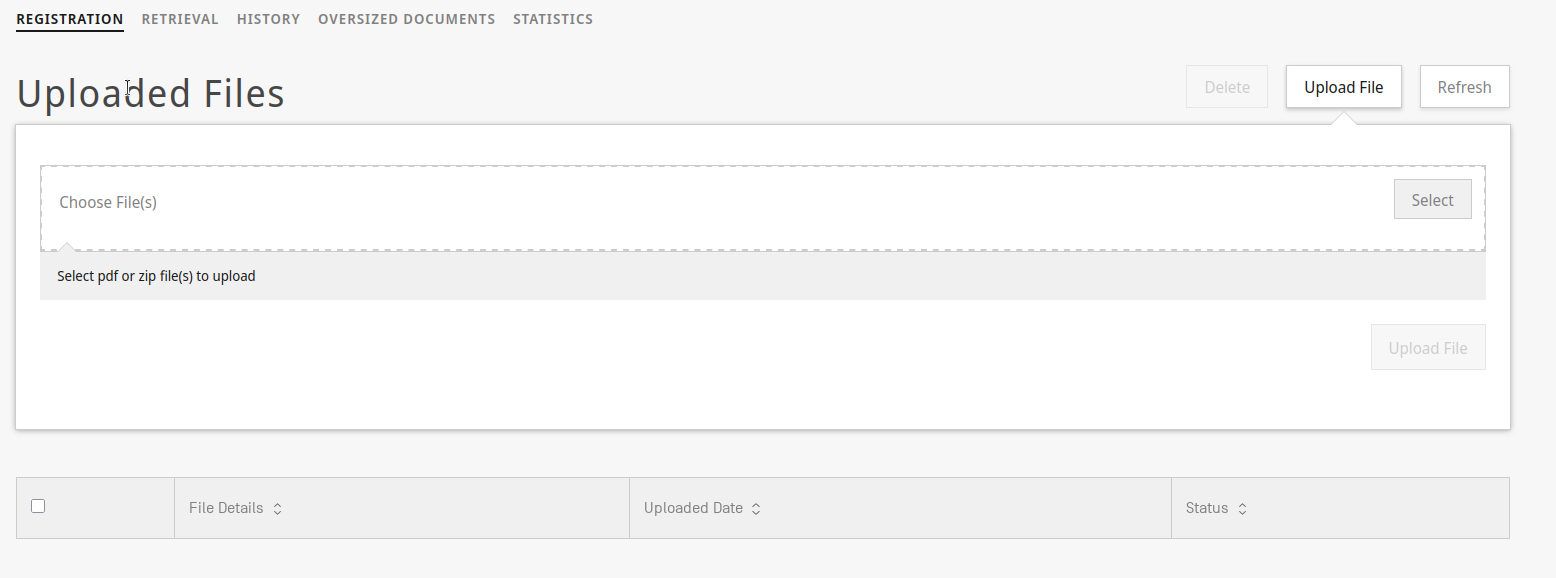
Note The dialog has been updated and it now allows uploading multiple files at the same time:
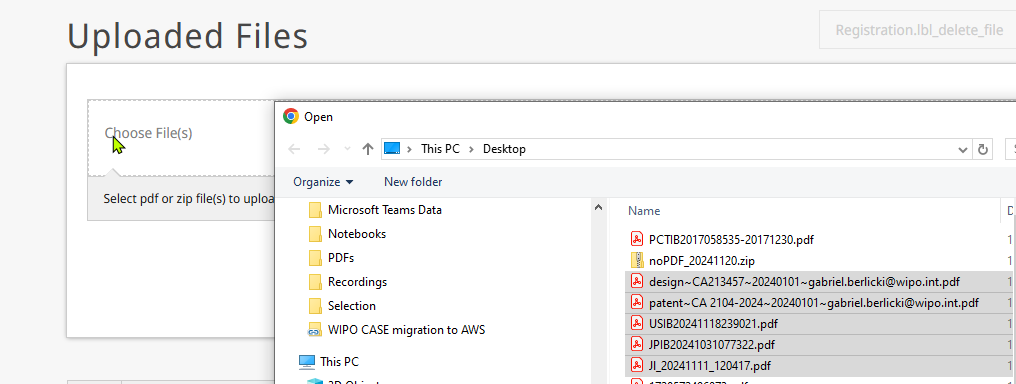
- just press on "Select", navigate to the folder where you have the file to submit, and then press on "upload file":
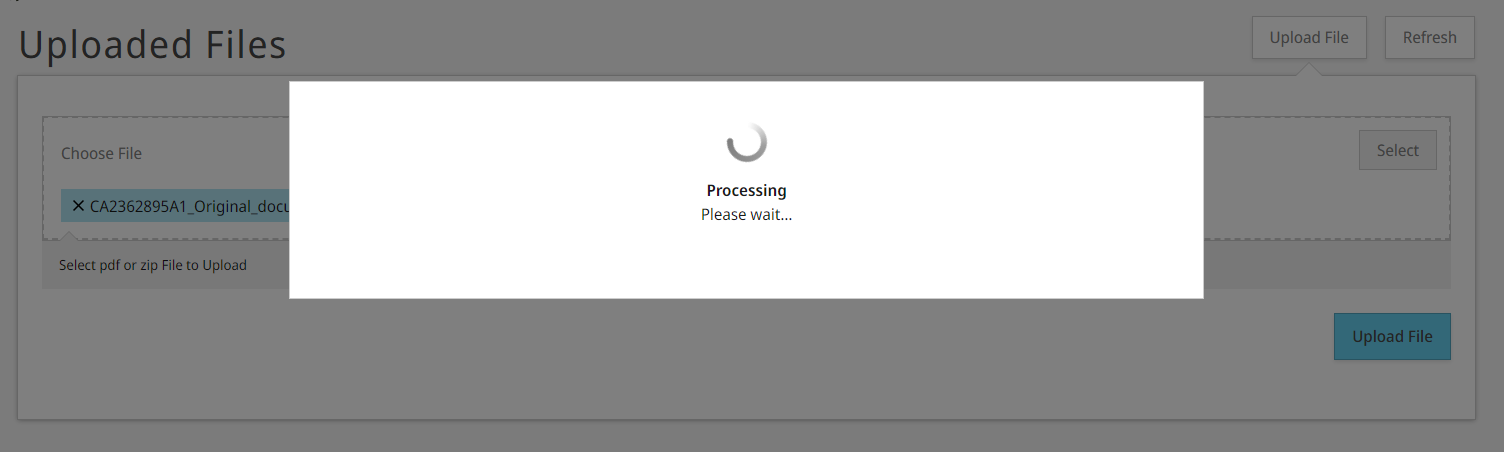
- The system will start to upload the file to WIPO DAS:
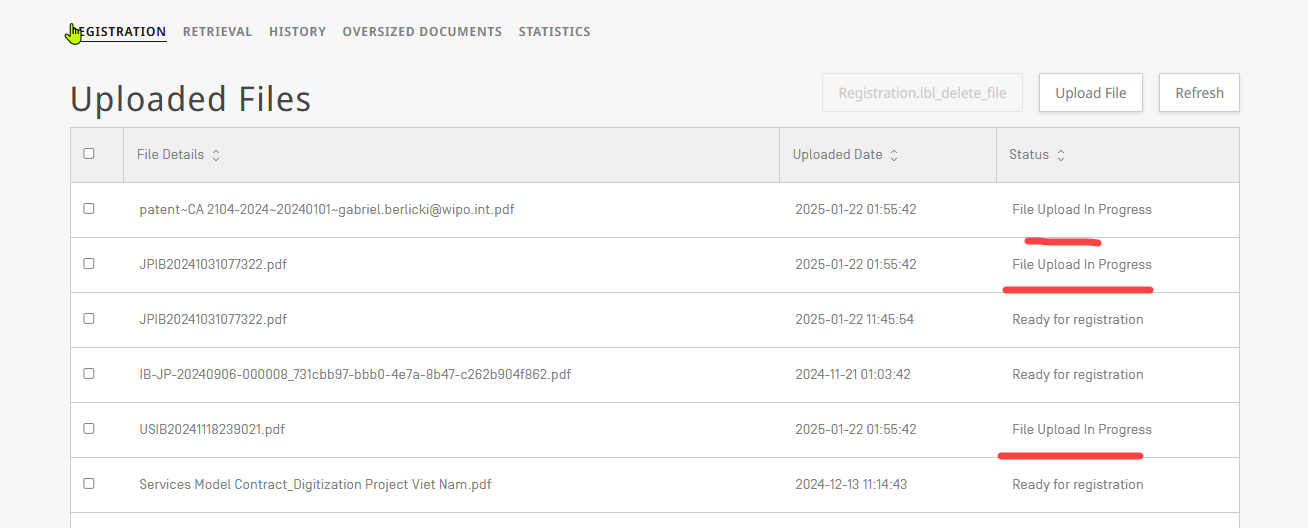
- The screen will then update and will show the file you send to upload to das.
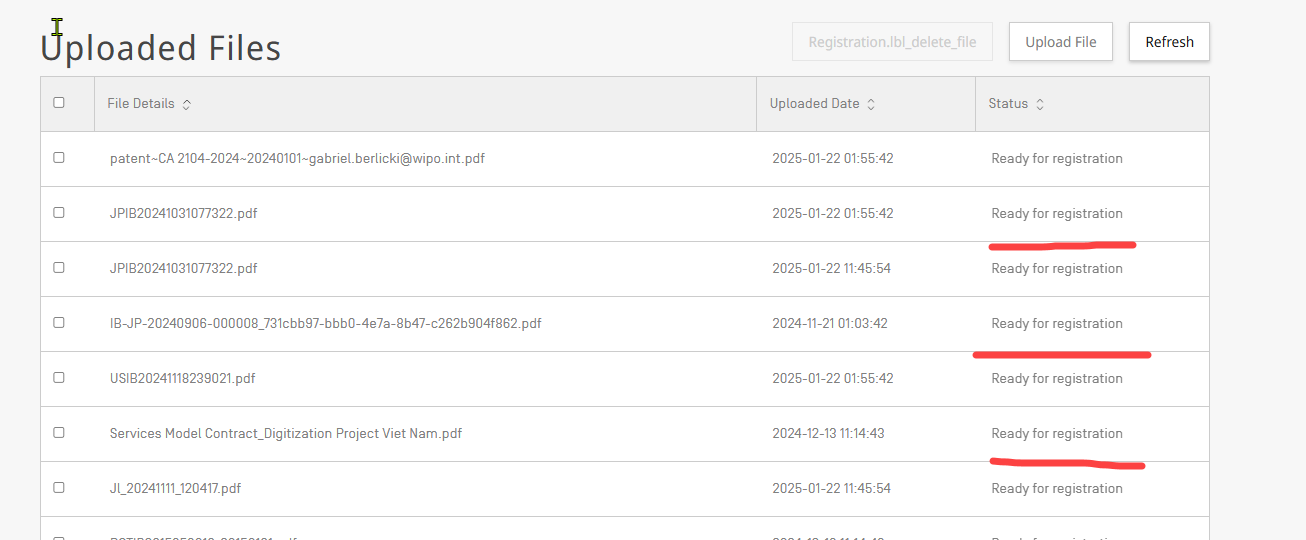
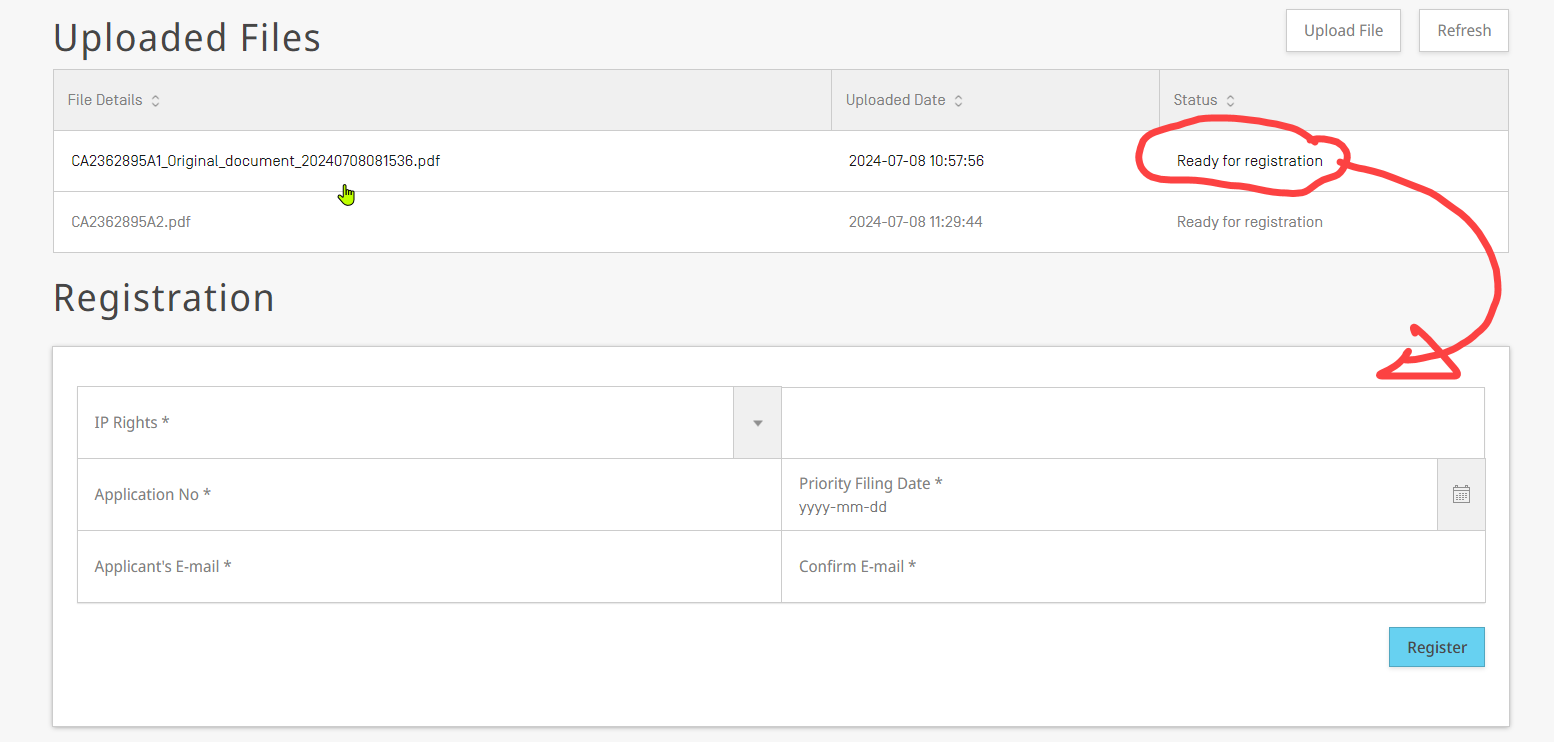
- Upload might take a while (depending on the file size), please press "Refresh" from time to time to check if the file is ready for registration:
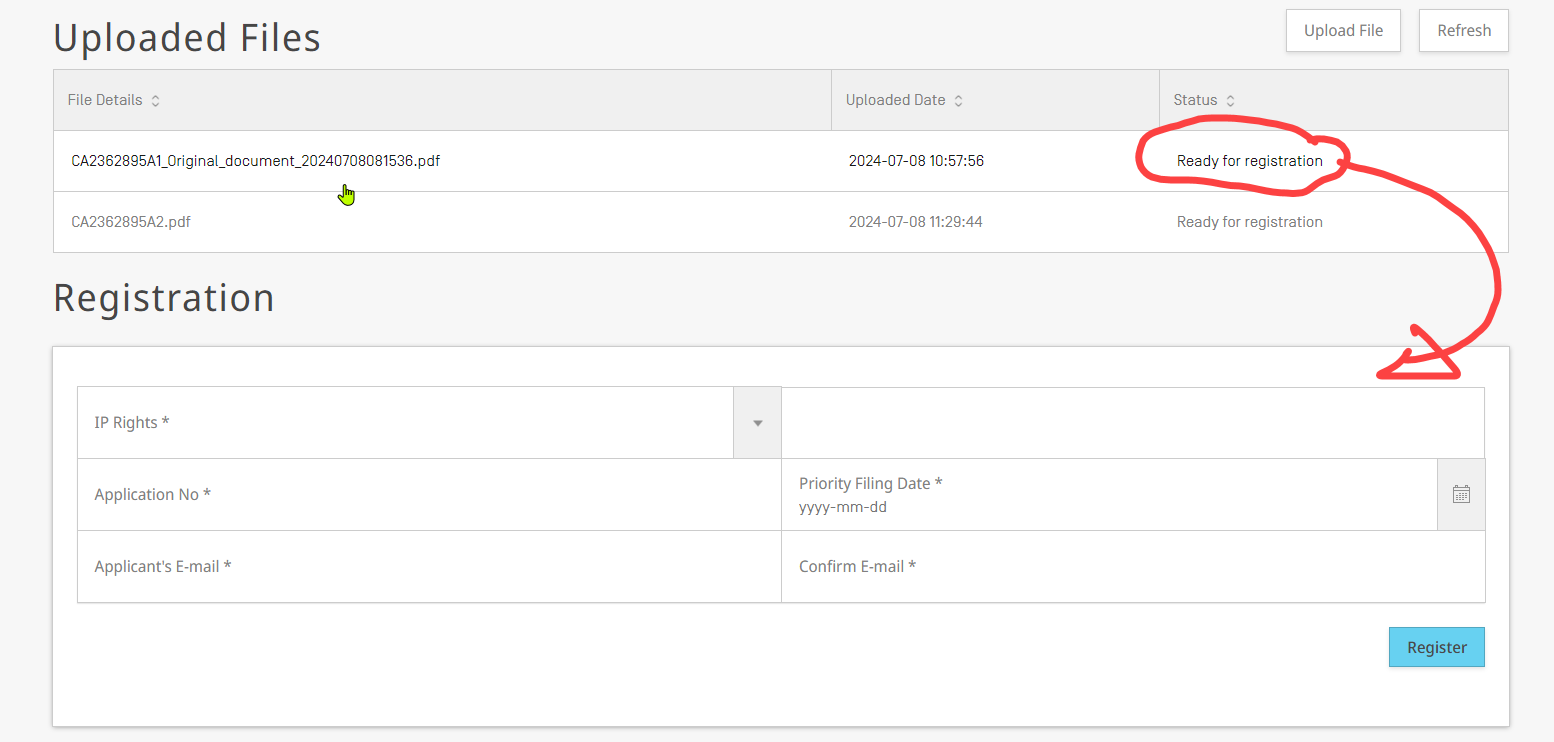
- Once the file is ready for registration you can start the process to submit the information of the priority document
- For registering the document click on the file you want to "register":
- The screen will update, and the registration form will be shown.
- Then you can start to update the form with the details of the file (of your office that you want to register):


...