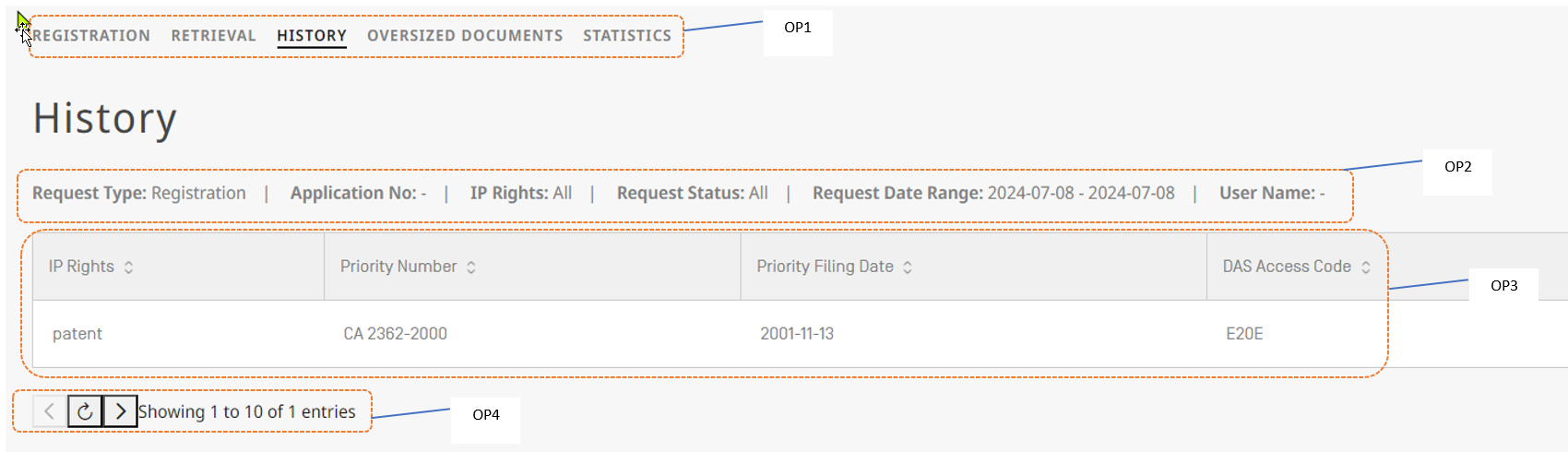
A few key elements of the History screen are highlighted and explained in labels from OP1 to OP4.
Description of the key elements:
| item | description |
|---|---|
| OP1 | Navigation bar, it allows you to switch between the different interfaces of the WIPO DAS Office Portal |
| OP2 | History tab filter / search bar (please see the following page, for more details |
| OP3 | Information area, here you will find the basic information of the registered or retrieved files |
| OP4 | Toolbar to switch pages |

By default the filer bar will be showing the previously registered "Registrations", in order to change what is displayed, just click in the bar, and the following from will be displayed:
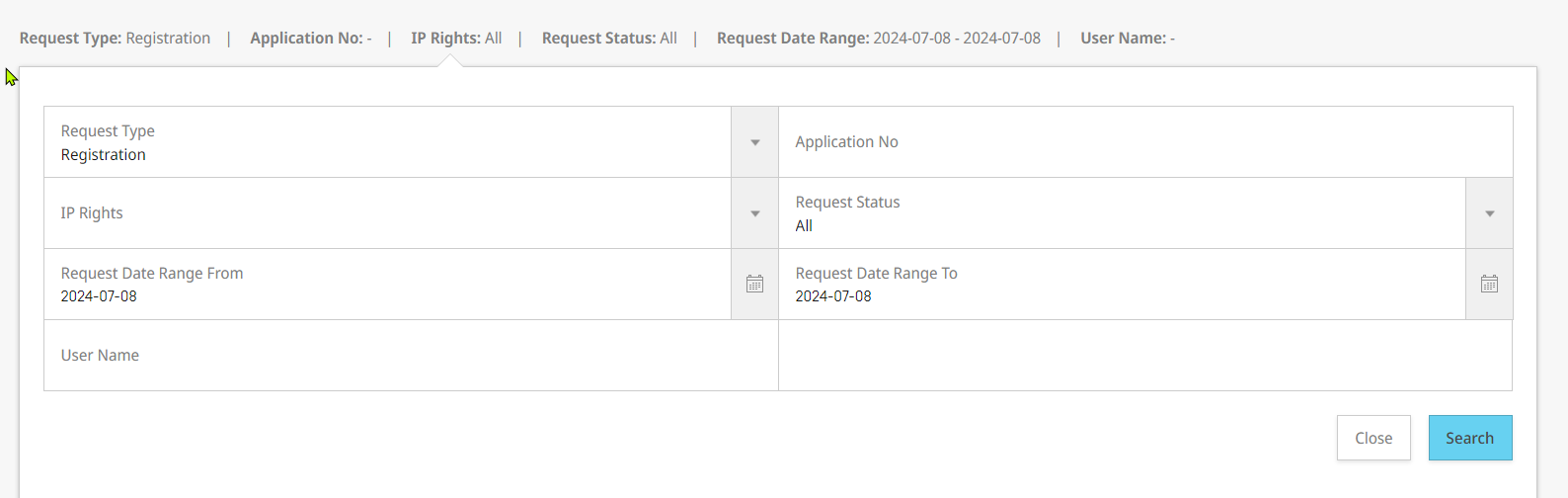
The form allows you to change the view to display:
| Item | Options | Notes |
|---|---|---|
| Request type | Registration | Shows all the registrations that have been done by the current user (default view) |
| Retrieval | Show all the retrieval request, that have been done by the current user | |
| IP Rights | Patent | The type of IP Right depends on the configuration of the office, to check the scope of your office, you could consult the following webpage: |
| Design | ||
| Utility Model | ||
| Trademark | ||
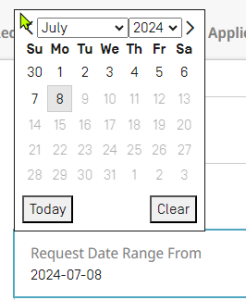
| Request Date Range From | Date field start | If needed, please select the start of the range, to limit the result list: |
| Application No. | Search field | You can enter here an application number you have registered (or retrieved) in the past to limit the result list (please by aware of the formats used by other offices: 1.- Priority number format in use by IP Office) |
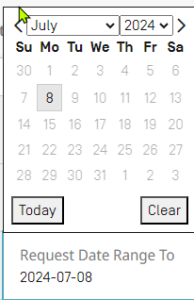
| Request Date Range To | Date field end | If needed, please select the end of the range, to limit the result list: |
| Request Status | All | Will update the list and filter the results by your selection. |
| Pending | ||
| Success | ||
| Error | ||
| User Name | Search field | Will allow search for the activity of other user of the IP Office |

If needed, you can click on each of the columns to reorder you list at your preferences.
The list will show all the results that matches the "search criteria" defined on the "Filter / Search Bar":

When you "hover" your mouse arrow over one of the results, the display will be updated as follows:

This gives the user the following options:
| Option | Action | notes |
|---|---|---|
| Resend | To use for sending the access code (again) to the applicant or to another email address (as per applicant/agent request) | Once you click, the screen updates and shows you this:
If the access code needs to be resent, just press "YES". If the applicant/agent requested to send the access code to a different email address, please update the email address in the form and then press on "Yes" |
Once the document is made available for download as PDF, please click on the download icon (  ).
). 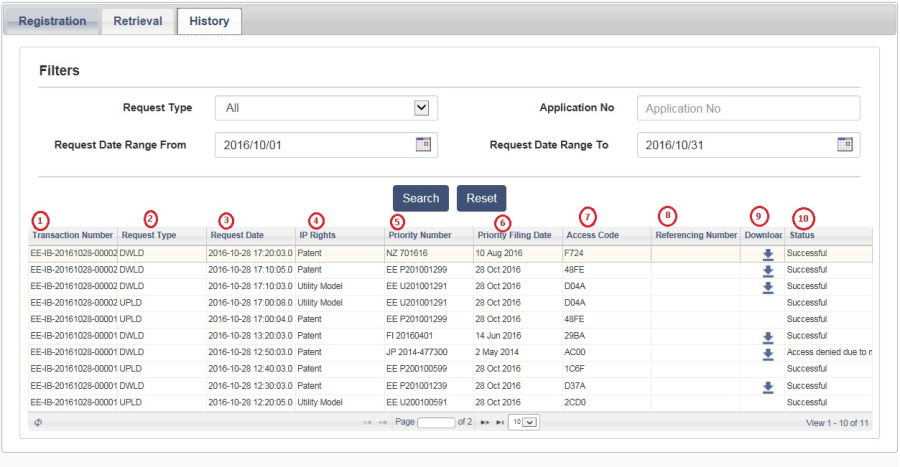
Description of the fields marked in RED are provided as follows:
| item | description |
|---|---|
| 1 | Transaction number uniquely identifies a request. |
| 2 | Request type identifies if the entry is a Registration (UPLD) request or a Retrieval (DWLD) request. |
| 3 | Date when the request was made. |
| 4,5,6,7,8 | Displays the information from the request. |
| 9 | This column displays if the requested document is available for download. |
| 10 | This column displays the status of each request, in case of a successful request |
"Successful" text appears, and in case of error description an error message appears in this column.