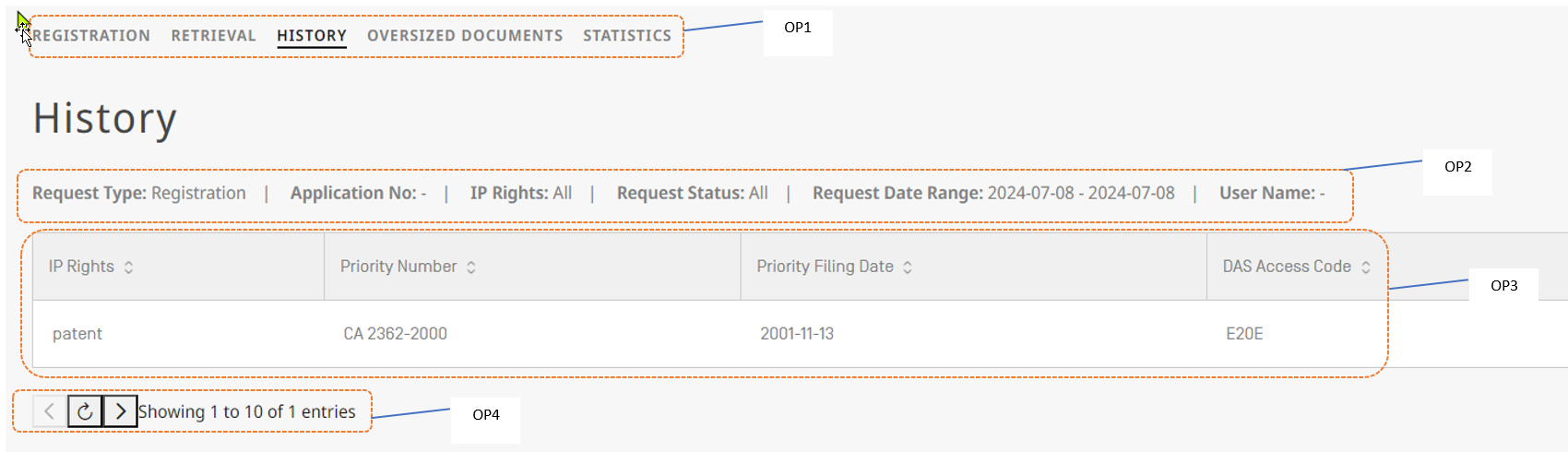
A few key elements of the History screen are highlighted and explained in labels from OP1 to OP4.
Description of the key elements:
| item | description |
|---|
| OP1 | Navigation bar, it allows you to switch between the different interfaces of the WIPO DAS Office Portal |
| OP2 | History tab filter / search bar (please see the following page, for more details |
| OP3 | Information area, here you will find the basic information of the registered or retrieved files |
| OP4 | Toolbar to switch pages |
Filter / search bar:

By default the filer bar will be showing the previously registered "Registrations", in order to change what is displayed, just click in the bar, and the following from will be displayed:
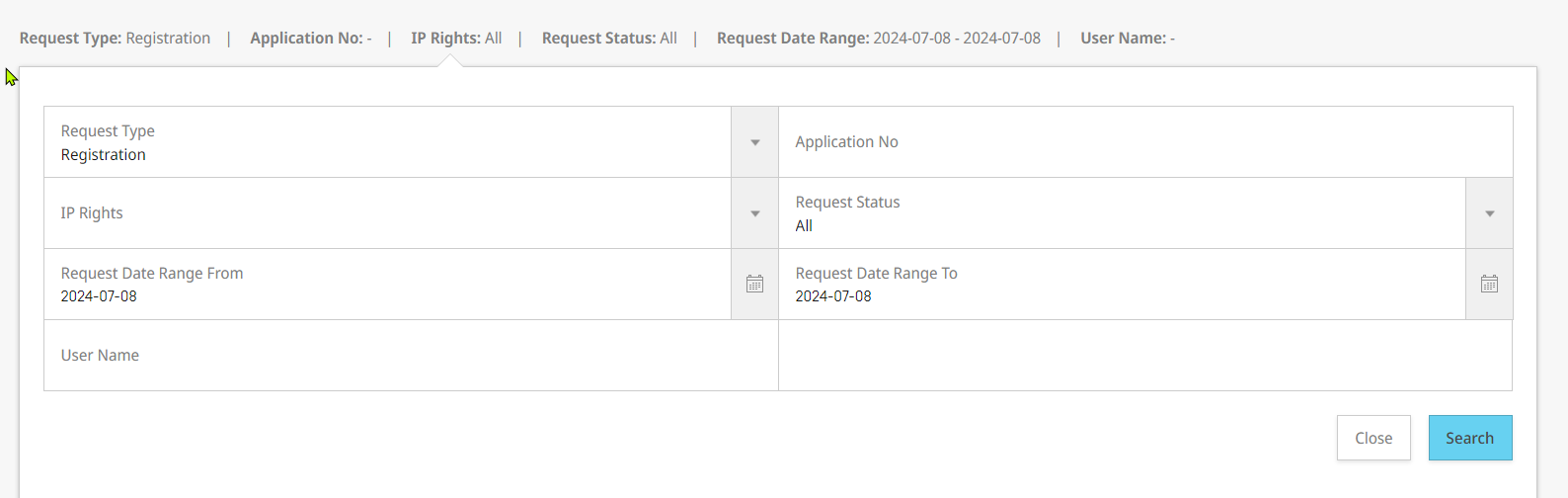
| Item | Options | Notes |
|---|
| Request type | Registration | Shows all the registrations that have been done by the current user (default view) | | Retrieval | Show all the retrieval request, that have been done by the current user | | IP Rights | Patent | The type of IP Right depends on the configuration of the office, to check the scope of your office, you could consult the following webpage: https://www.wipo.int/das/en/participating_offices/search.jsp?depositing_id=&accessing_id=&territory_id= | | Design | | Utility Model | | Trademark | | Request Date Range From | Date field start | If needed, please select the start of the range, to limit the result list: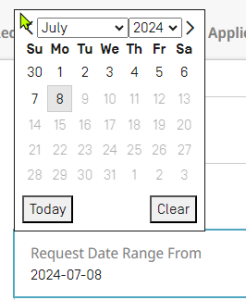
| | Application No. | Search field | You can enter here an application number you have registered (or retrieved) in the past to limit the result list (please by aware of the formats used by other offices: 1.- Priority number format in use by IP Office) | | Request Date Range To | Date field end | If needed, please select the end of the range, to limit the result list: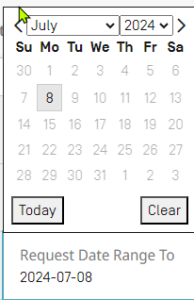 | | Request Status | All | Will update the list and filter the results by your selection. | | Pending | | Success | | Error | | User Name | Search field | Will allow search for the activity of other user of the IP Office |
|
Result list column bar:

If needed, you can click on each of the columns to reorder you list at your preferences.
Result Item:
The list will show all the results that matches the "search criteria" defined on the "Filter / Search Bar":

When you "hover" your mouse arrow over one of the results, the display will be updated as follows:

| Option | Action | notes |
|---|
| Resend | To use for sending the access code (again) to the applicant or to another email address (as per applicant/agent request) | Once you click, the screen updates and shows you this: 
If the access code needs to be resent, just press "YES". If the applicant/agent requested to send the access code to a different email address, please update the email address in the form and then press on "Yes" | | Download | Press to download the file, it might take a few seconds for the file download to complete (depending on the file size) | Will normally open in another browser tab : 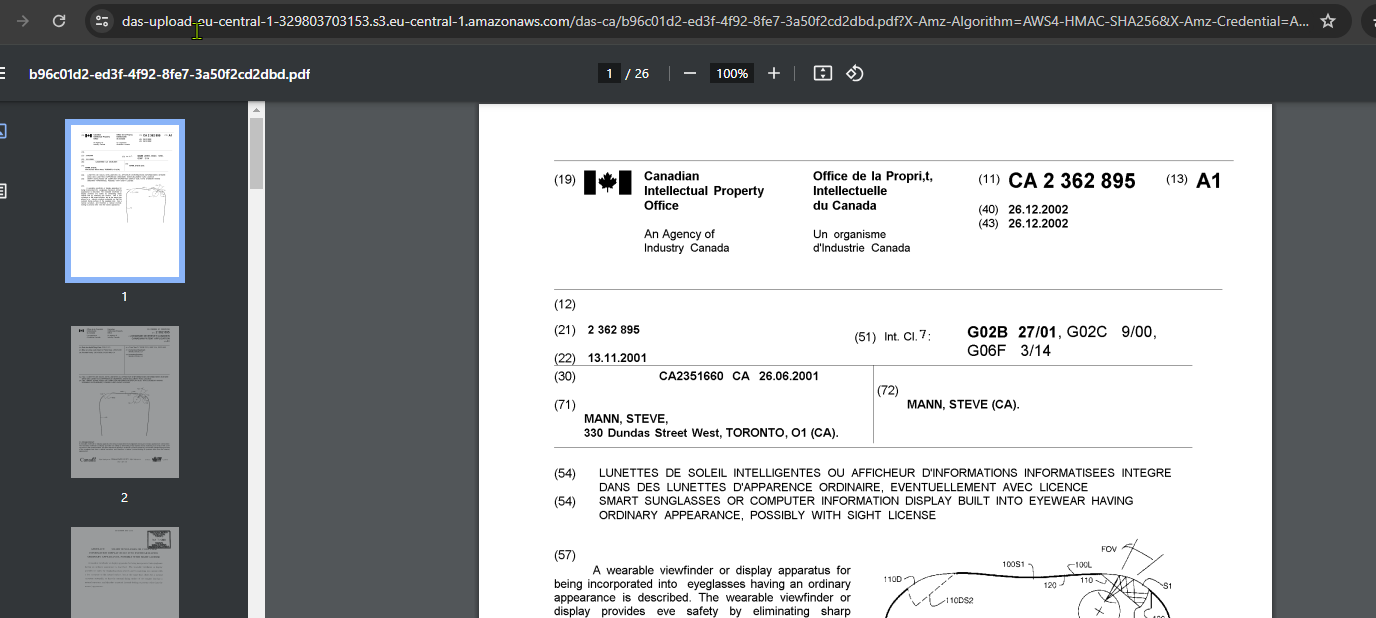
If you get an error of "invalid token", please reload the screen and try again. This is just for the browser to refresh the credentials and request a new token for retrieving the file. |
| | View Details | It will show the audit details for the entry, describing all the process for the current item in WIPO DAS | For example, for a registration, you will see something like this: 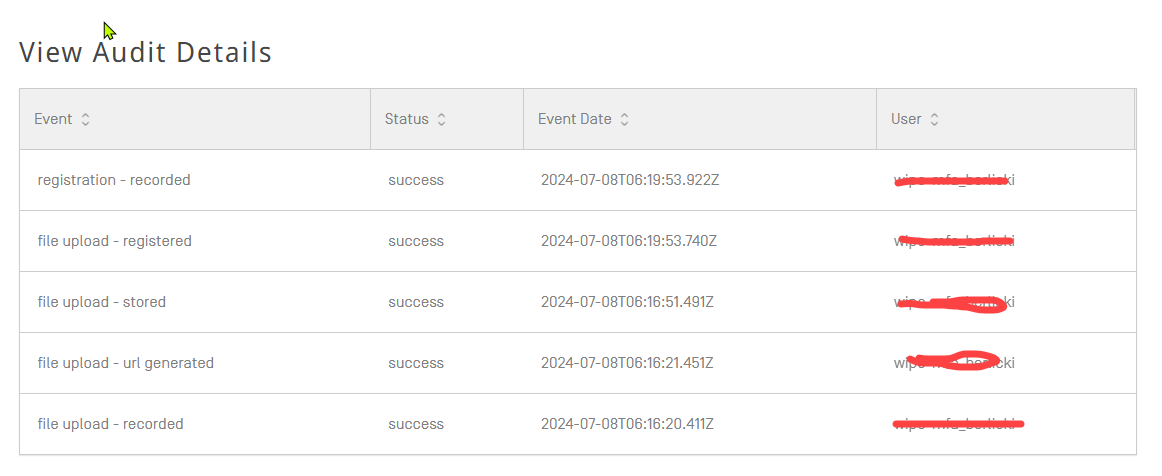
|
|
