Les rapports techniques annuels devraient être présentés via la zone d’accès restreint de l’espace Wiki consacré aux rapports techniques annuels. Vous trouverez ci‑après des instructions sur la façon de demander l’accès à cette zone. Si vous possédez déjà un compte utilisateur auprès du Centre d’utilisateurs de l’OMPI, veuillez ignorer les étapes nos 1 et 2 et passer directement à l’étape n° 3, ci‑dessous.
1. Créez un compte auprès du Centre d’utilisateurs de l’OMPI, à l’adresse:
https://www3.wipo.int/wipoaccounts/usercenter/public/register.jsf
2. Validez le compte créé auprès du Centre d’utilisateurs de l’OMPI en suivant les instructions reçues par courrier électronique:
Lors de la validation du compte, il sera demandé à l’utilisateur de créer un nom d’utilisateur qu’il utilisera pour accéder à l’espace Wiki. Il est recommandé de faire précéder le nom d’utilisateur du code ST.3 de l’office, suivi d’un trait d’union (exemple, ca‑jsmith).
3. Veuillez faire parvenir au Bureau international, à l’adresse atr.mail@wipo.int, les renseignements suivants:
4. Après que le Bureau international aura traité les renseignements susmentionnés, l’accès à la zone d’accès restreint de l’espace Wiki consacré aux rapports techniques annuels sera autorisé.
L’espace Wiki consacré aux rapports techniques annuels est accessible à l’adresse https://www3.wipo.int/confluence/display/ATR/Annual+Technical+Reports+Home
Pour présenter un rapport technique annuel, veuillez suivre les instructions ci‑après:
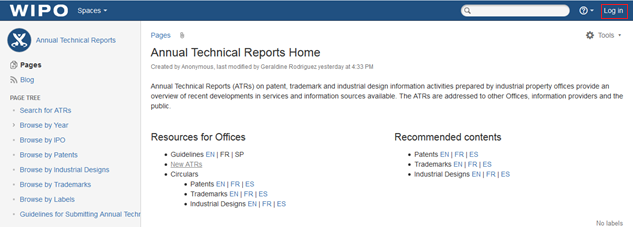
1. Access the restricted area of the ATR Wiki Space clicking on “Log in” at the top-right corner of the page, enter your username and password (see figure 0)
Figure 0
2. Click on the link “New ATR” under “Resources for Offices” or in the left menu under “Page tree” (see figure 1)
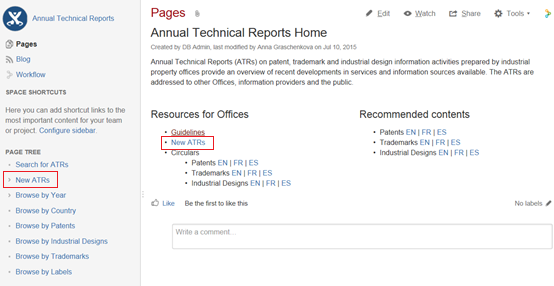
Figure 1
3. Choose the ATR modality (patents, trademarks or industrial designs) and language (English, French or Spanish) and click on the corresponding button (see figure 2)
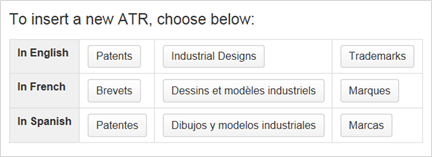
Figure 2
4. Restrict the page to yourself and the admin group. To do so, please:
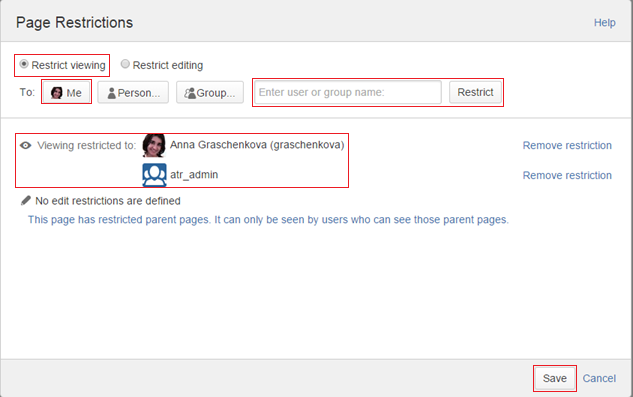
Figure 3
Setting up these restrictions allows preparation of the ATR over several steps (see items 8 and 10, below). The restrictions will be removed by the administrator once the ATR is ready to be published (see item 11, below)
5. Complete the title and subtitle of the page in the indicated text field:
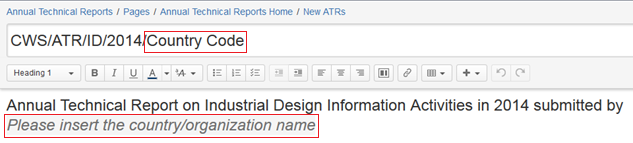
Figure 4
6. Include necessary labels. To do so, please:
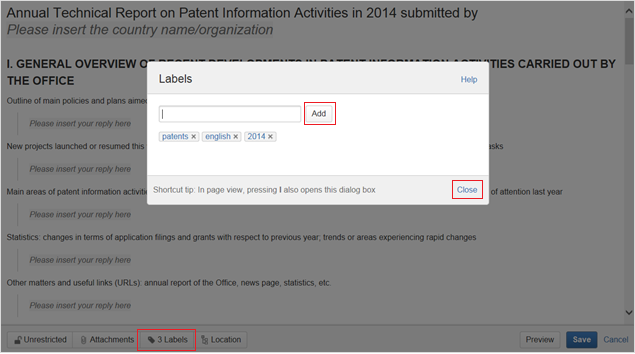
Figure 5
7. Insert the ATR content in the indicated fields, replacing the text “Please insert your reply here”.
8. If you need to add attachments, please:
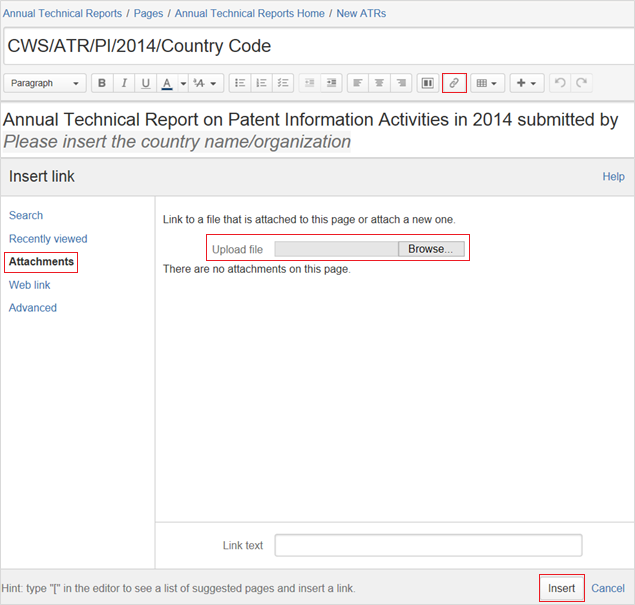
Figure 6
9. Click “Preview” at the bottom of the page to see how the ATR will look once it is published by the International Bureau. To return to editing the page, please click “Edit” at the bottom page. (see figure 7)
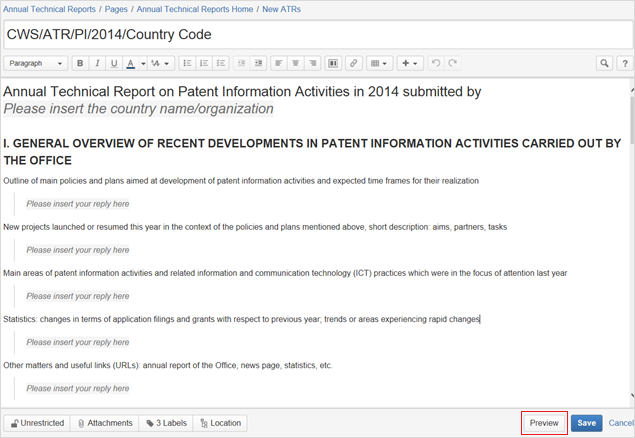
Figure 7
10. Save the page, click “Save” at the bottom of the page.
Due to the restrictions set up earlier (see item 3), the saved page is only available for you and WIPO administrators.
11. If you haven’t completed the ATR or should you like to change it, you can return to the page and edit it. To do so, please:
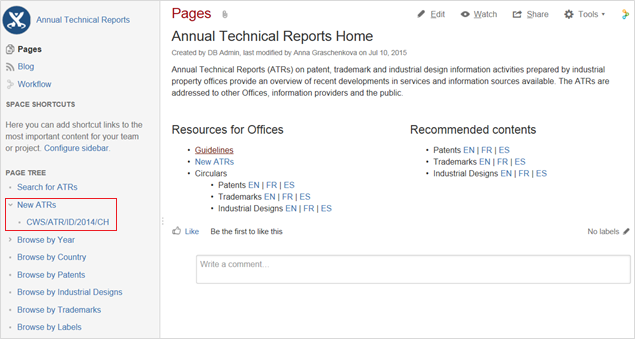
Figure 8
12. Once the ATR is completed, please send an e-mail to atr.mail@wipo.int notifying the International Bureau that the ATR has been submitted and is to be published. Publication of the ATR will occur once the International Bureau has controlled the content.
For any questions related to ATRs, please contact us at atr.mail@wipo.int.