...
| 1 | start by pressing in the "Upload File" button: | | Expand |
|---|

|
|
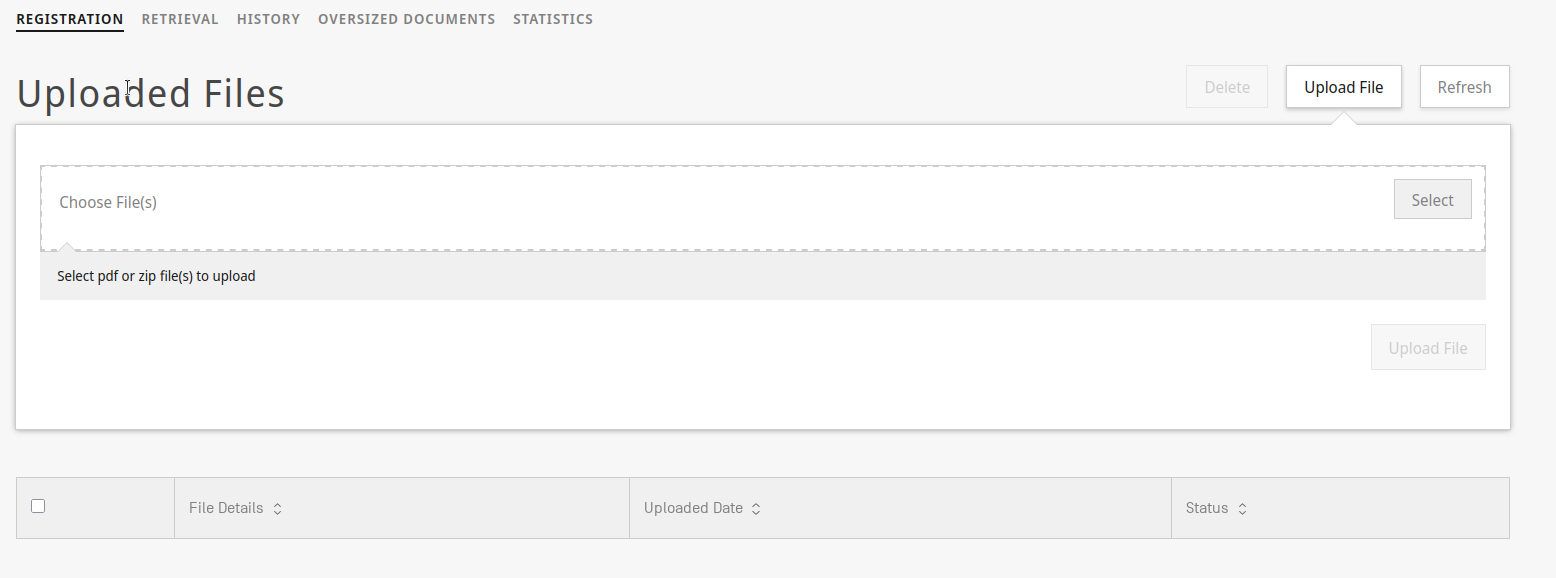
| 2 | A dialog will be shown to allow you to upload the pdf file(s) of the document: | Note |
|---|
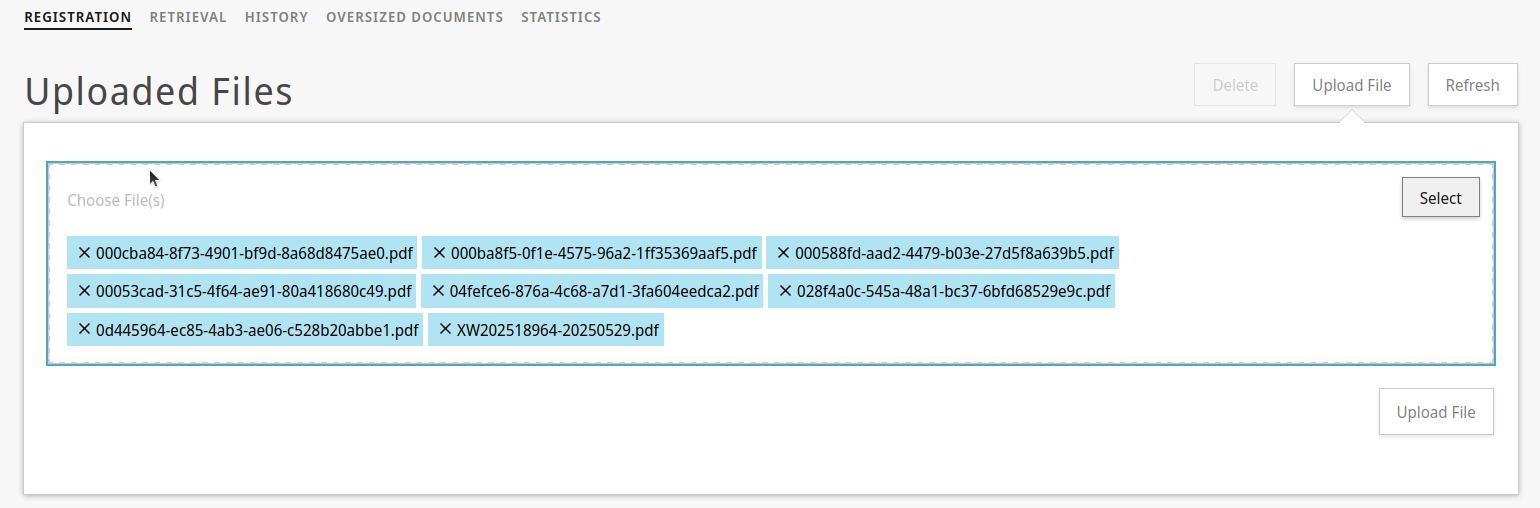
The dialog has been updated and it now allows uploading multiple files at the same time: |
| | Expand |
|---|
|
|
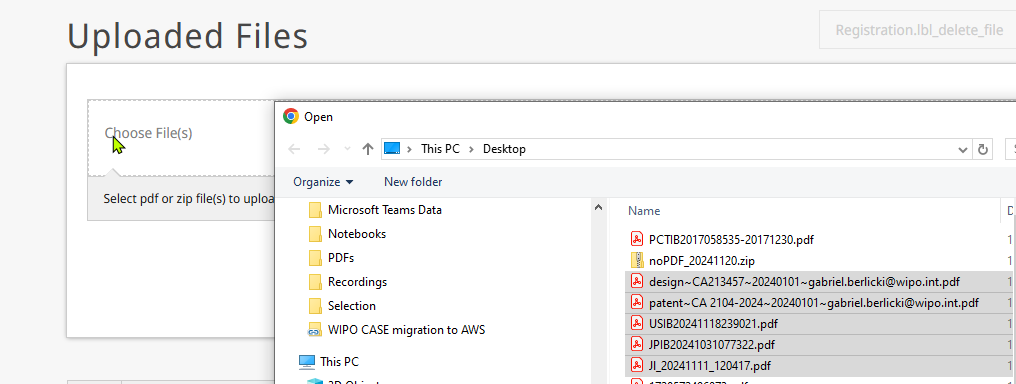
| 3 | press on "Select", navigate to the folder where you have the file to submit, and then press on "upload file": | | Expand |
|---|
|
|
| 4 | The system will start to upload the file to WIPO DAS: | | Expand |
|---|
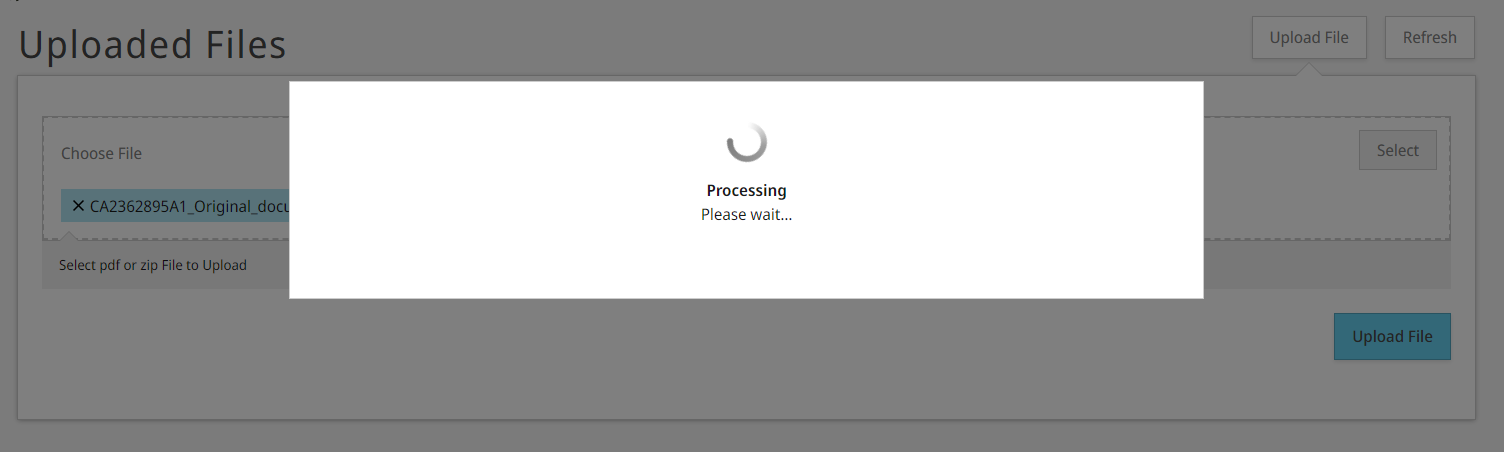 Image Removed Image Removed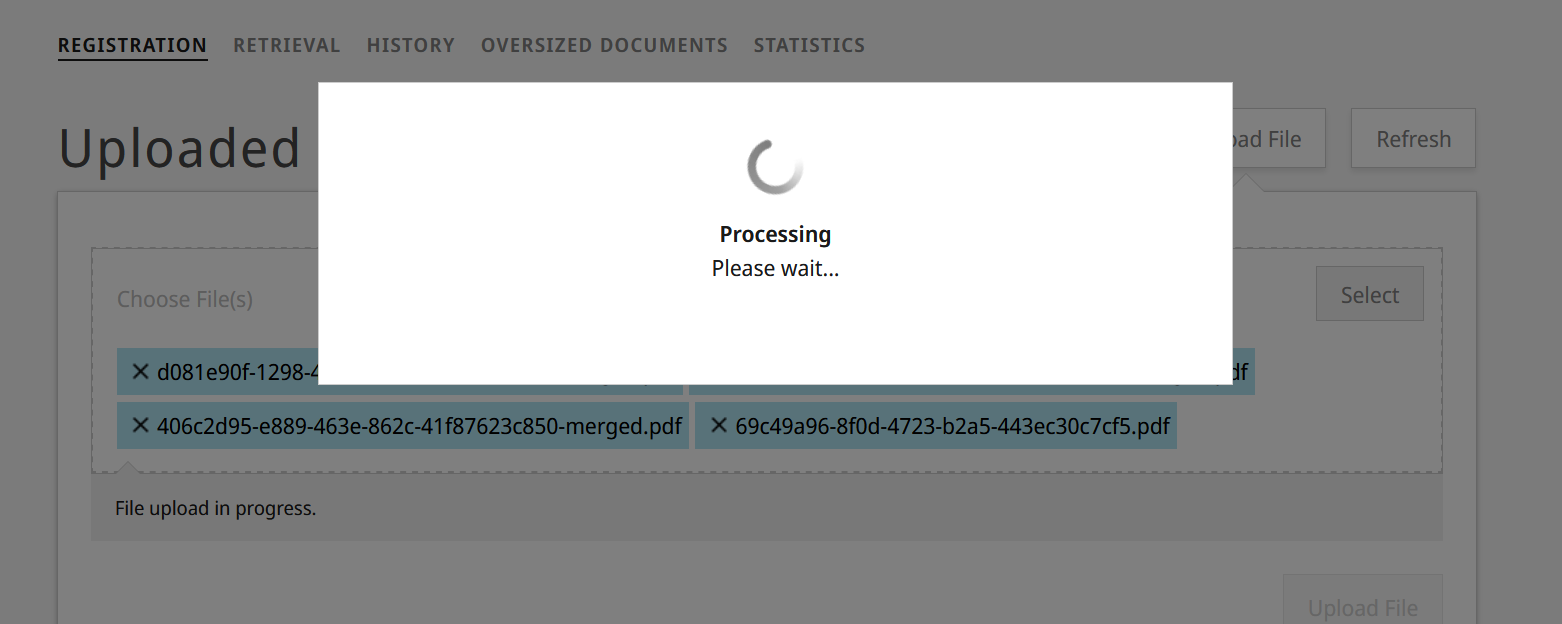 Image Added Image Added
|
|
| 5 | The screen will then update and will show the file you send to upload to das. | | Expand |
|---|
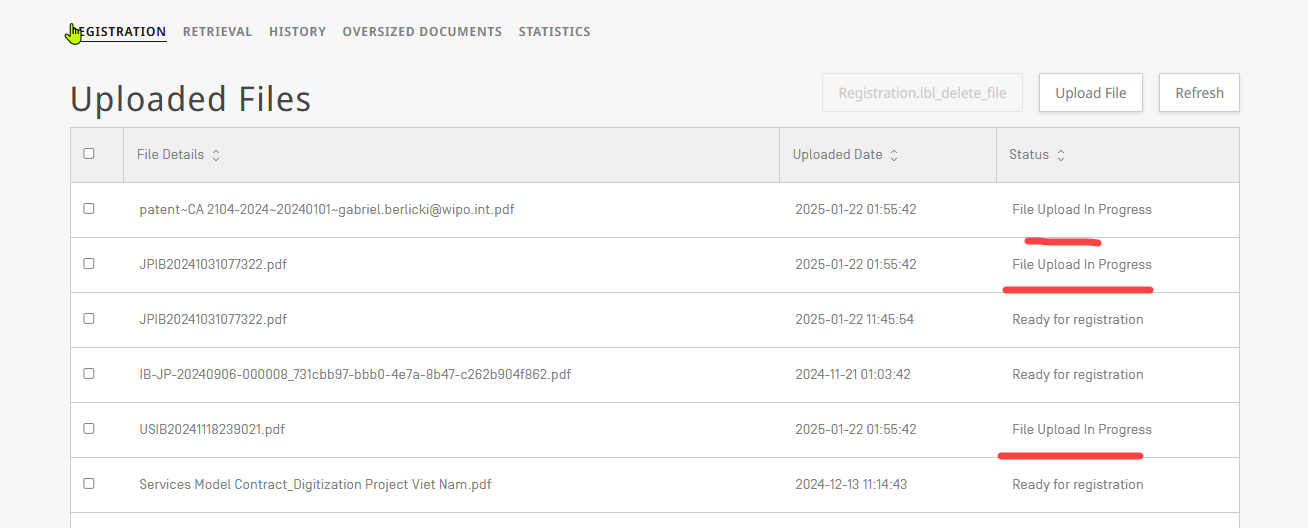 Image Removed Image Removed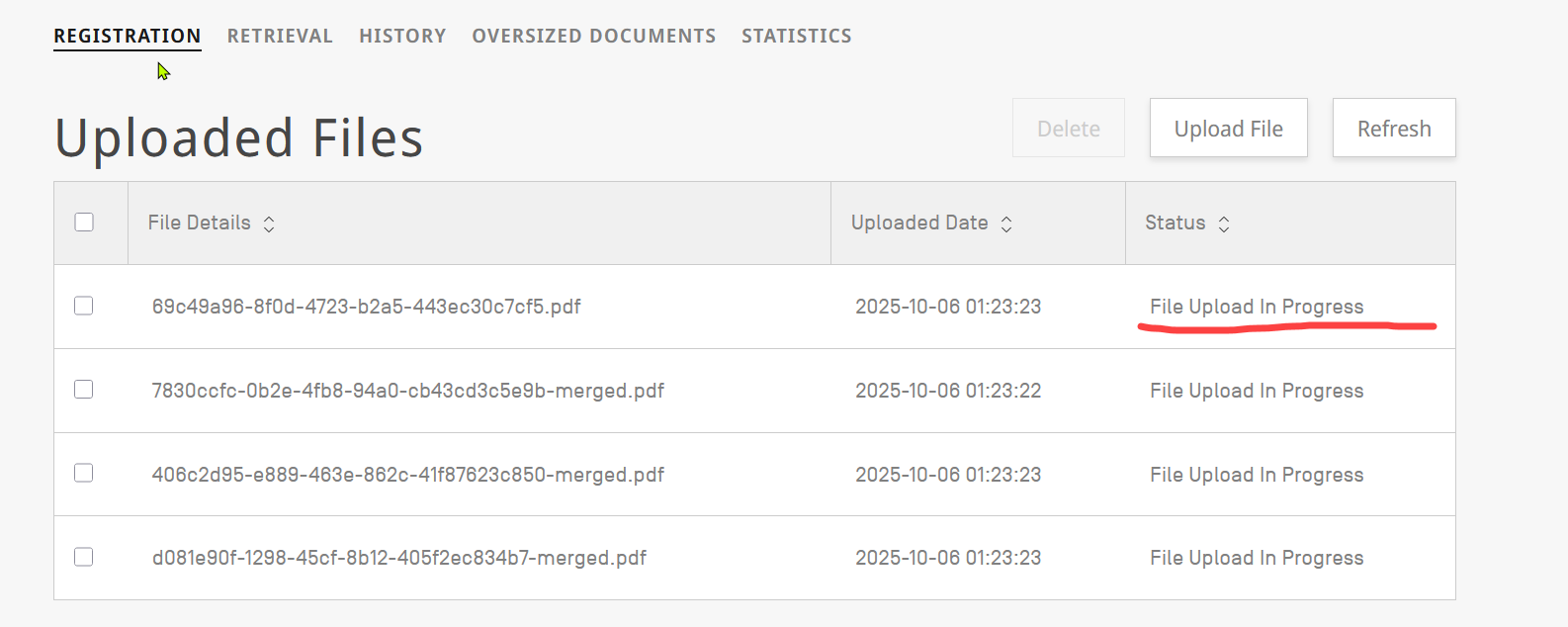 Image Added Image Added
|
|
| 6 | Upload might take a while (depending on the file size), please press "Refresh" from time to time to check if the file is ready for registration: | | Expand |
|---|
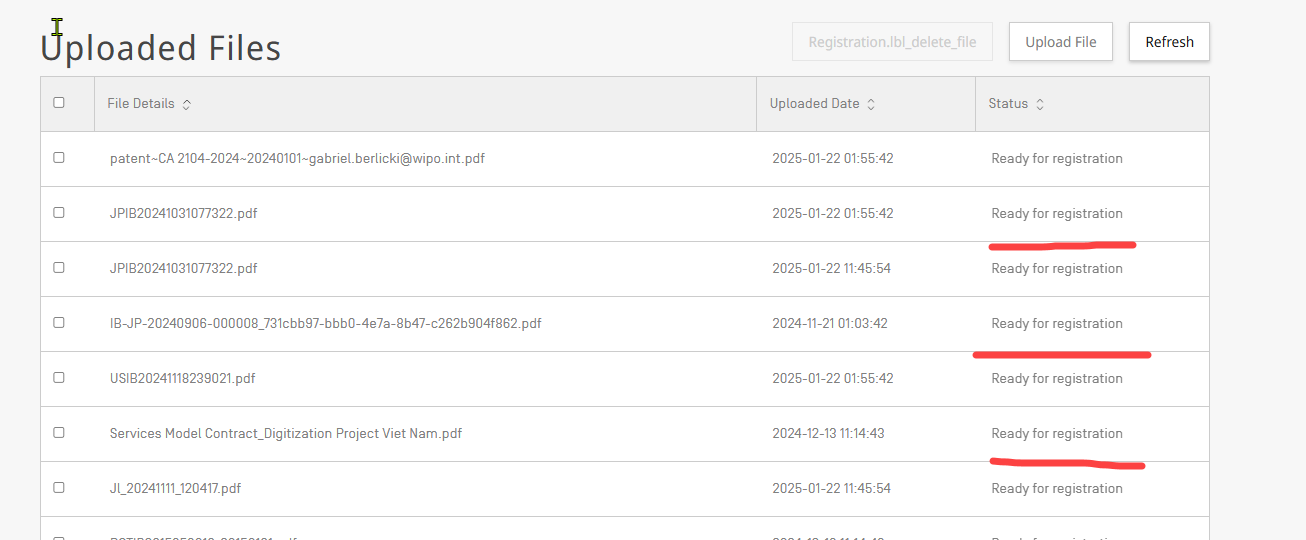 Image Removed Image Removed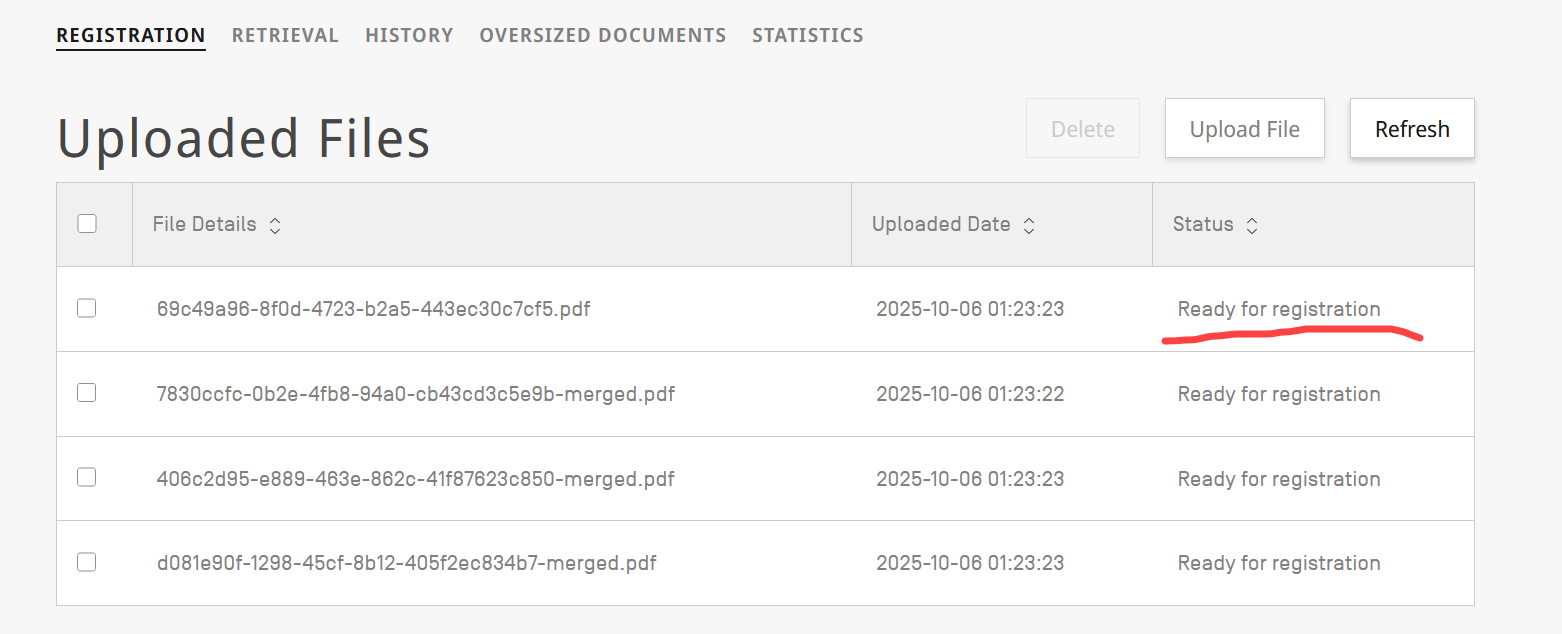 Image Added Image Added
|
|
| 7 | Once the file is ready for registration you can start the process to submit the information of the priority document |
|
| 8 | For registering the document click on the file you want to "register": | | Expand |
|---|
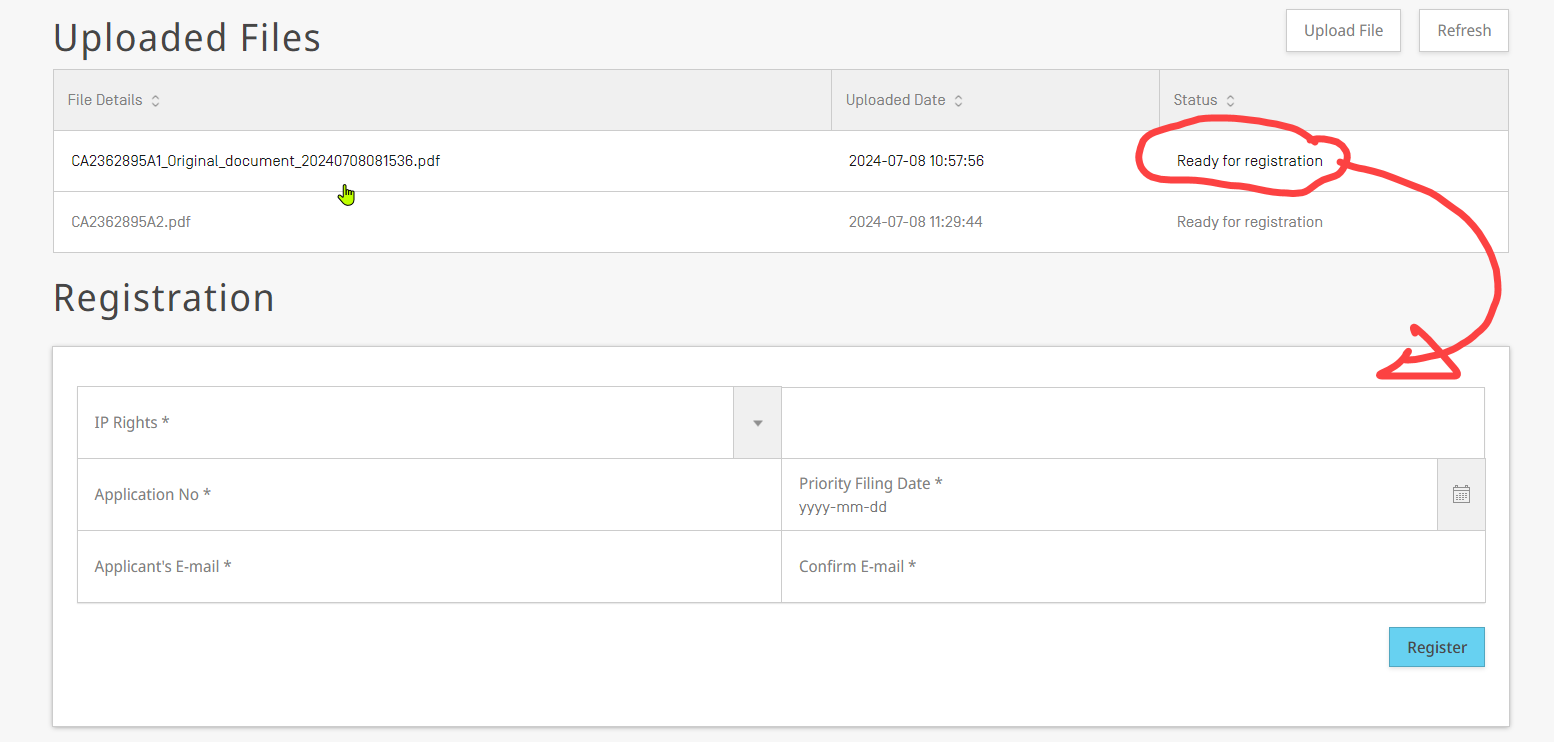 Image Removed Image Removed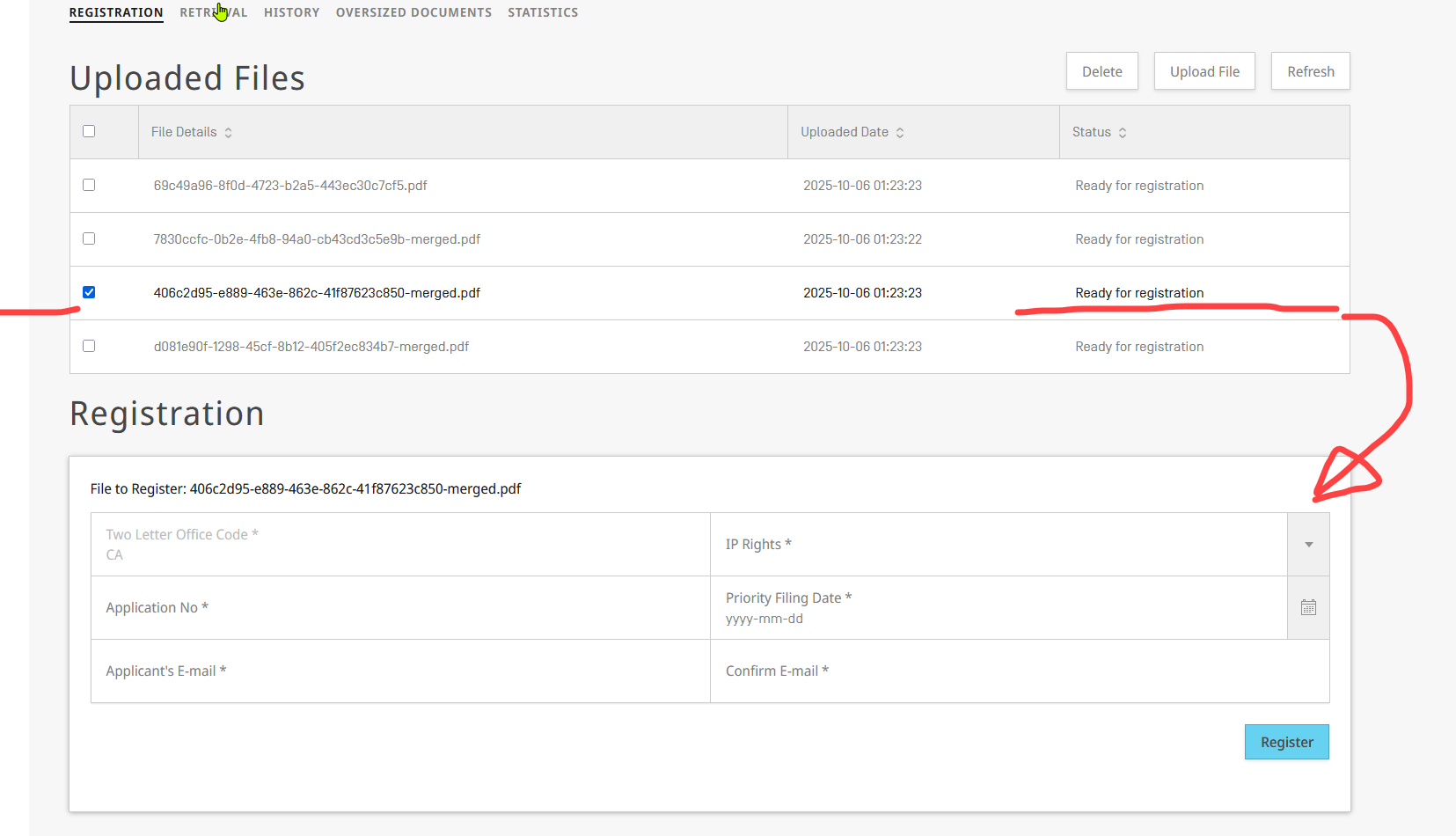 Image Added Image Added
|
|
| 9 | The screen will update, and the registration form will be shown. |
|
| 10 | Then you can start to update the form with the details of the file (of your office that you want to register): | | Expand |
|---|
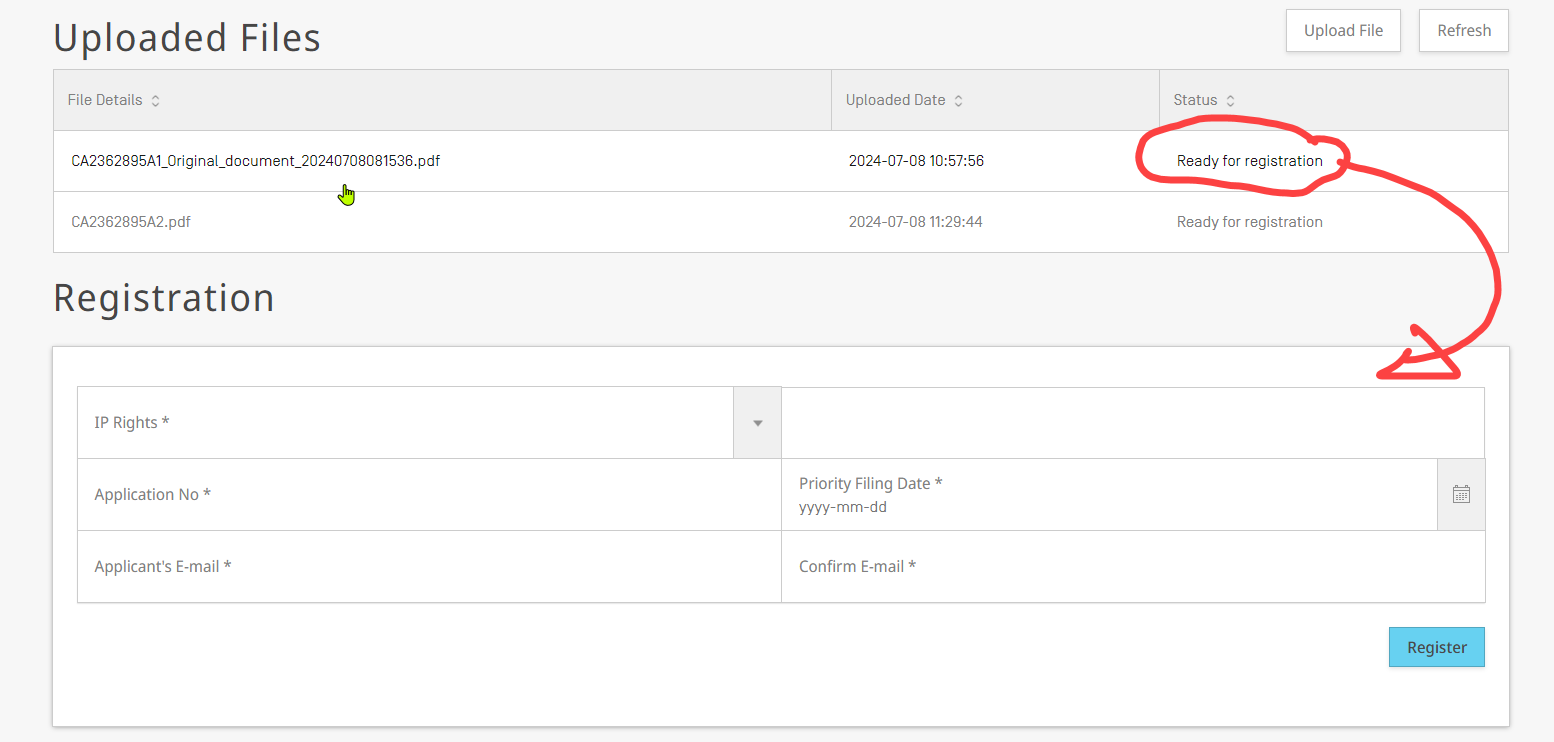 Image Removed Image Removed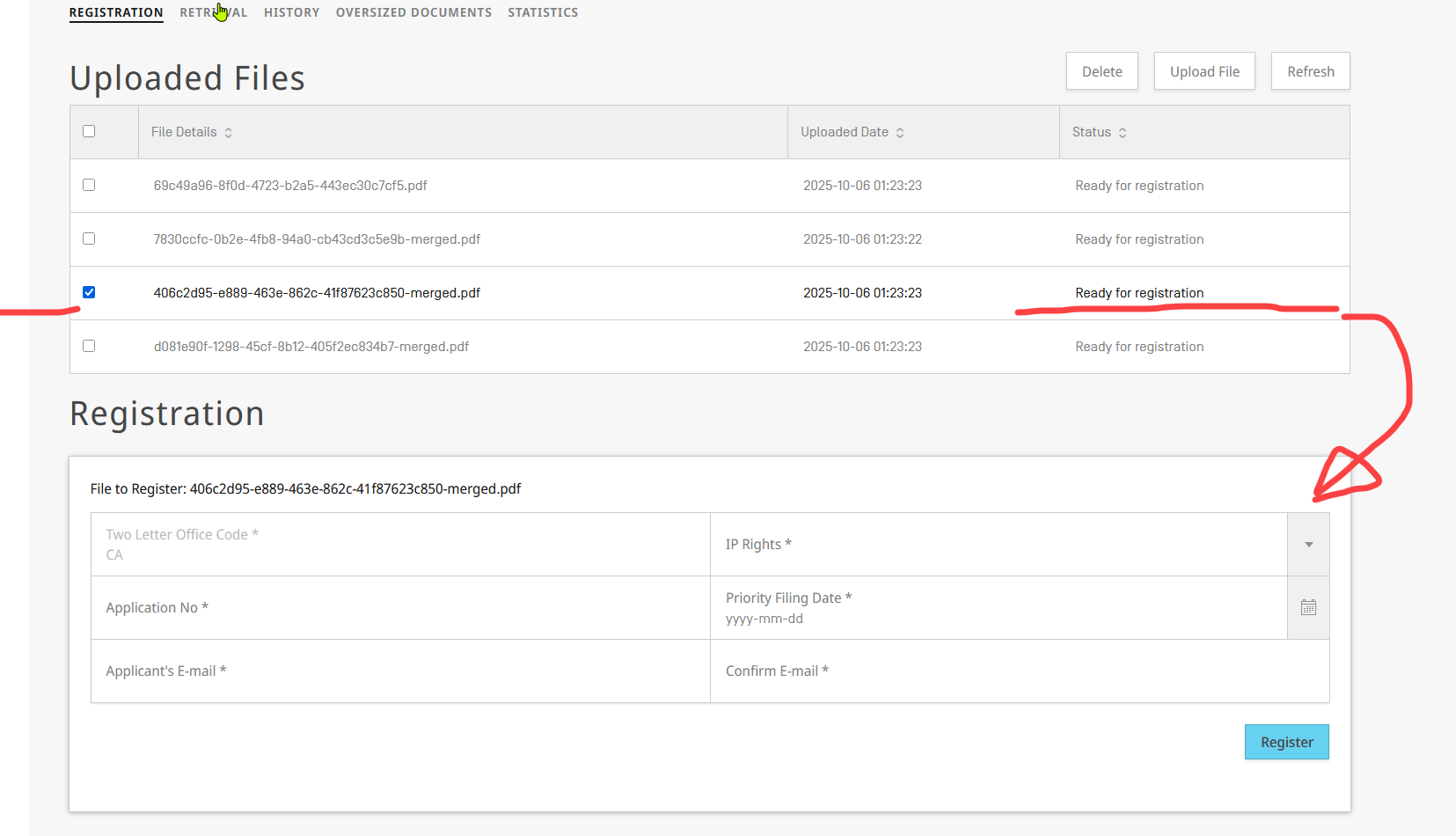 Image Added Image Added
|
|
For filling the form, you need to provide the following information:
...
After pressing on "Register", DAS starts to process the registration:
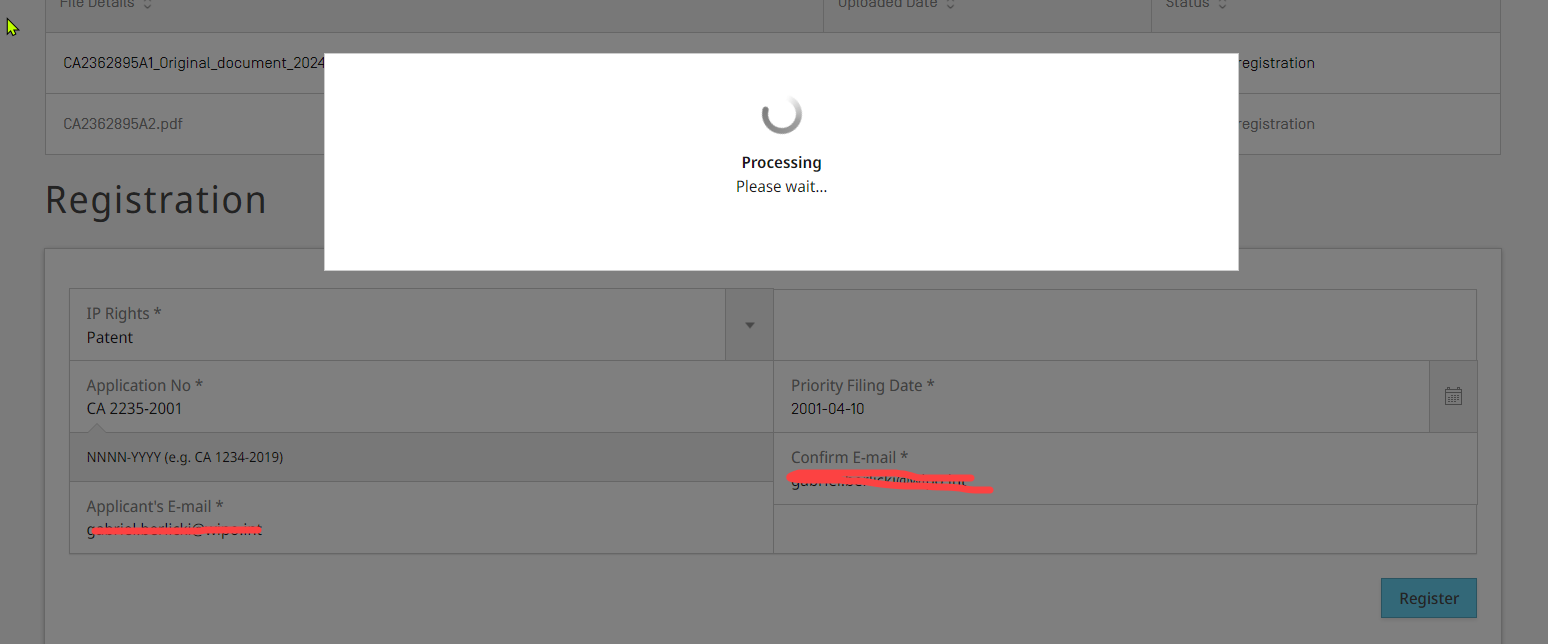 Image Removed
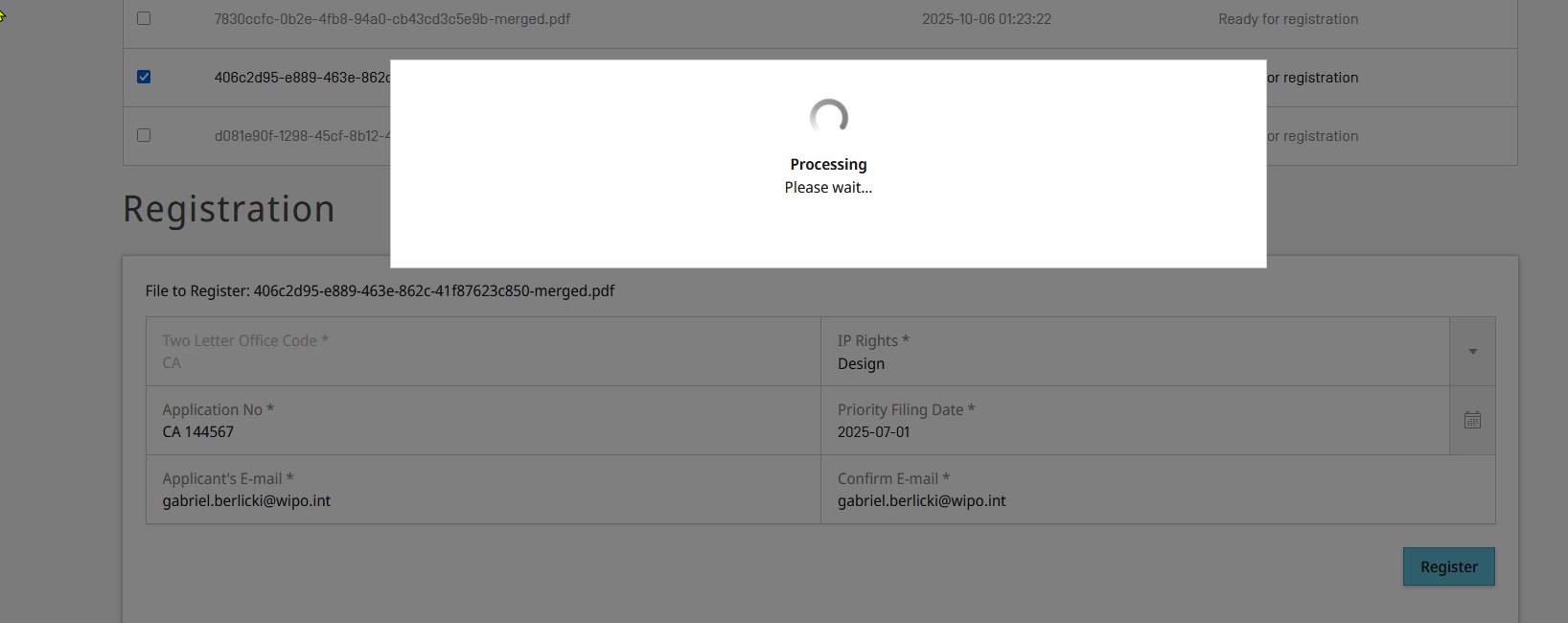 Image Added
The screen will update, and the entry will be removed from the list:
 Image Removed
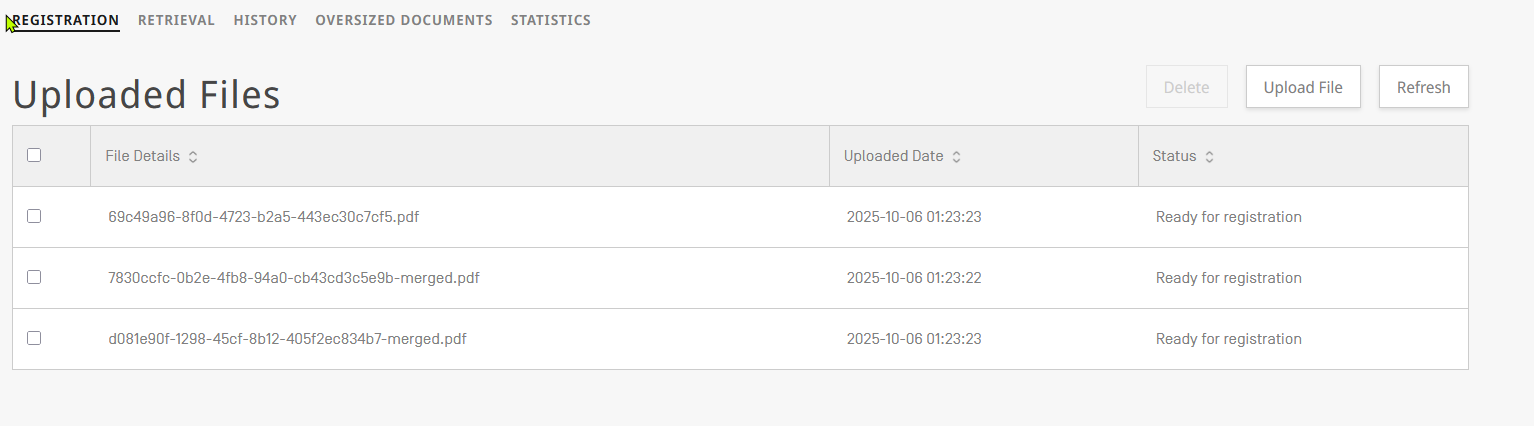 Image Added
| Note |
|---|
OFF has to agree in advance regarding the preferred format for priority document be PDF, and the format shall not be changed once operational. |
| Children Display |
|---|
| page | db.- DAS Office Portal |
|---|
|
...
...
