the account is activated, you have to add the "strong authentication" to it, to allow secure access to the WIPO DAS Office portal. Adding "strong authentication"In order to add strong authentication to your WIPO account (https://www.wipo.int/ipportal-support/wipoaccount/faq), please follow these steps: | Step | Description | Screenshot |
|---|
| 1 | log into the WIPO's IPPortal (https://ipportal.wipo.int/) with your username and password: | | Expand |
|---|
 Image Added Image Added
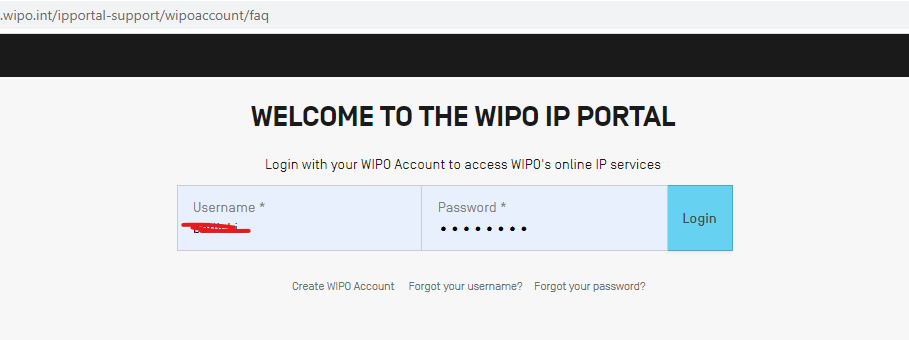 Image Added Image Added
|
| | 2 | Then click on your Name and then in "My WIPO account": | | Expand |
|---|
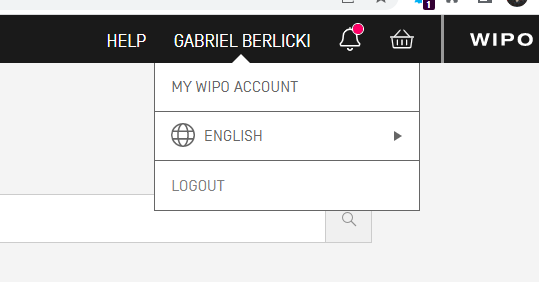 Image Added Image Added
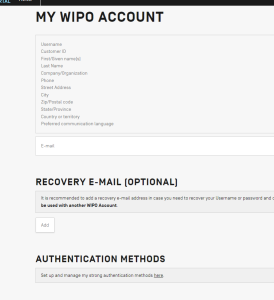 Image Added Image Added
|
| | 3 | Once there, go to the section of "Authentication Methods" and click the link marked "here": | | Expand |
|---|
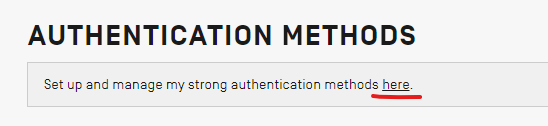 Image Added Image Added |
| | 4 | Click on "Setup authentication method" | | Expand |
|---|
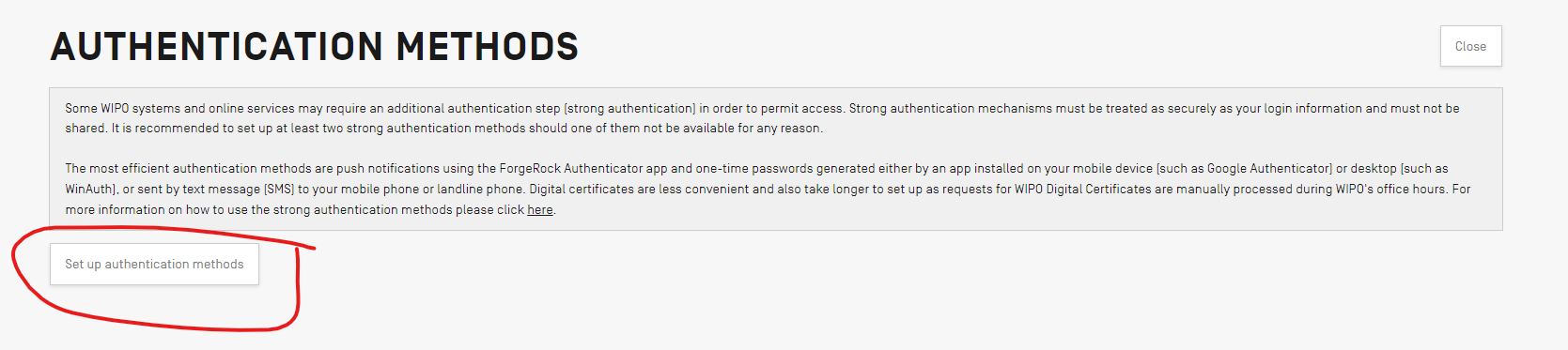 Image Added Image Added
|
| | 5 | Review the indications on the screen and then press "Accept": | | Expand |
|---|
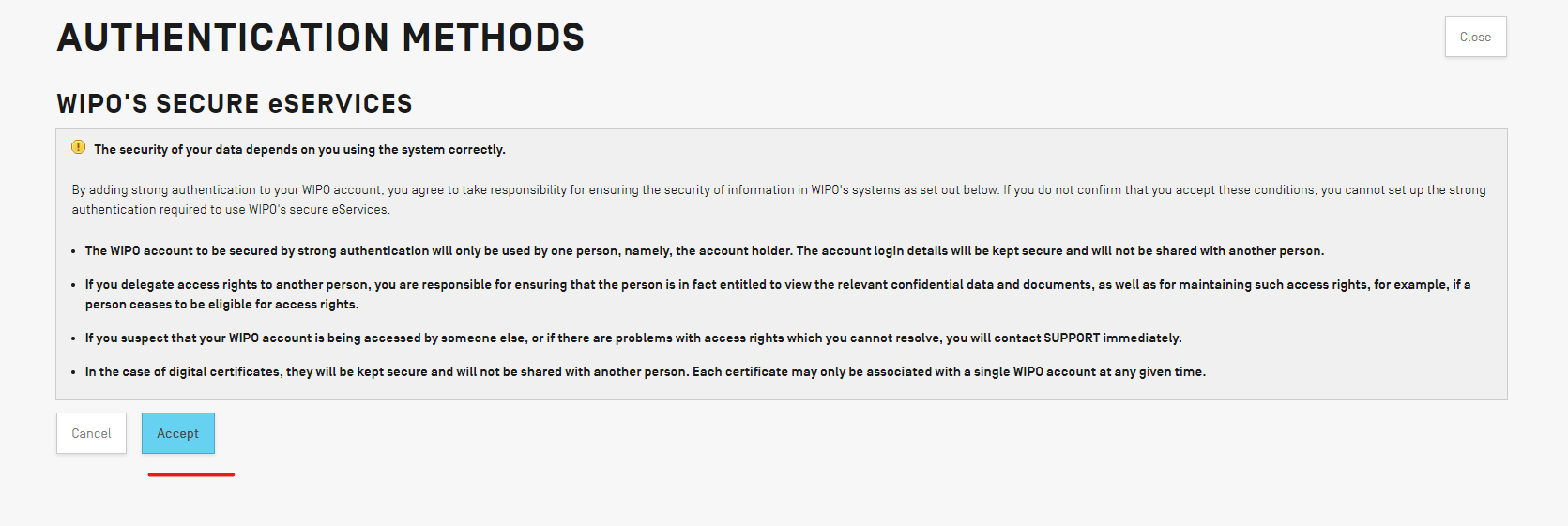 Image Added Image Added
|
| | 6 | The new page will then list the options you'll have to setup the "strong authentication method": | | Expand |
|---|
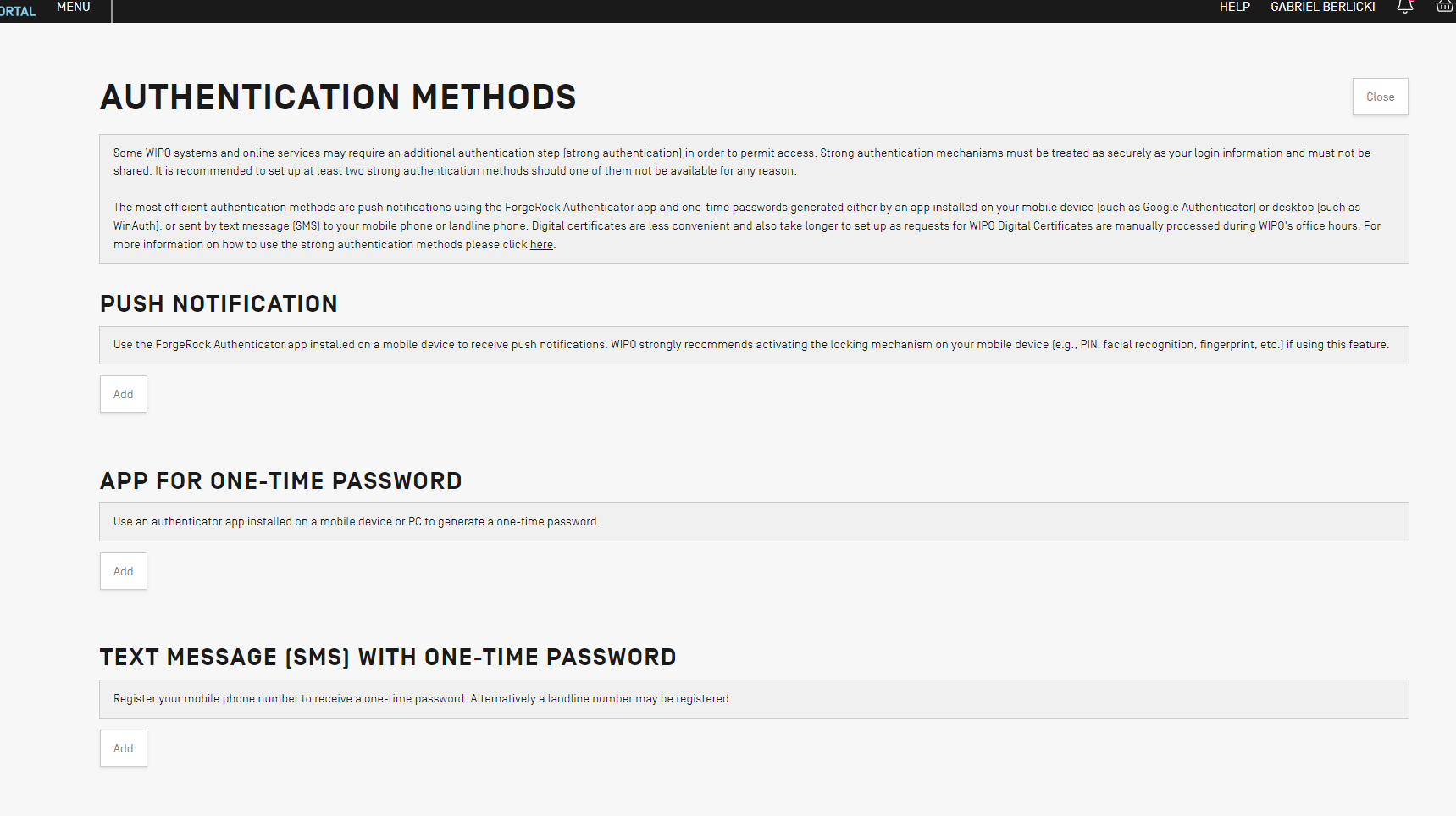 Image Added Image Added
|
| | 7 | The indications will vary depending on the case, for example, for using an "APP for one-time password": | | Expand |
|---|
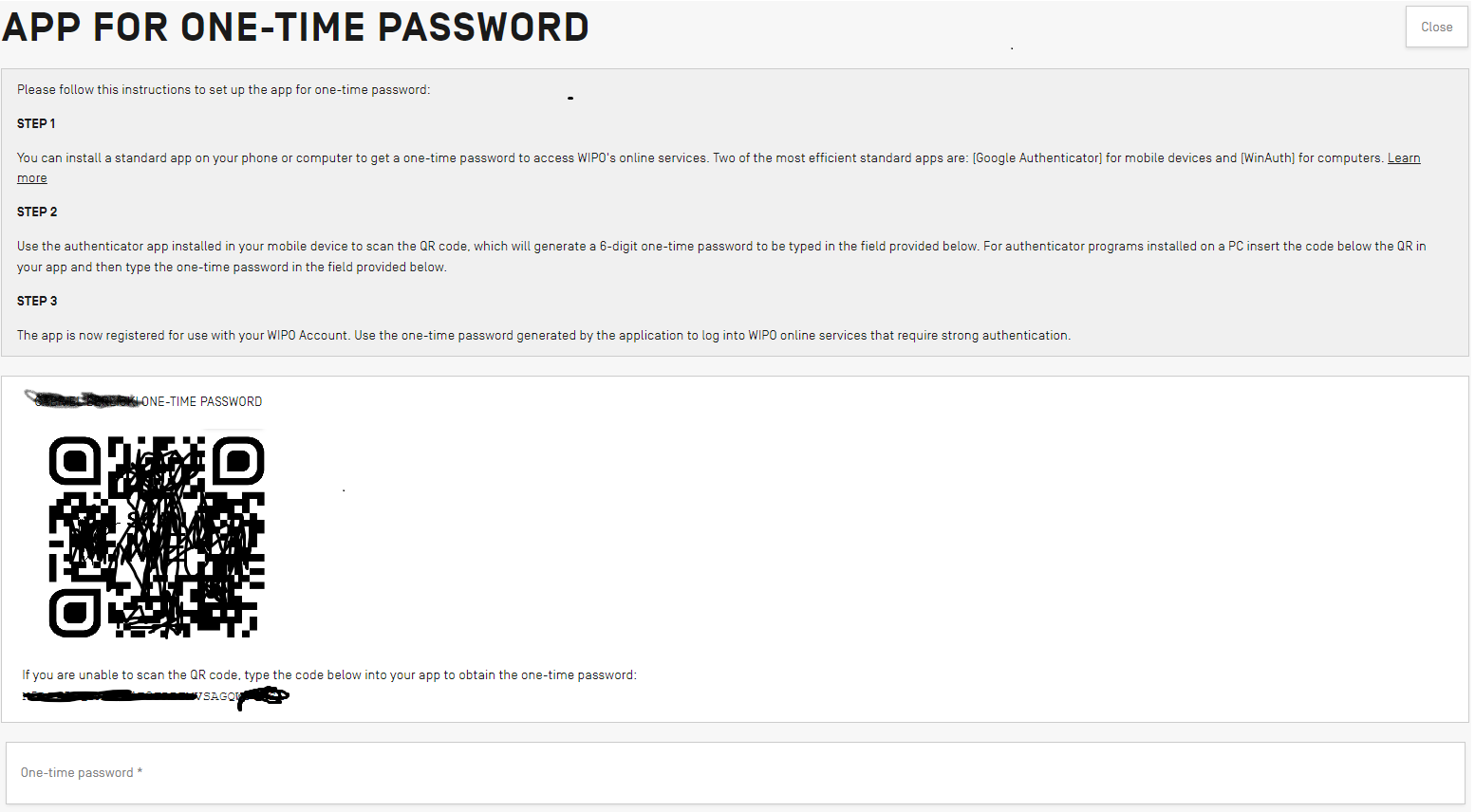 Image Added Image Added
|
| | 8 | After the "one-time password" is setup, you will be able to access the sections of the IP Portal that require "strong authentication" via: go to the IP Portal website while trying to login, use your normal username and password then to access DAS Office portal, click on "Menu": | | Expand |
|---|
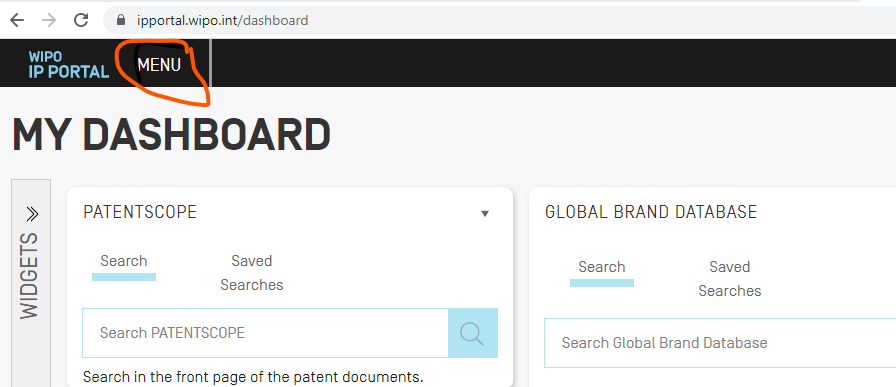 Image Added Image Added
|
| | 9 | it will show the different services: | | Expand |
|---|
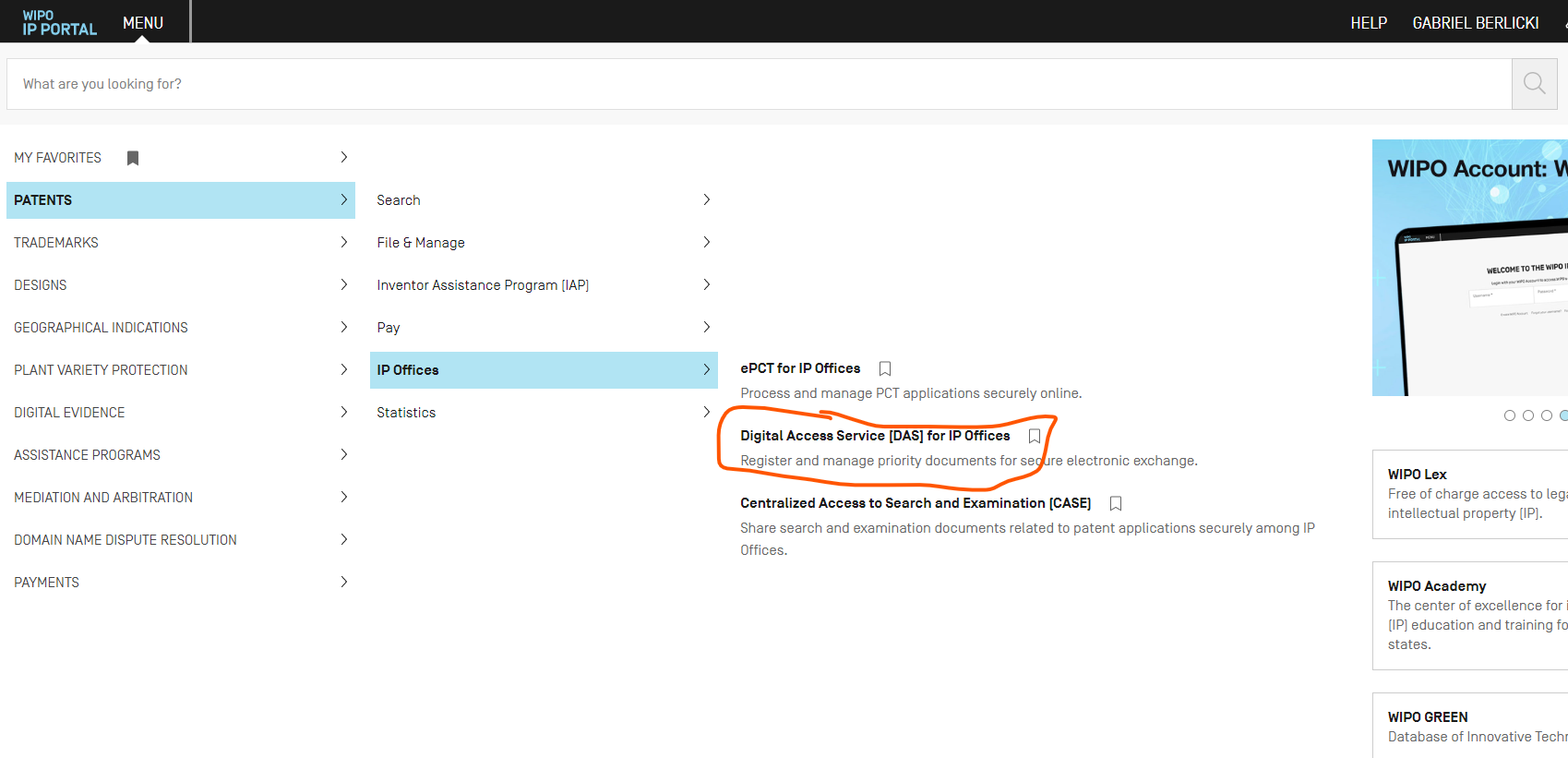 Image Added Image Added
|
| | 10 | after clicking on DAS, it will show a new page, requesting to add the "strong authentication method": | | Expand |
|---|
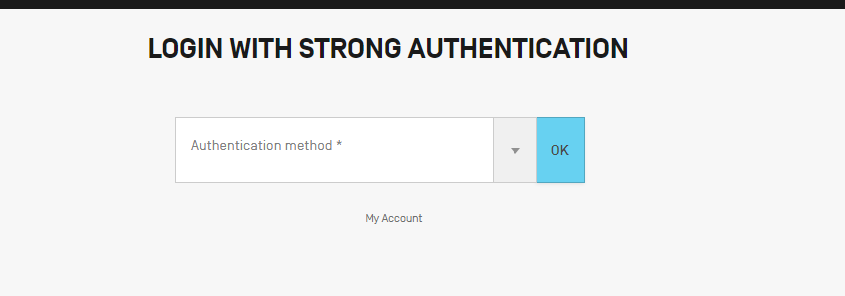 Image Added Image Added
|
| | 11 | you select the method, you've chosen, in this case the "app one time password": | | Expand |
|---|
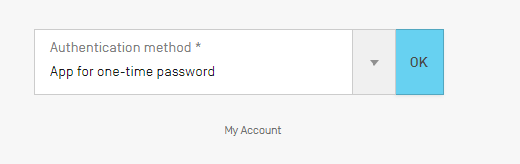 Image Added Image Added
|
| | 12 | after pressing on OK, it will ask to enter the app password: | | Expand |
|---|
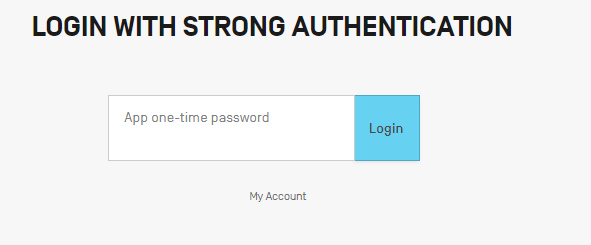 Image Added Image Added
|
| | 13 | after adding the password and pressing on "Login", you will probably receive the following error, as your profile has not been updated with the WIPO DAS Role (see bellow). In order to access to the system, you will need to wait, until the request to update your user is processed. | | Expand |
|---|
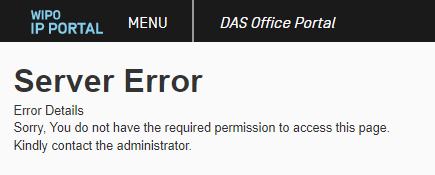 Image Added Image Added
|
|
Granting access to WIPO DAS (Production)After that, you need to request access to the DAS Office Portal by | 