
This screen is to make the registration request as an OFF (Office of First Filing).
| Expand | ||
|---|---|---|
|
...
| |
Following the click of registration button a request will be posted to WIPO DAS system. The actual operation may take about 15 minutes, on successful registration and email is sent to the applicant's email address with DAS access code with a 4 digit hexadecimal characters. Once the request is processed its status with details will appear in the history screen. |
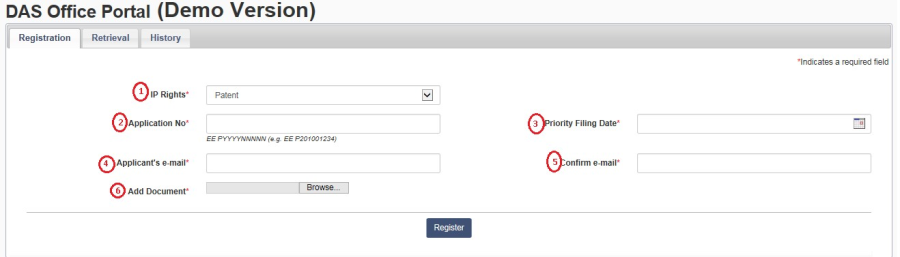
Description of the fields marked in RED are provided as follows:
...
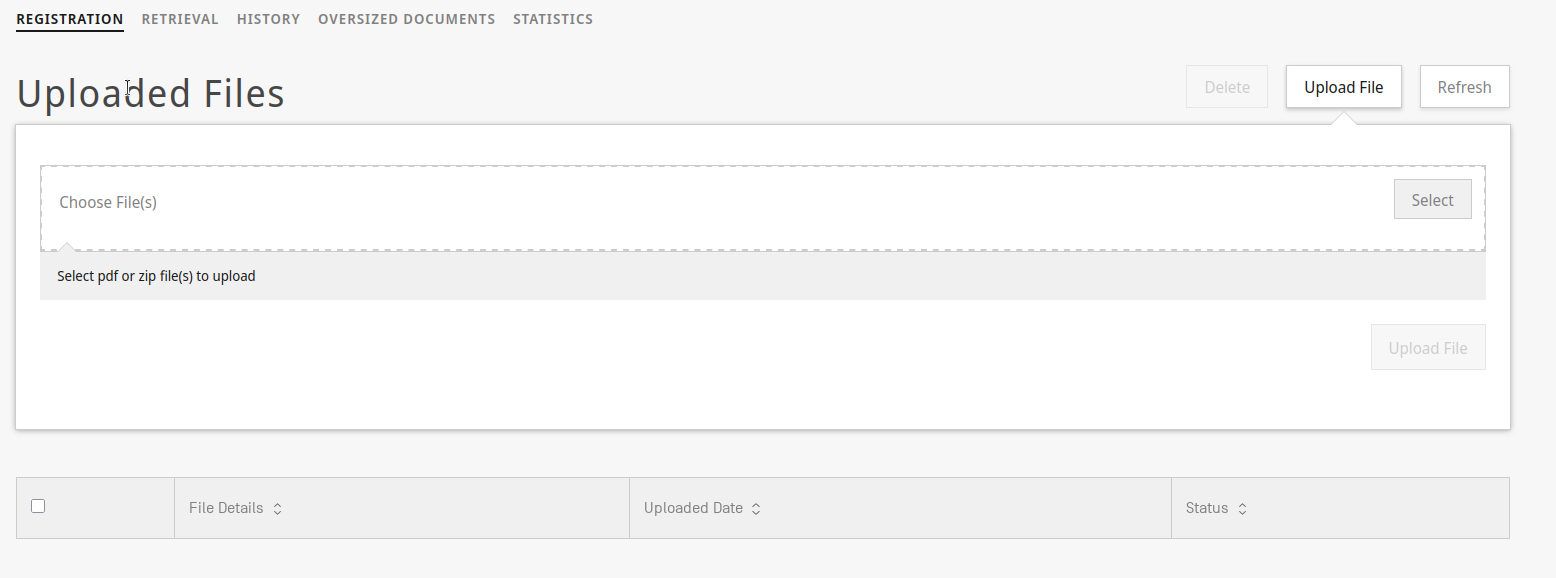
After login into the system and when you click on the registration tab, you will see the following:

Due to the changes on the system, you now have to first upload the file to DAS, to be able (after is uploaded) to fill the form with the registration details:
| 1 | start by pressing in the "Upload File" button: |
| ||||
| 2 | A dialog will be shown to allow you to upload the pdf file(s) of the document:
|
| ||||
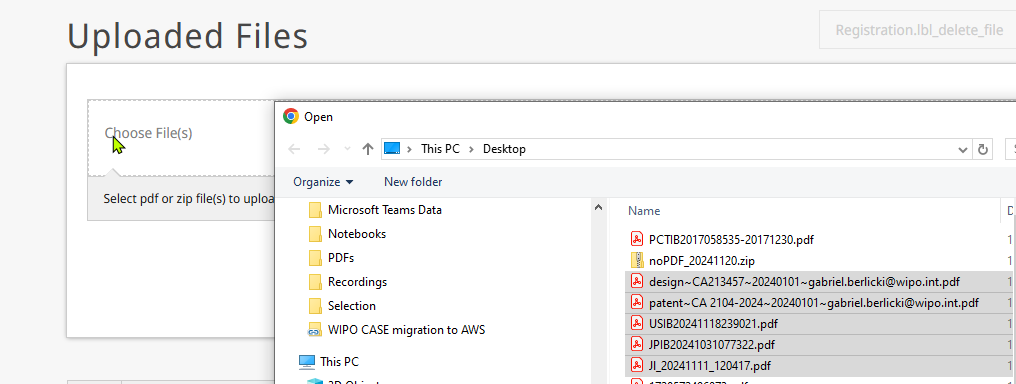
| 3 | press on "Select", navigate to the folder where you have the file to submit, and then press on "upload file": |
| ||||
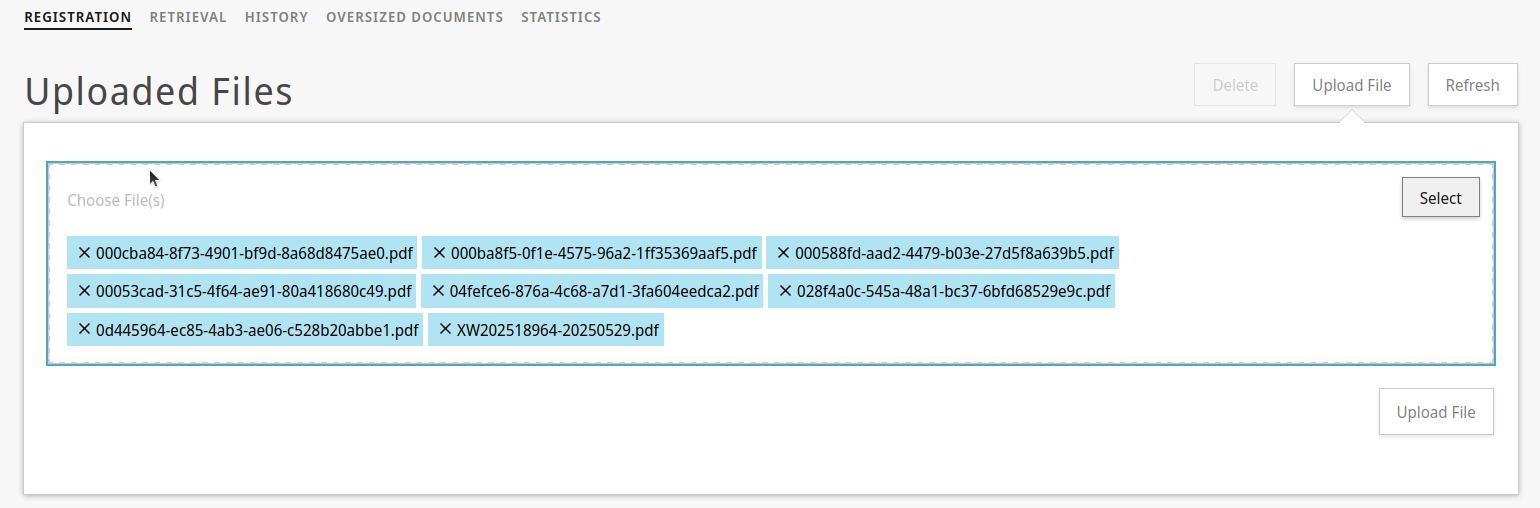
| 4 | The system will start to upload the file to WIPO DAS: |
| ||||
| 5 | The screen will then update and will show the file you send to upload to das.
|
| ||||
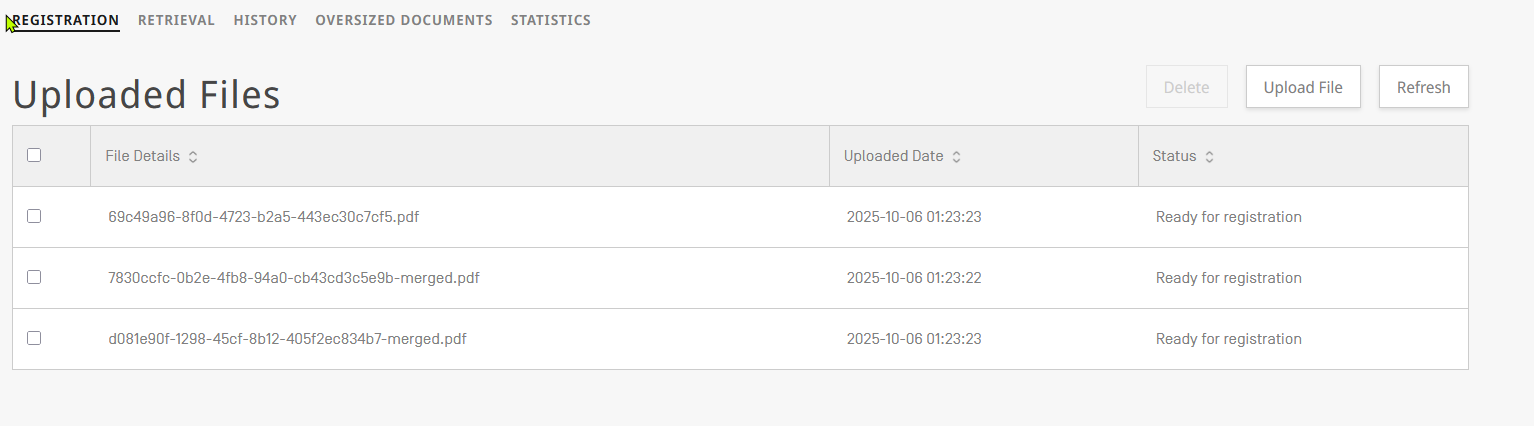
| 6 | Upload might take a while (depending on the file size), please press "Refresh" from time to time to check if the file is ready for registration: |
| ||||
| 7 | Once the file is ready for registration you can start the process to submit the information of the priority document | |||||
| 8 | For registering the document click on the file you want to "register": |
| ||||
| 9 | The screen will update, and the registration form will be shown. | |||||
| 10 | Then you can start to update the form with the details of the file (of your office that you want to register): |
|

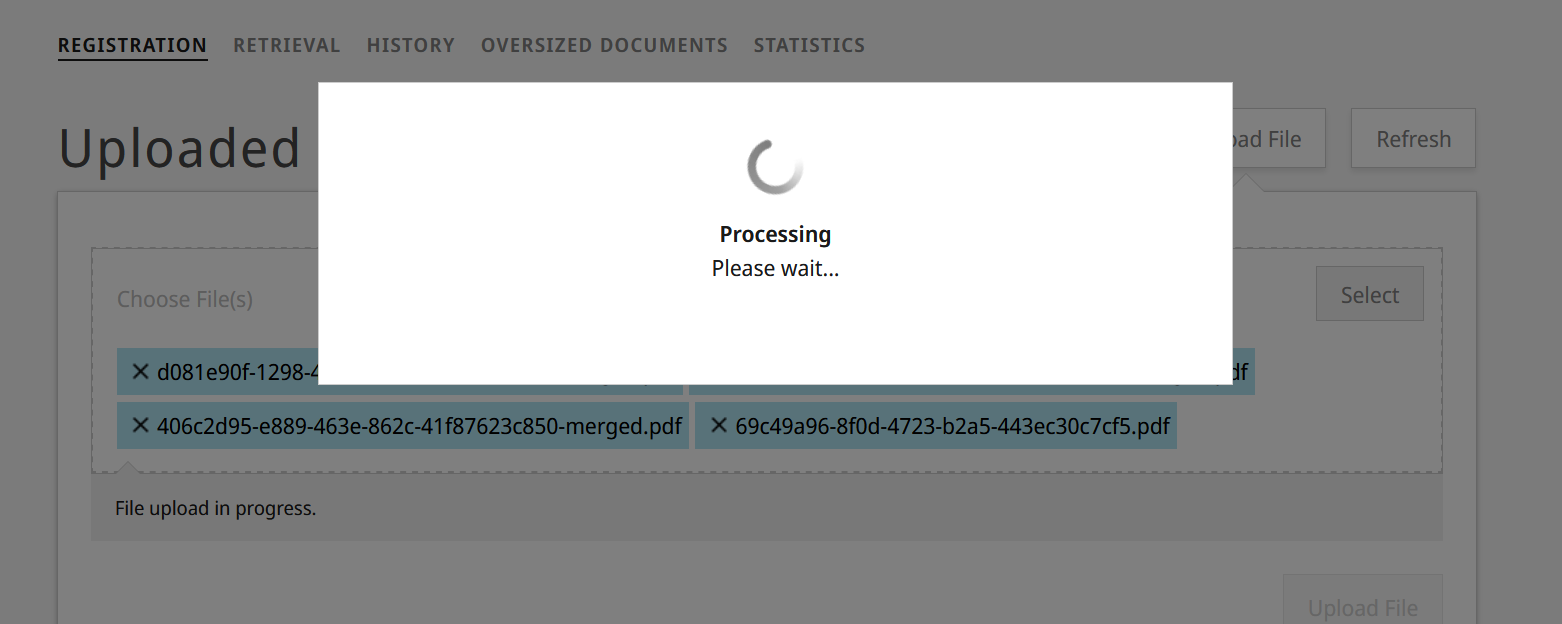
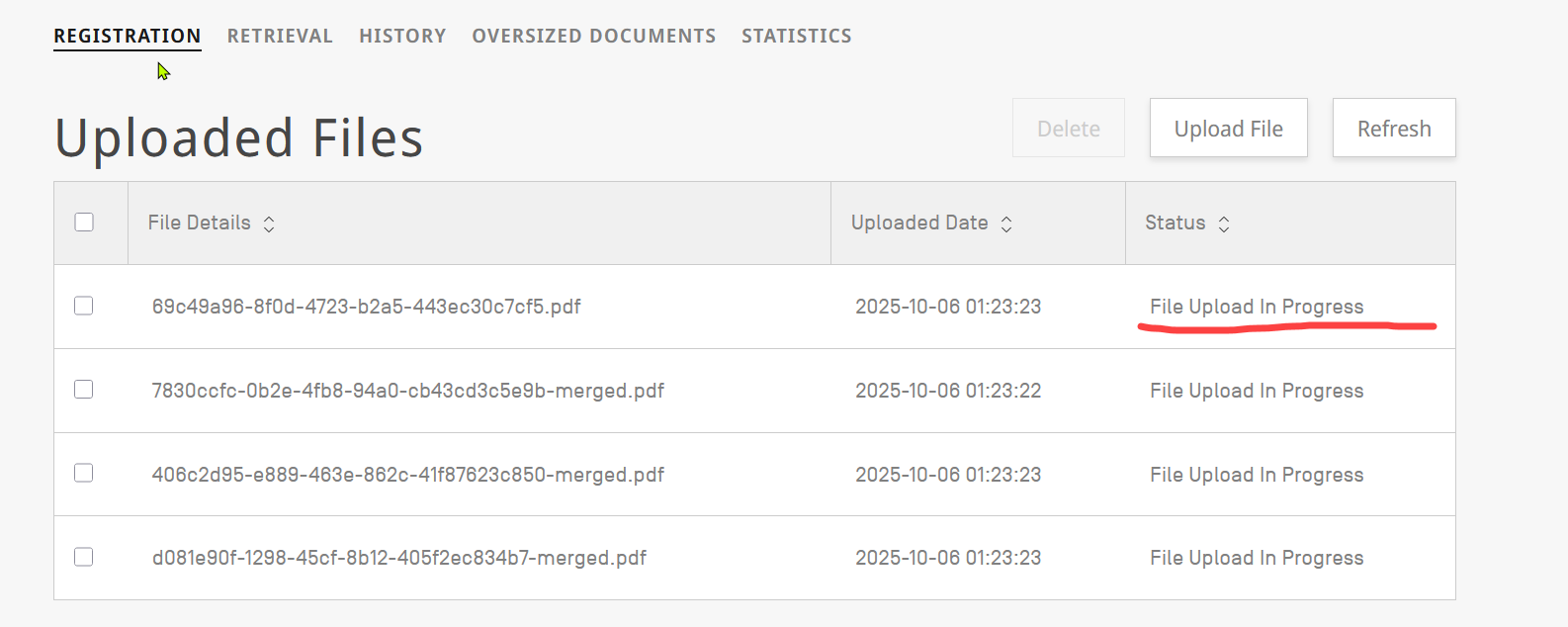
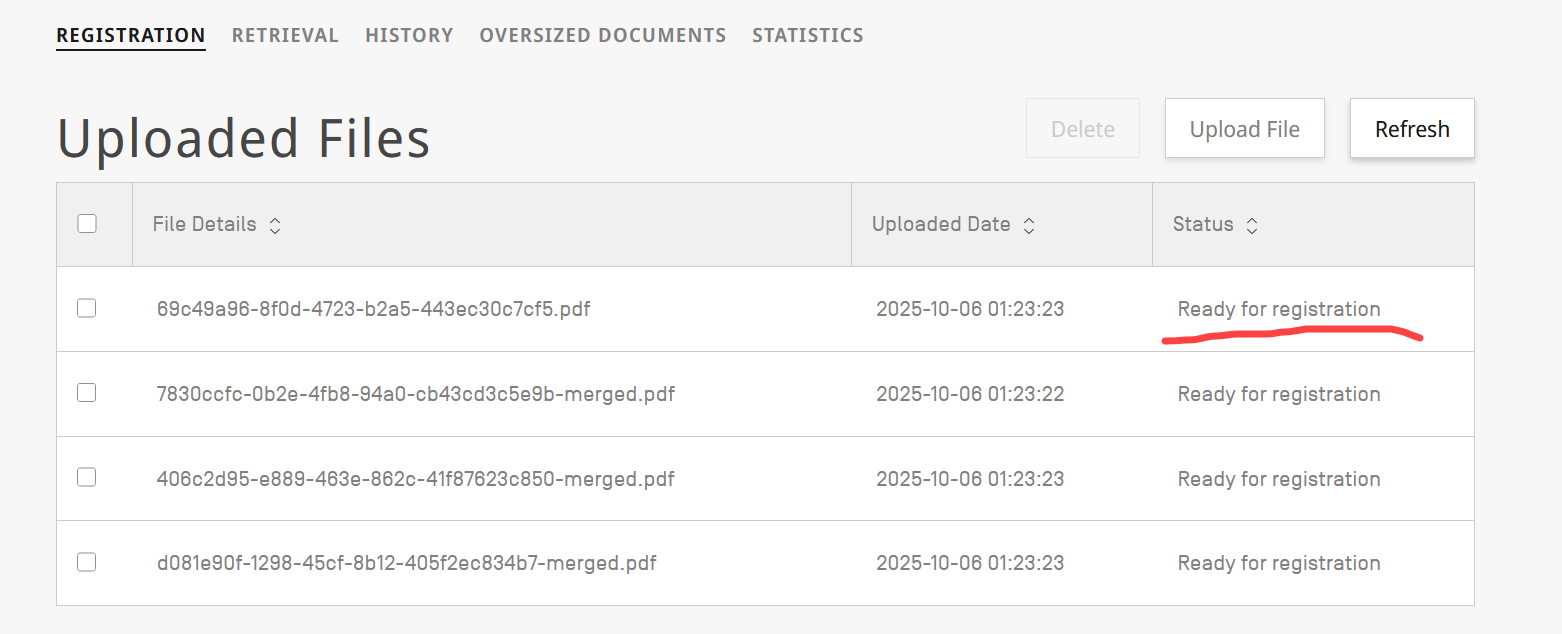
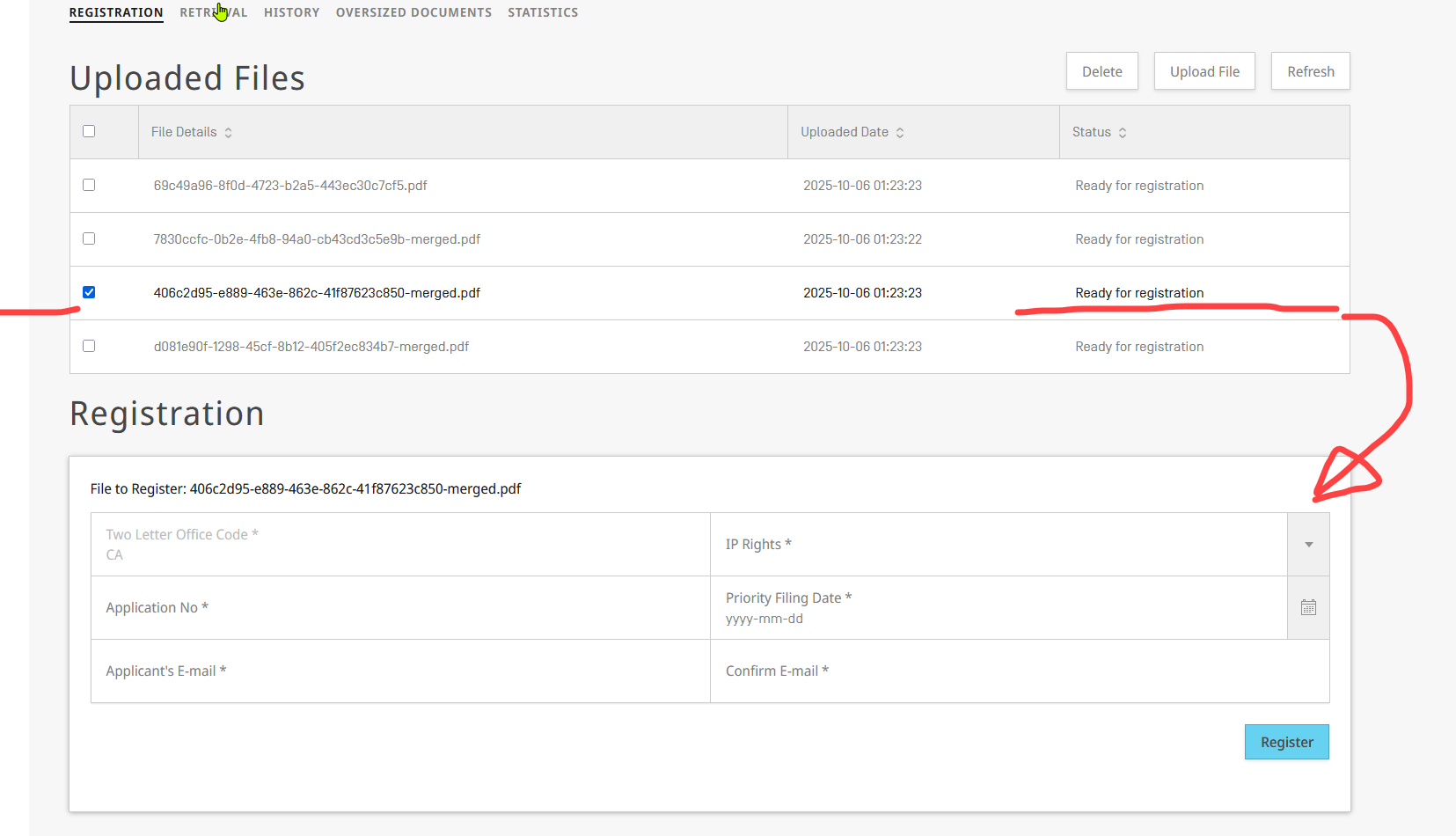
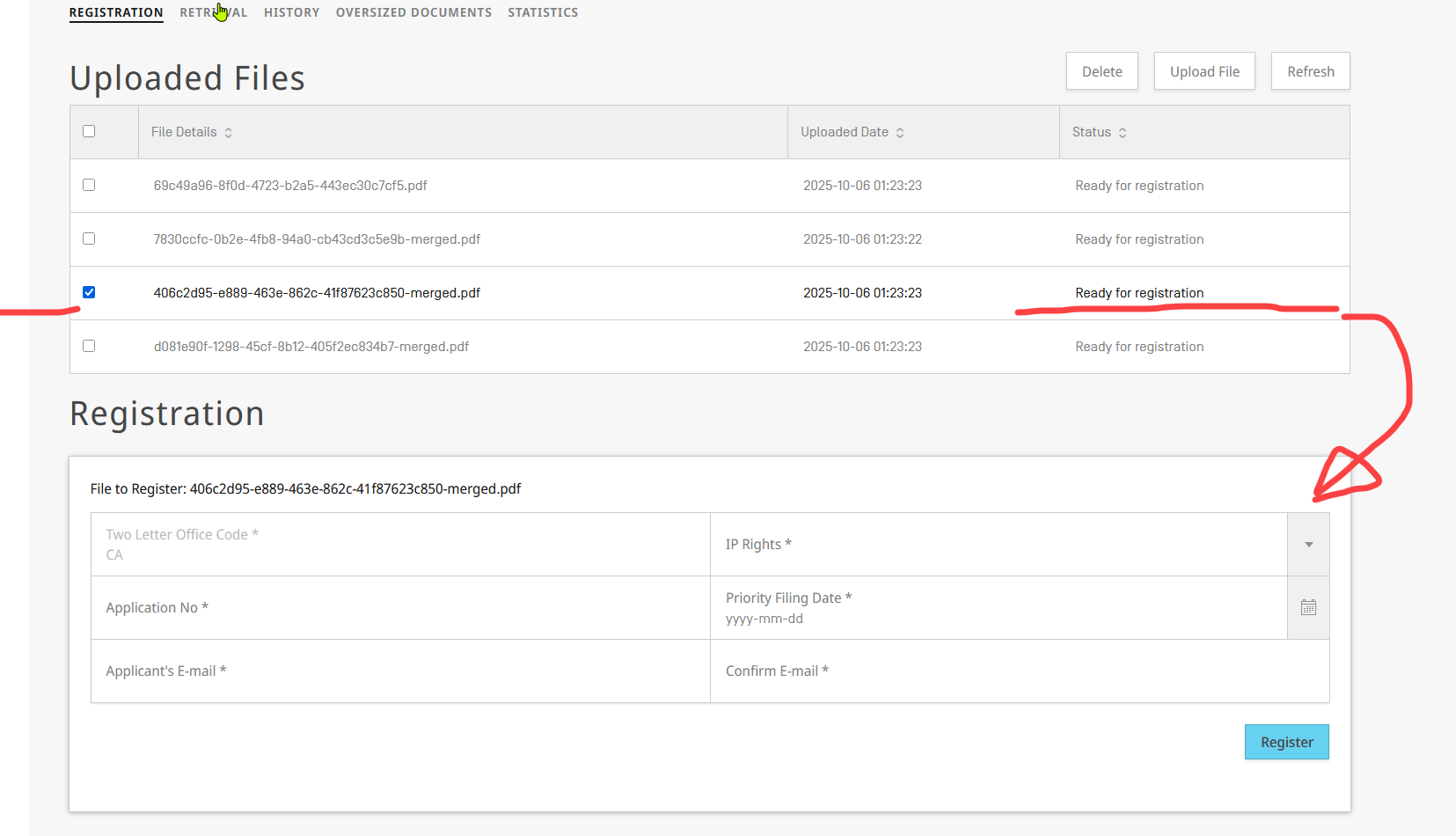
For filling the form, you need to provide the following information:
| Item | Options | Notes | ||||
|---|---|---|---|---|---|---|
| Two Letter Office Code | the country code of the IP Office from which you would want to retrieve the file | https://www.wipo.int/documents/d/standards/docs-en-03-03-01.pdf | ||||
| IP Rights | Patent | The type of IP Right depends on the configuration of your Office, to check the scope of your office, you could consult the following webpage: | ||||
| Design | ||||||
| Utility Model | ||||||
| Trademark | ||||||
| Application No | text field (Office Application number) | Here you should enter the information of the application, you need to match the forma to the application number in use by your office:
| ||||
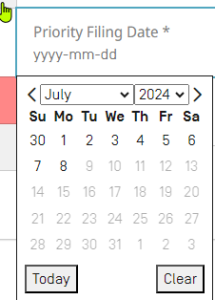
| Priority filing date | Date field | You will have to select the date for the filing date :
| ||||
| Applicant E-mail | The email of the applicant, to which WIPO DAS will take care of sending the access code, after the form is submitted. | Be aware of the validation on the U.I.:
| ||||
| Confirm E-mail |
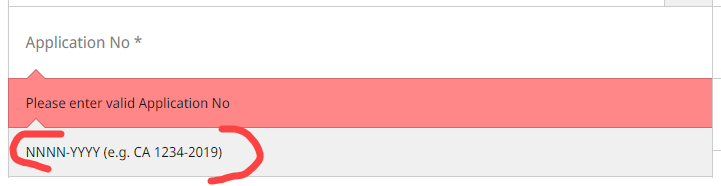

After pressing on "Register", DAS starts to process the registration:
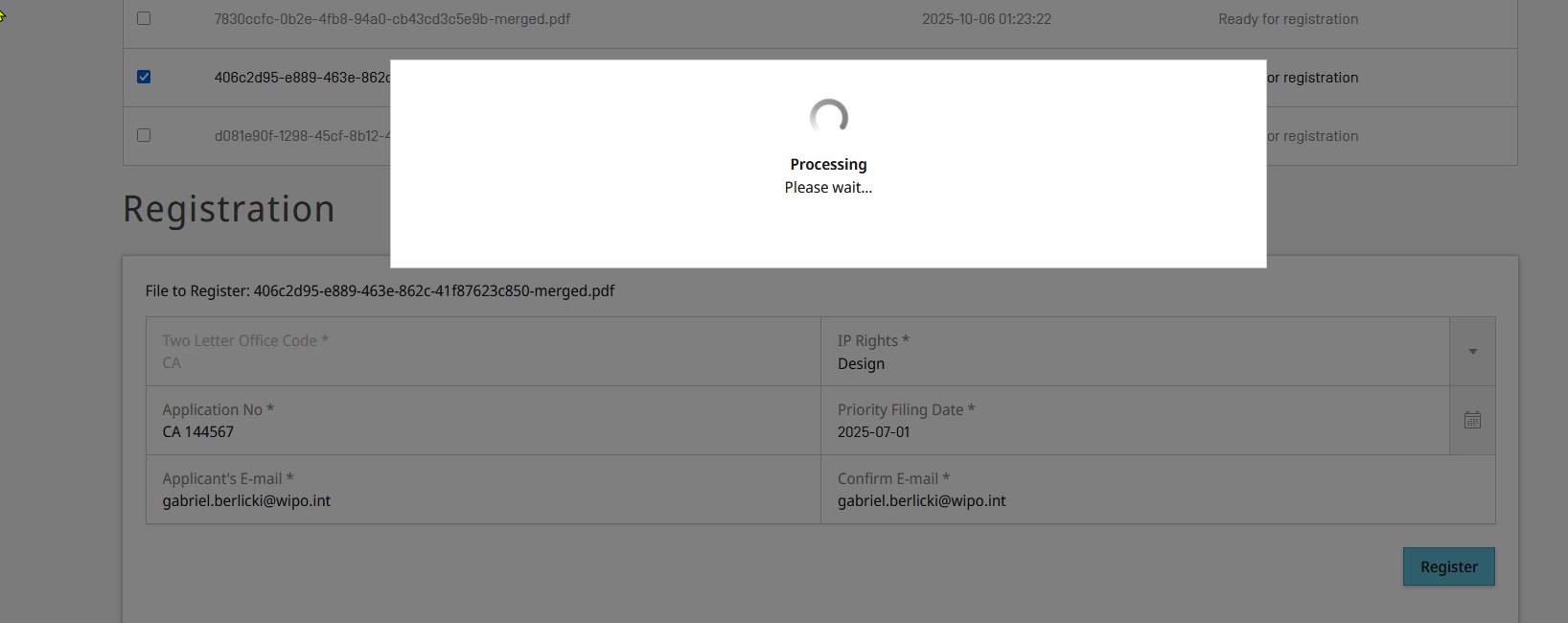
The screen will update, and the entry will be removed from the list:
...
Use this browse button and select the Priority document (either PDF or a ZIP containing multi page tiffs). DAS system accepts PDF with all the fonts embedded in the document, however there is an exclusion only for the following fonts:
...
| Note |
|---|
OFF has to agree in advance regarding the preferred format of for priority document either be PDF or TIF, and the format shall not be changed once operational. |
| Children Display | ||
|---|---|---|
|
...
| Children Display | ||
|---|---|---|
|