This screen is to make the registration request describes the form in use for doing a registration in WIPO DAS as an OFF (Office of First Filing) following the requirements agreed by WIPO's Member States during the discussion of the Standard ST.92
...
| title | Registration is not instant... |
|---|
Following the click of registration button a request will be posted to WIPO DAS system.
The actual operation may take about 15 minutes, on successful registration and email is sent to the applicant's email address with DAS access code with a 4 digit hexadecimal characters.
| Warning |
|---|
This form and associated processes will become mandatory once ST.92 starts on July 1st, 2026. Until then, the official form for submissions to WIPO DAS is described here: d.4.2.0.- Legacy Registration request |
Registration page:
...
After login into the system and when you click on the registration tab, you will see the following:
 Image Removed
...
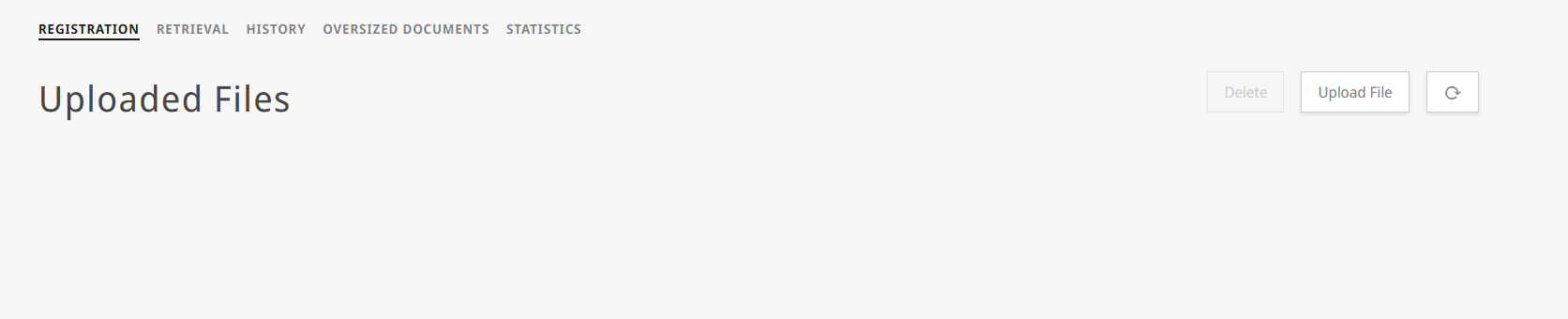 Image Added
File upload
| 1 | start by pressing in the "Upload File" button: | | Expand |
|---|
 Image Modified Image Modified
|
|
| 2 | A dialog will be shown to allow you to upload the |
pdf file(s) of the document(s) that have to be registered: |
The dialog has been updated and it now allows uploading multiple files at the same time: |
Be aware that, due to ST.92 the portal now allow to upload PDF,JPG,PNG, XML or TXT files |
| | Expand |
|---|
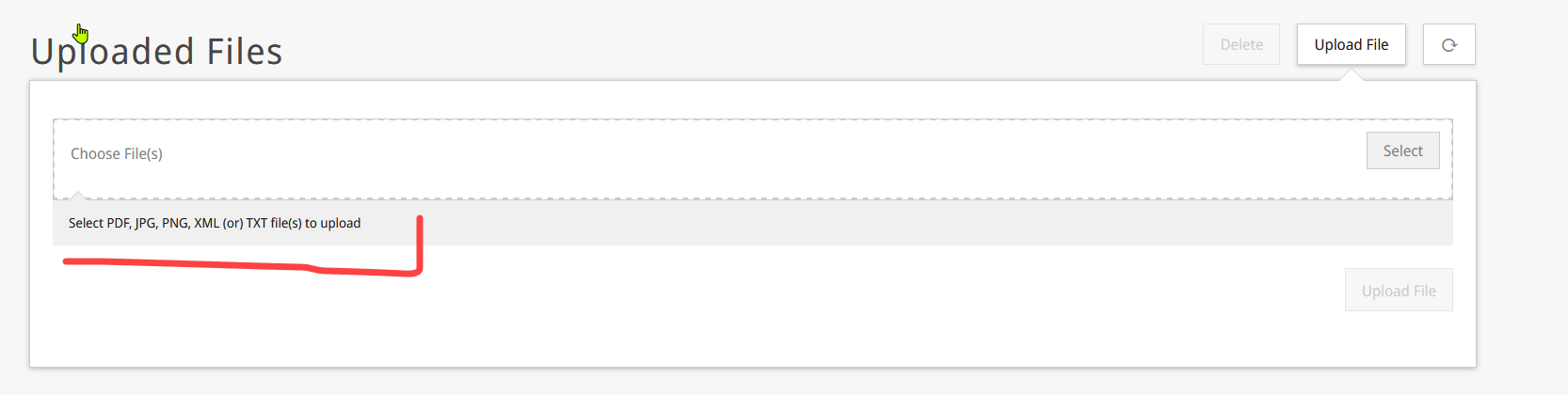 Image Added Image Added
|
|
| Expand |
|---|
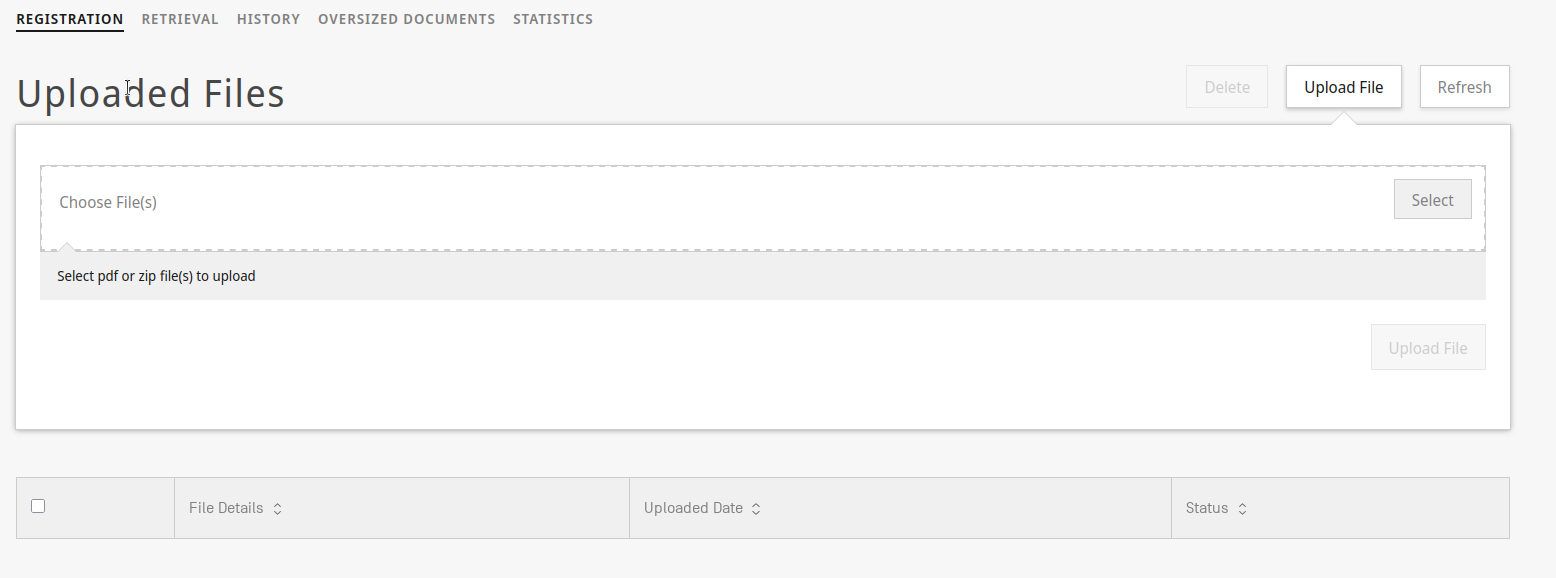 Image Removed
 |
| 3 | press on "Select", navigate to the folder where you have the file to submit, and then press on "upload file": | | Expand |
|---|
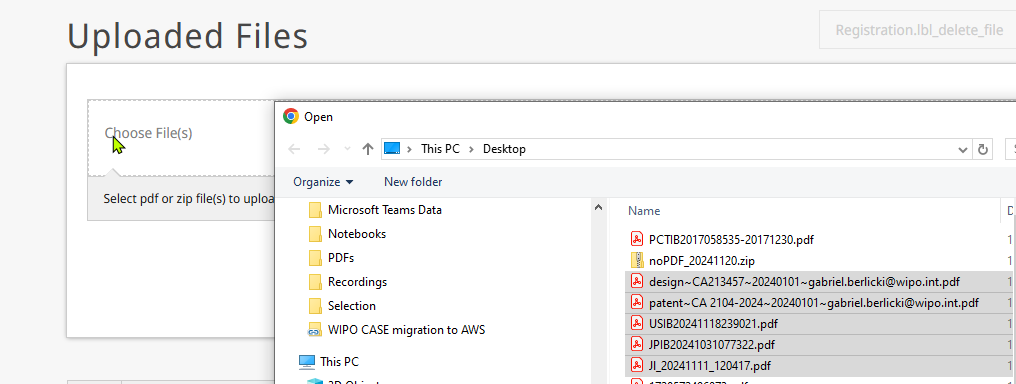 Image Modified Image Modified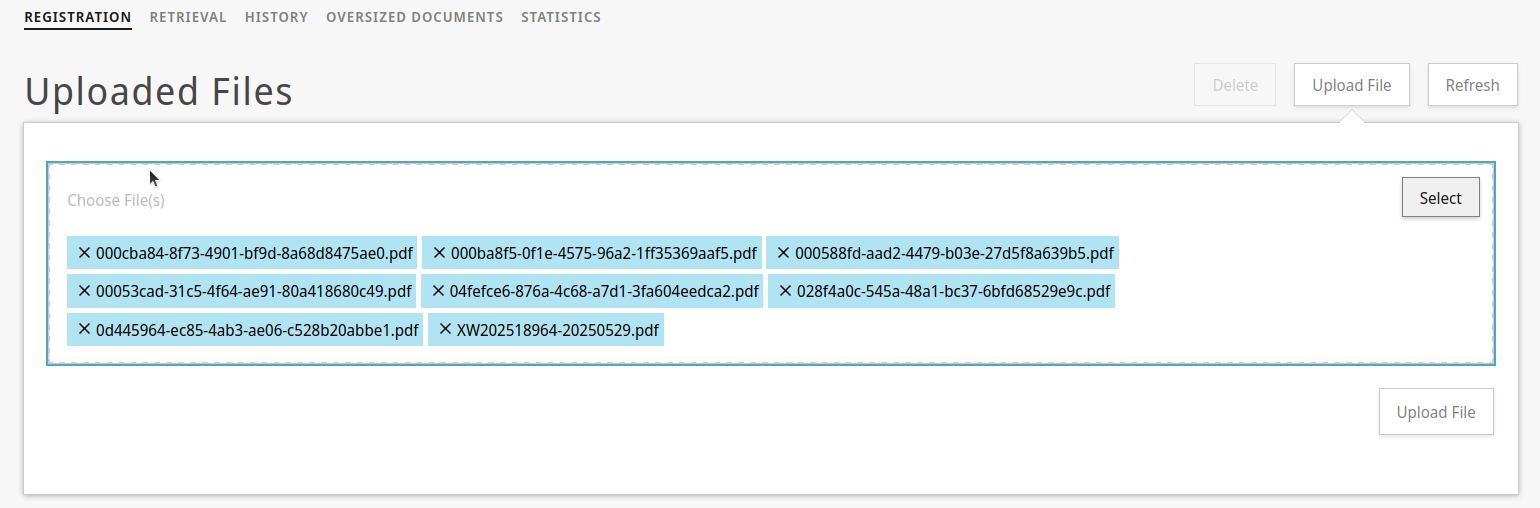 Image Modified Image Modified
|
|
| 4 |
The system will start to upload the file to WIPO DAS: | | Expand |
|---|
| After pressing the "upload file" button, the page refresh and shows an updated form | | Expand |
|---|
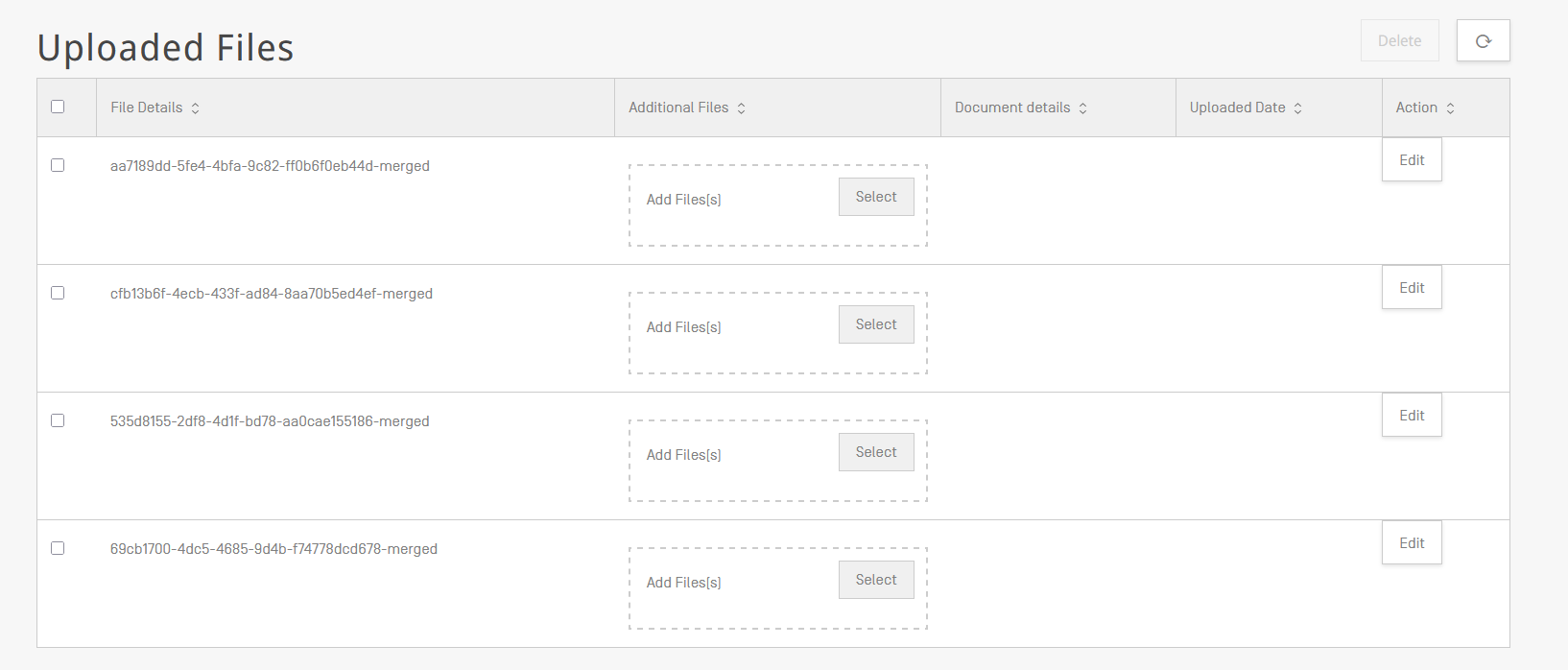 Image Added Image Added
|
|
Adding additional files
| 5 | The screen will then update and will show the file you send to upload to das. | | Expand |
|---|
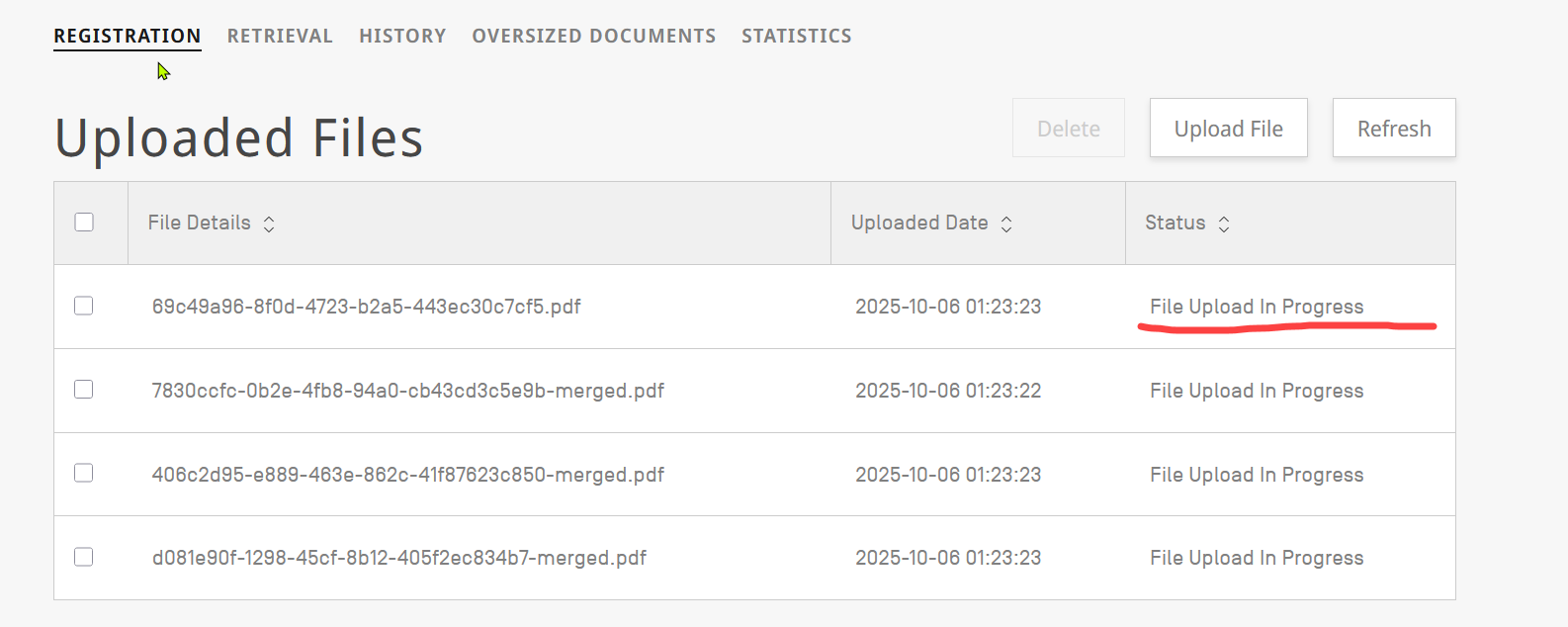 Image Added Image Added
|
|
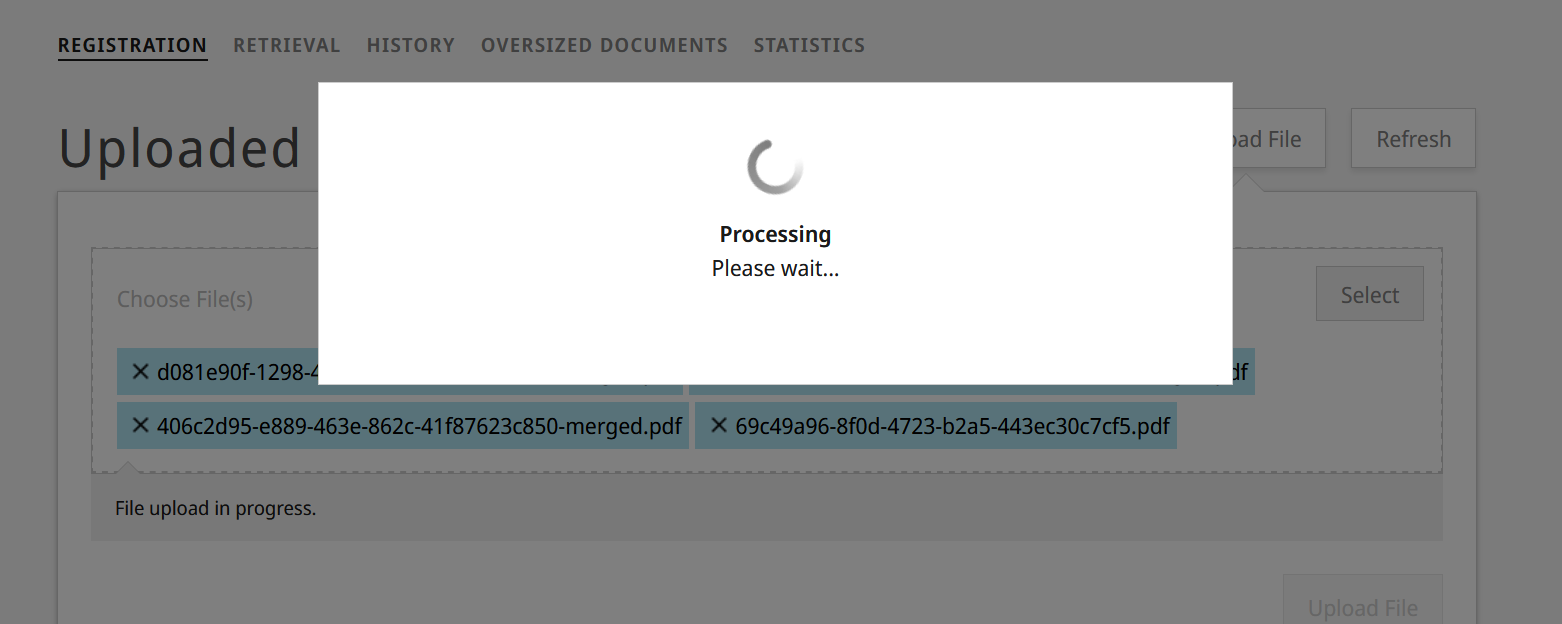 Image Removed
| 5 | The screen will then update and will show the file you send to upload to das. | | Expand |
|---|
Image Modified |
|
| 6 | Upload might take a while (depending on the file size), please press "Refresh" from time to time to check if the file is ready for registration: | | Expand |
|---|
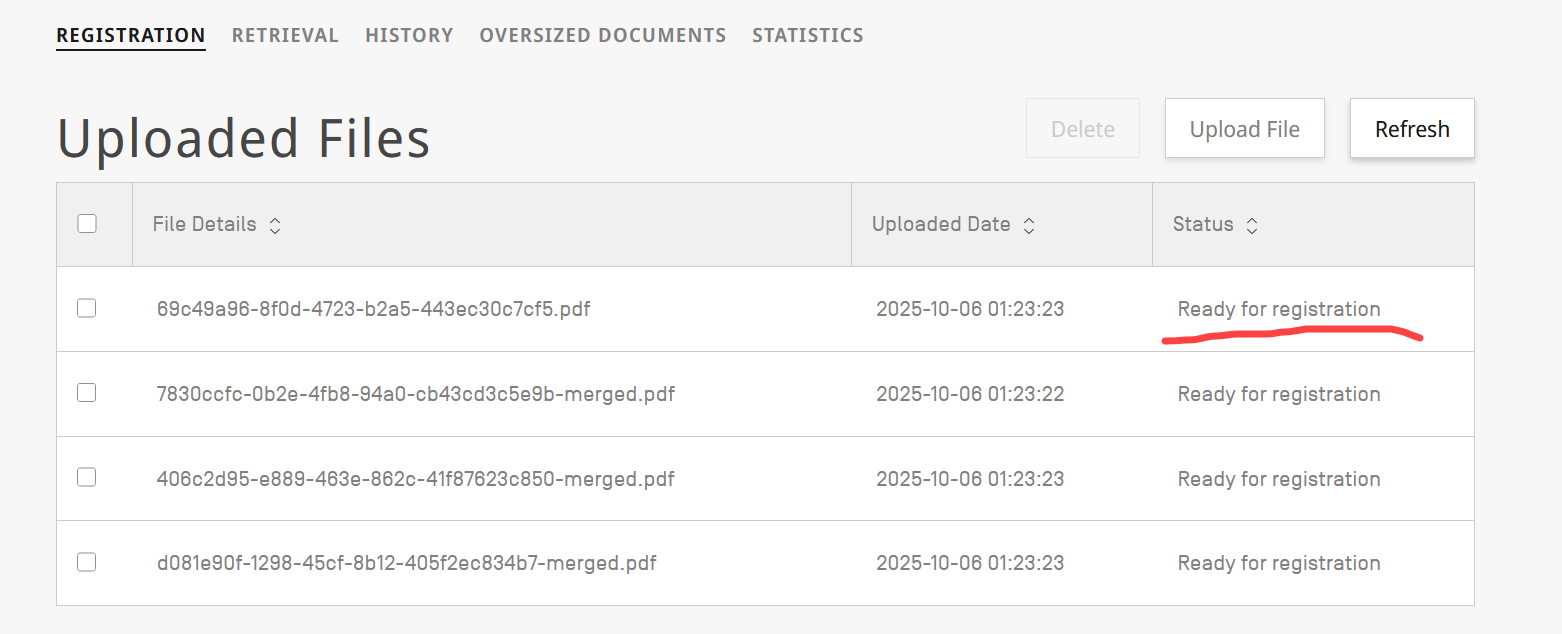 Image Modified Image Modified
|
|
| 7 | Once the file is ready for registration you can start the process to submit the information of the priority document |
|
| 8 | For registering the document click on the file you want to "register": | | Expand |
|---|
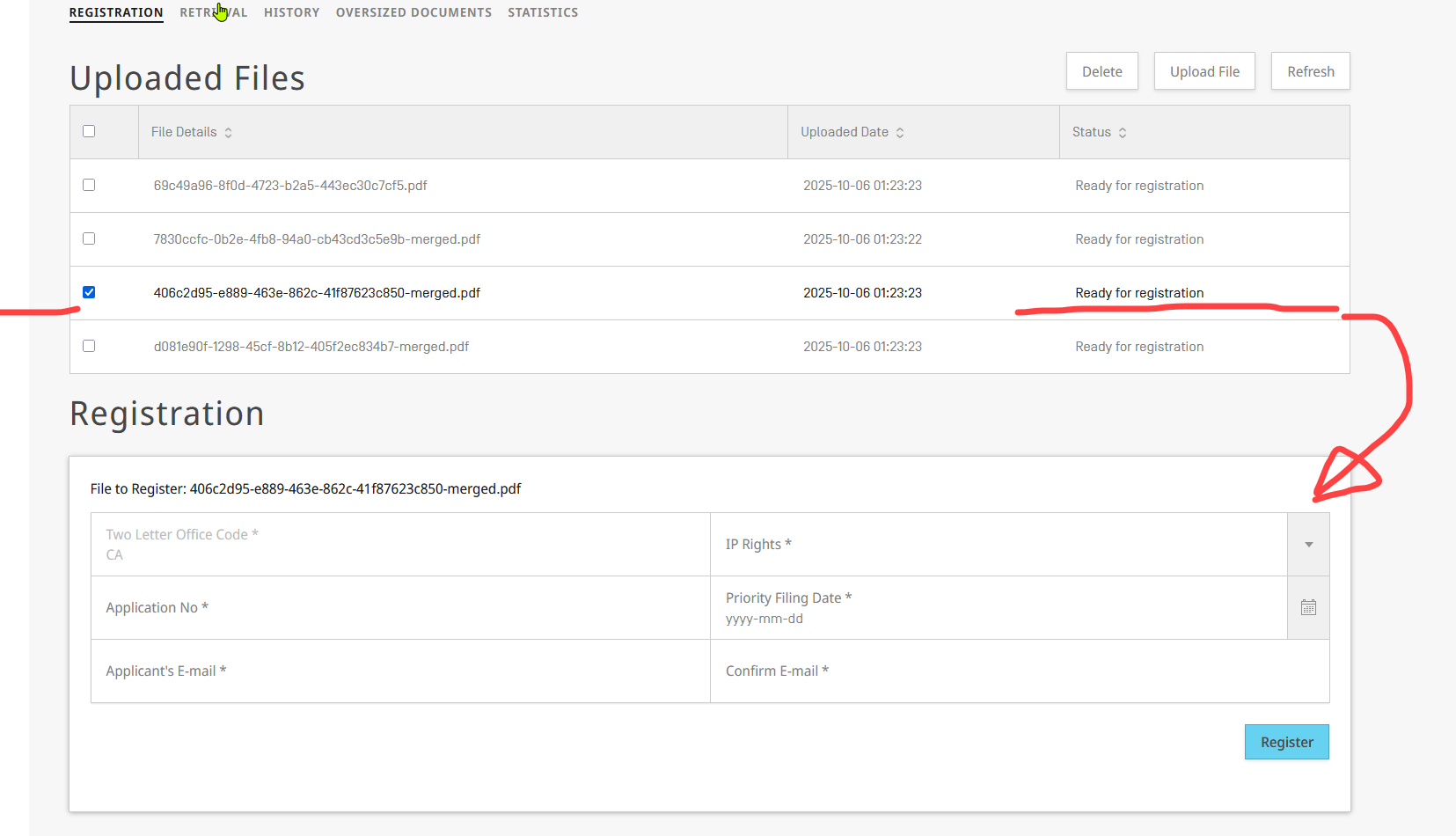 Image Modified Image Modified
|
|
| 9 | The screen will update, and the registration form will be shown. |
|
| 10 | Then you can start to update the form with the details of the file (of your office that you want to register): | | Expand |
|---|
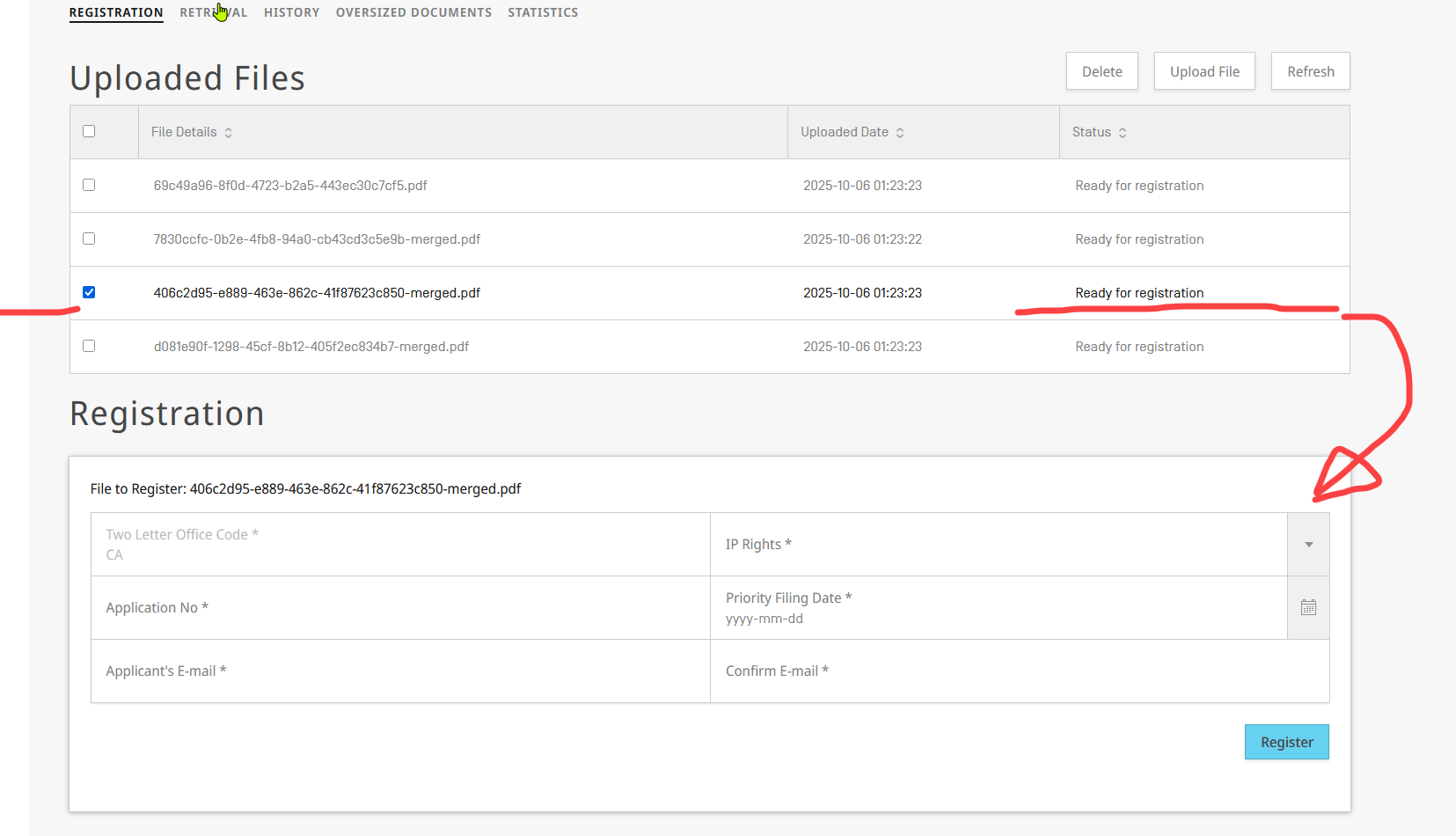 Image Modified Image Modified
|
|
For filling the form, you need to provide the following information:
...
