...
The servers can be used with various sftp SFTP clients as well as the native openssh sftp binary.
...
WinSCP supports only PuTTYGen generated ppk keys but it can convert the normal ssh key to ppk format during the client setup.
Detailed steps:
Step 1
- Download and install WinSCP (WinSCP - downloaded from https://winscp.net/)
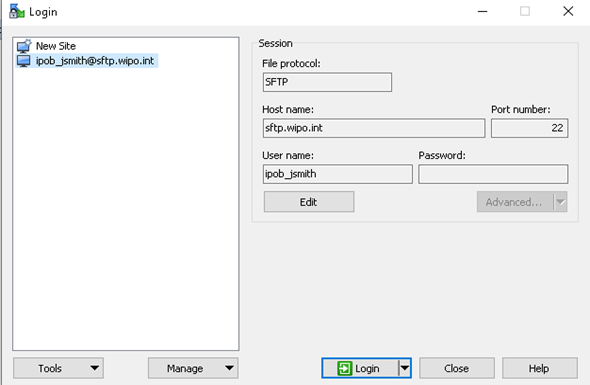
- Open WinSCP and click on NewSite.
- Leave the Protocol (SFTP) and the Port (22) unchanged.
- Fill in the Hostname and the Username as provided by our support representative.
| Info |
|---|
Hostname: sftp.wipo.int Username: ipob_<username> (example: ipob_jsmith) |

Step 2
- Click on Advanced
...
- (marked in blue above)
- Select SSH→Authentication
| Warning |
|---|
| Remove all ticks in the boxes |
...

Step 3
- Click on the field for Private Key
...
- (marked in blue above)
- Navigate to your key (the private half of your key pair). If the key is an openssh key then an option to convert it to putty key will be prompted - accept it.

- Click OK to save de advanced settings

Step 4
- Click Save to save the selected configuration

- Select a name for the new site/connection, and then click
...
- OK

Step 5
- You may now select the newly created connection from the list, and click on Login to connect to it any time you need.

| Note | ||
|---|---|---|
| ||
| If you used a password/passphrase when creating your SSH key-pair, a prompt will show asking for the "Key passphrase" |

Step 6
Finished. You are now connected and may browse, upload or download files as needed
...
.
...
Openssh SFTP binary (for usage from Windows10, Linux and MacOS)
...