...
After login into the system and when you click on the registration tab, you will see the following:
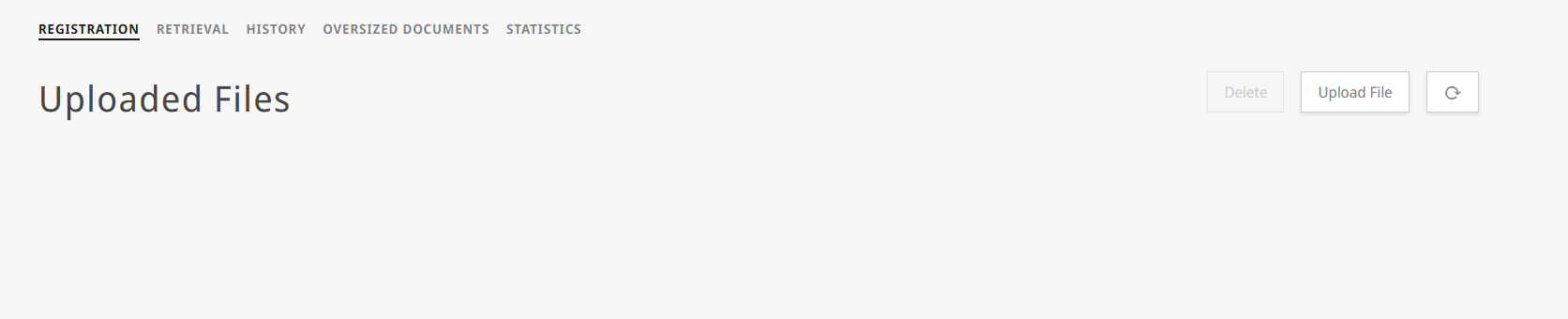
File upload
| 1 | start by pressing in the "Upload File" button: | | Expand |
|---|
 Image Modified Image Modified
|
|
| 2 | A dialog will be shown to allow you to upload the file(s) of the document(s) that have to be registered: | Note |
|---|
Be aware that, due to ST.92 the portal now allow to upload PDF,JPG,PNG, XML or TXT files |
| | Expand |
|---|
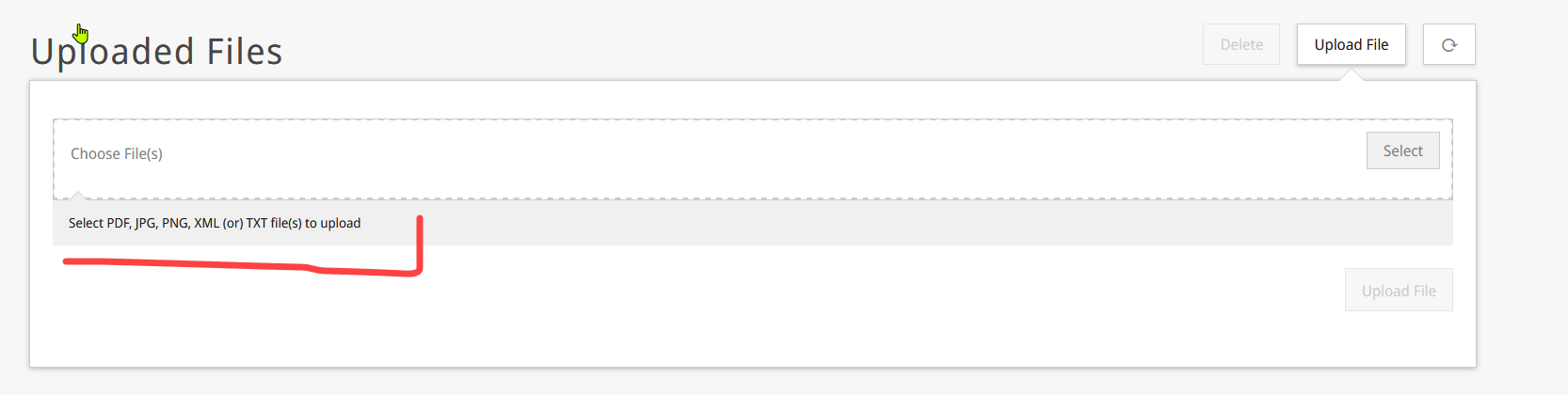 Image Modified Image Modified
|
|
| 3 | press on "Select", navigate to the folder where you have the file to submit, and then press on "upload file" |
:. | Warning |
|---|
Please be aware that each one of the files that are submitted will be considered as an individual application to register in DAS. If, due to ST.92, you need to upload additional information (JPG, sequence listing, etc.) you will have to upload it later (see 4 to 5) |
| | Expand |
|---|
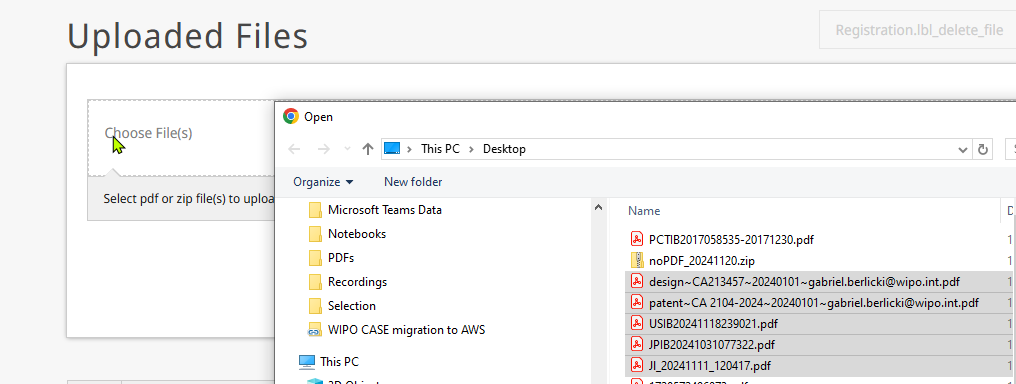 Image Modified Image Modified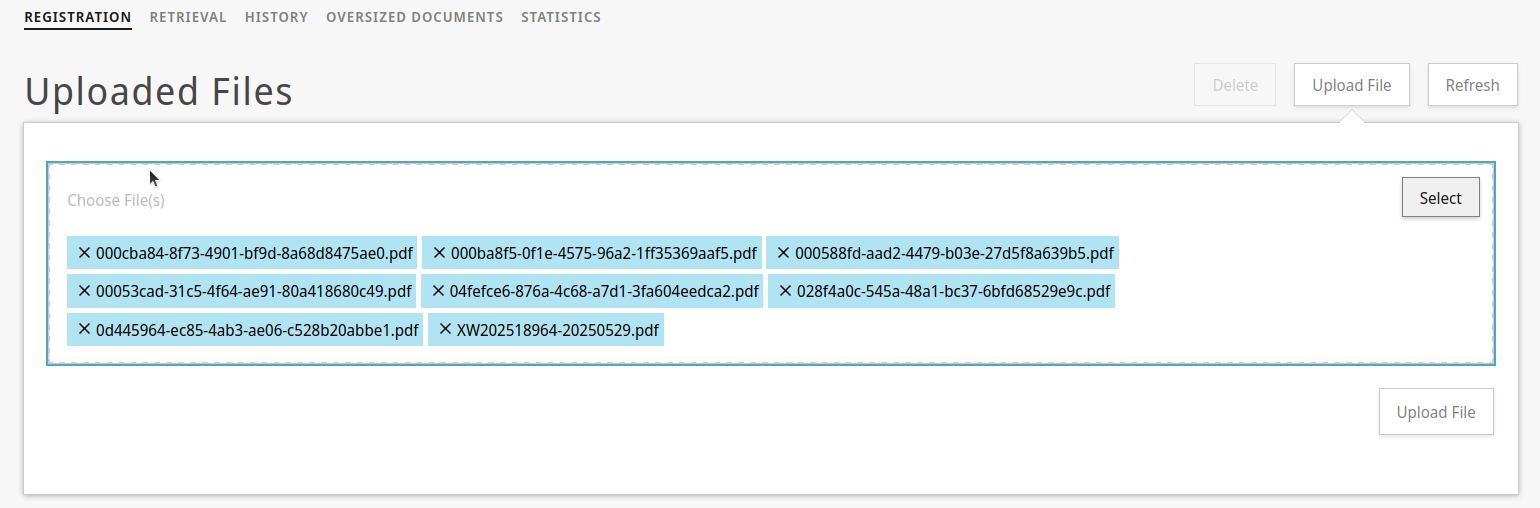 Image Modified Image Modified
|
|
| 4 | After pressing the "upload file" button, the page refresh and shows an updated form | | Expand |
|---|
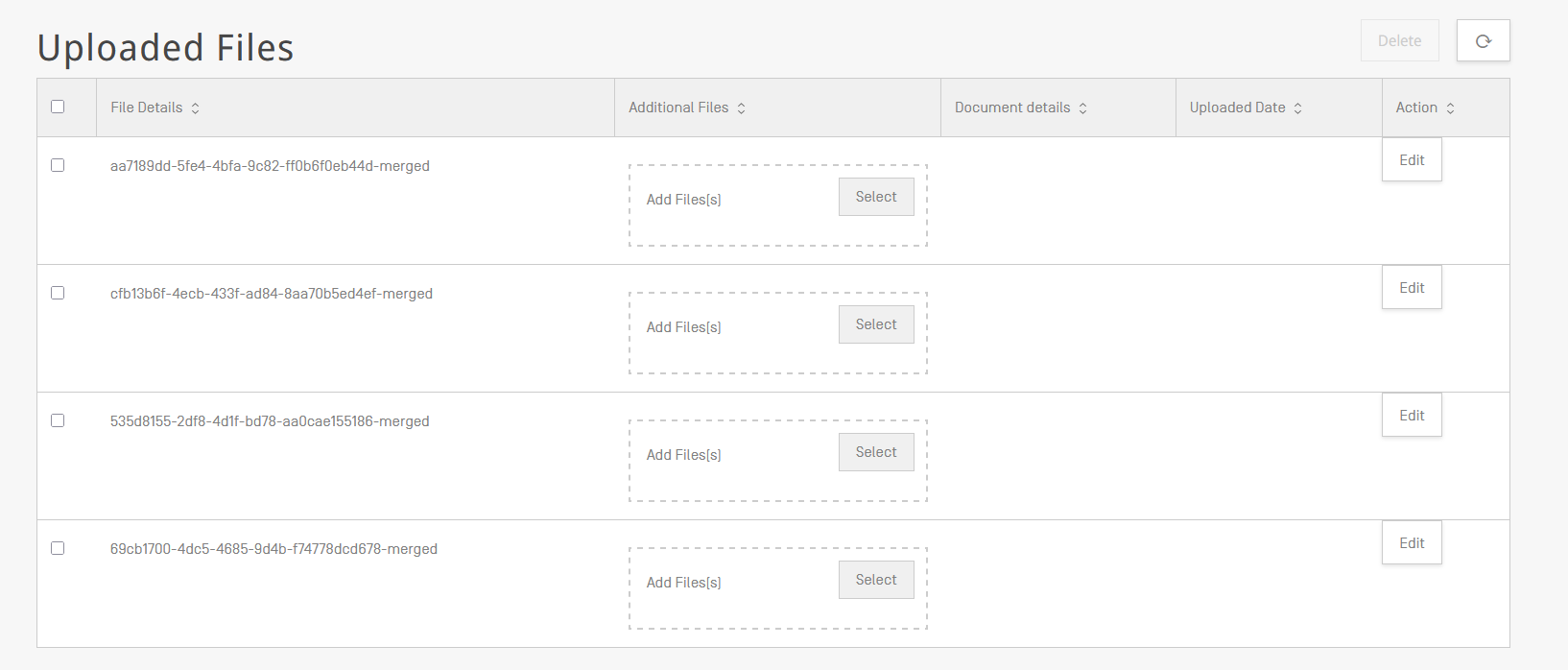 Image Modified Image Modified
|
|
Adding additional files
| 5 | For each one of the originally uploaded files, the form now allows to submit additional information, that might be necessary for complying with ST.92 registrations. For that you will have to click in "Select" so you could submit the additional files for your application. | | Expand |
|---|
 Image Added Image Added
|
|
| 6 | OPTIONAL adding additional file to the registration, this allows to upload a file (like a sequence listing for a patent), which should be added to the ST.92 "PDDP" registration, that WIPO DAS will generate. If you add a TXT/XML file, the Office Portal will understand you are trying to upload the "sequence listing" associated to a "PATENT" application (in ST.26 format), will check the information of the file and will try to validate that the information of the application number in the file, matches the configuration of your country application number format. In case you chose to submit JPG/PNG file(s), the system will assume you are submitting a "DESIGN" | Info |
|---|
Depending on the file, you might get an error message as in the second image. In the case of the example, is because is missing the information of the application number. |
| | Expand |
|---|
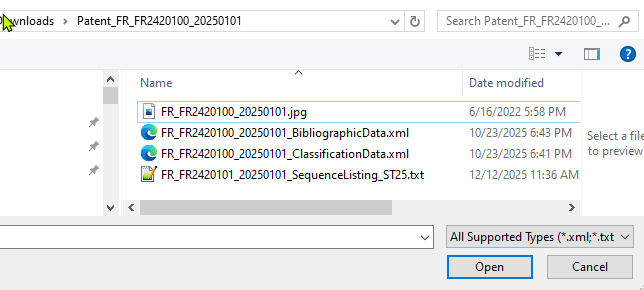 Image Added Image Added Image Added Image Added
 Image Added Image Added
|
|
Editing the registration metadata
| 7 | To continue with the registration process, press on the "Edit" button. (in case you uploaded an OPTIONAL file, the IP TYPE is automatically set depending on the file type (see 6). | | Expand |
|---|
 Image Added Image Added
|
|
| 8 | The screen will update and will show the form to insert the metadata of the application (number, filing date and email address of the applicant). |
The screen will then update and will show the file you send to upload to das. | | Expand |
|---|
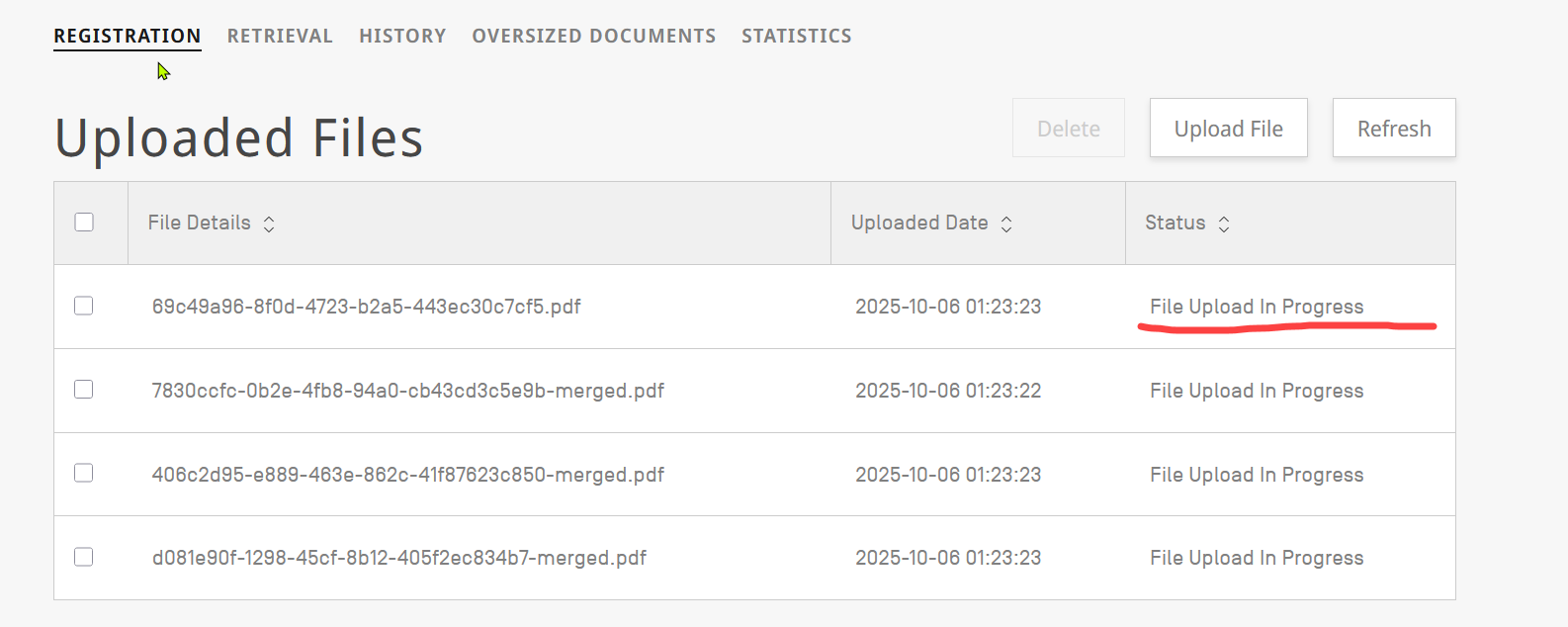 Image Removed Image Removed
|
| 5 | The screen will then update and will show the file you send to upload to das. | | Expand |
|---|
Image Removed |
| 6 | Upload might take a while (depending on the file size), please press "Refresh" from time to time to check if the file is ready for registration: | | Expand |
|---|
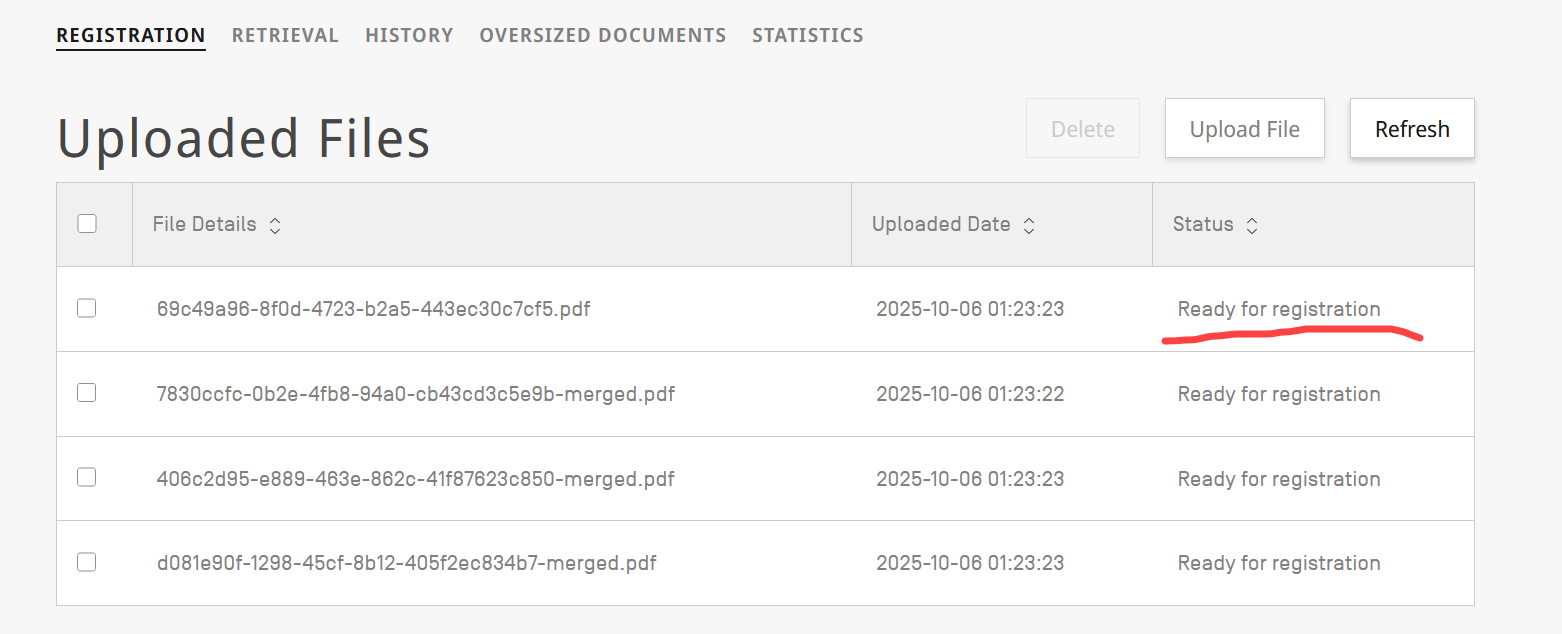 Image Removed Image Removed
|
|
7 | Once the file is ready for registration you can start the process to submit the information of the priority document | | 8 | For registering the document click on the file you want to "register": | | Expand |
|---|
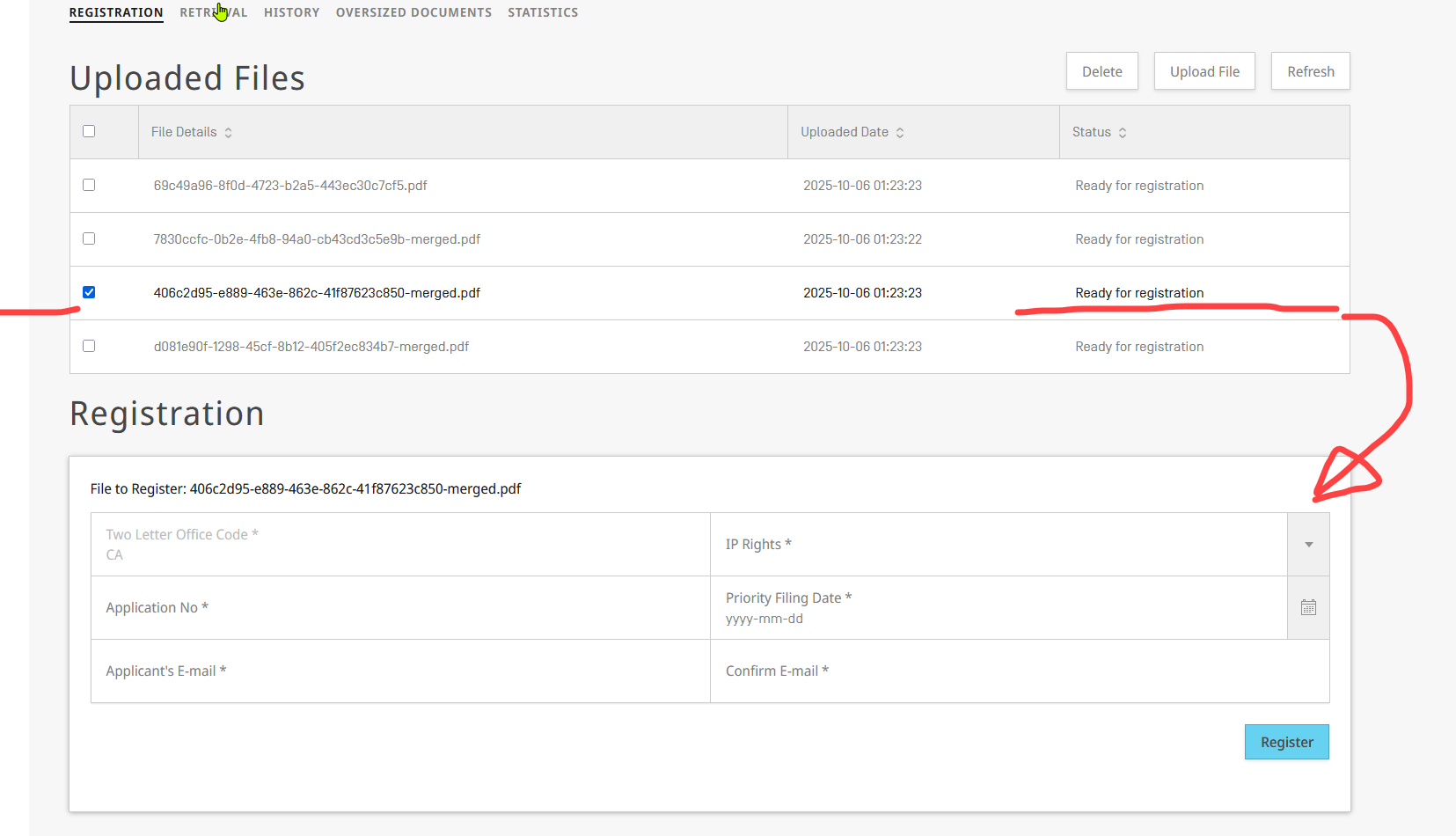 Image Removed Image Removed
|
|
9 | The screen will update, and the registration form will be shown. | 10 | Then you can start to update the form with the details of the file (of your office that you want to register): | | Expand |
|---|
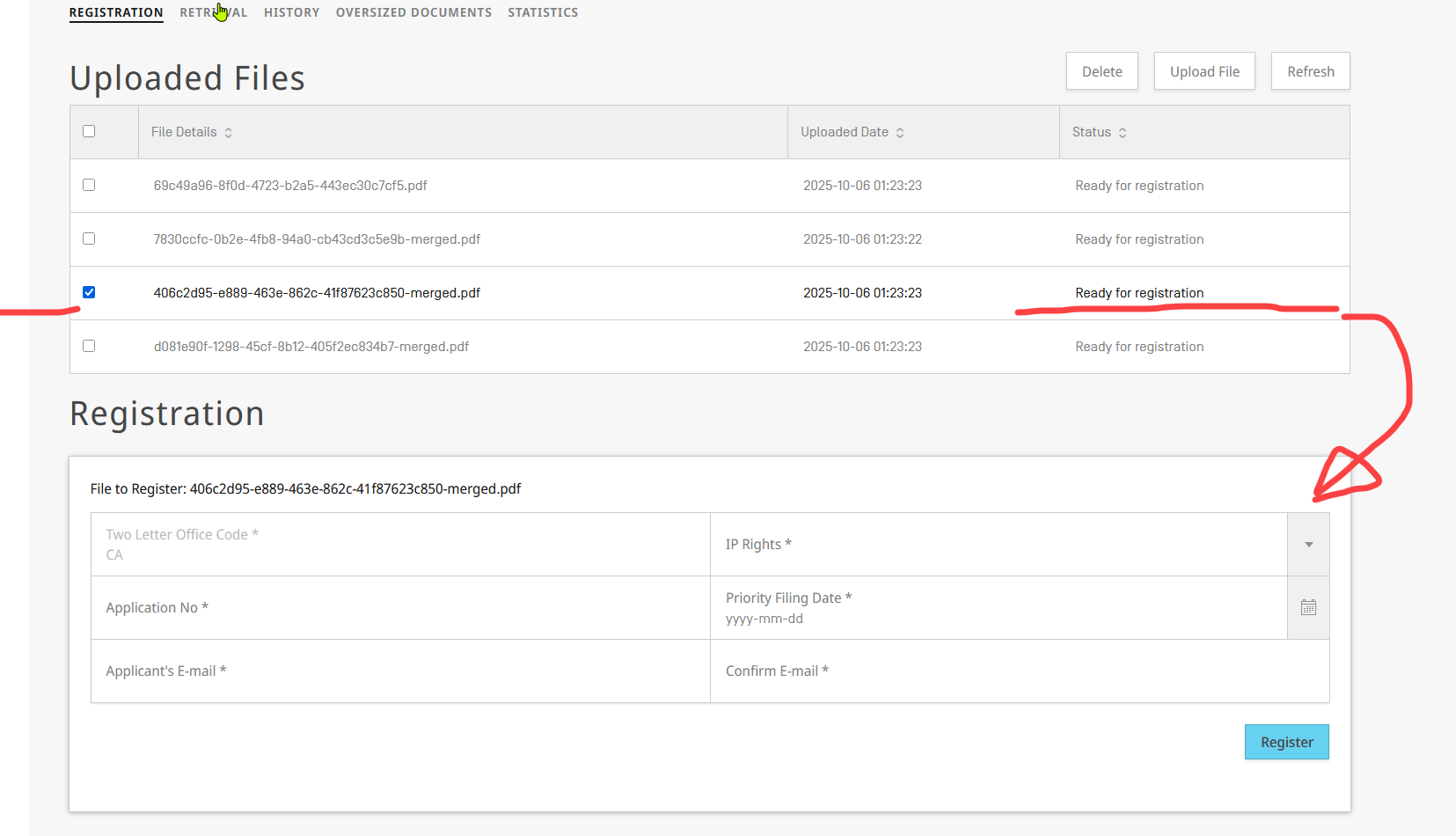 Image Removed
For filling the form, you need to provide the following information: |
Two Letter Office Code | the country code of the IP Office from which you would want to retrieve the file| IP Rights | Patent | The type of IP Right depends on the configuration of your Office, to check the scope of your office, you could consult the following webpage: https://www.wipo.int/das/en/participating_offices/search.jsp?depositing_id=&accessing_id=&territory_id= |
| Design |
| Utility Model |
| Trademark |
https://www.wipo.int/documents/d/standards/docs-en-03-03-01.pdf | | Application No | text field (Office Application number) 1.- Priority number format in use by IP Office | Here you should enter the information of the application, you need to match the forma to the application number in use by your office: | Expand |
|---|
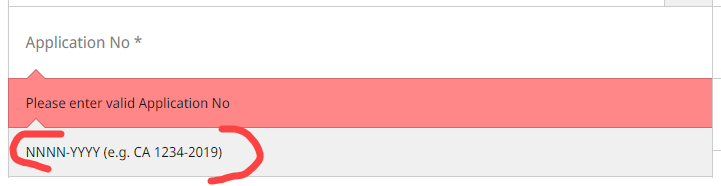 Image Modified Image Modified
|
| Info |
|---|
The system will validate what you are entering in the field (and will be showing bellow a hint). It will only allow to register the document, if the Application number you submit in the field, matches the format for your office |
| | Priority filing date | Date field | You will have to select the date for the filing date :
| Expand |
|---|
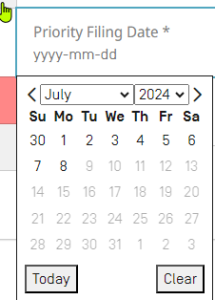 Image Modified Image Modified
|
| | Applicant E-mail | The email of the applicant, to which WIPO DAS will take care of sending the access code, after the form is submitted. | Be aware of the validation on the U.I.: | Expand |
|---|
 Image Modified Image Modified
|
| | Confirm E-mail |
|
|
After pressing on "Register", DAS starts to process the registration:
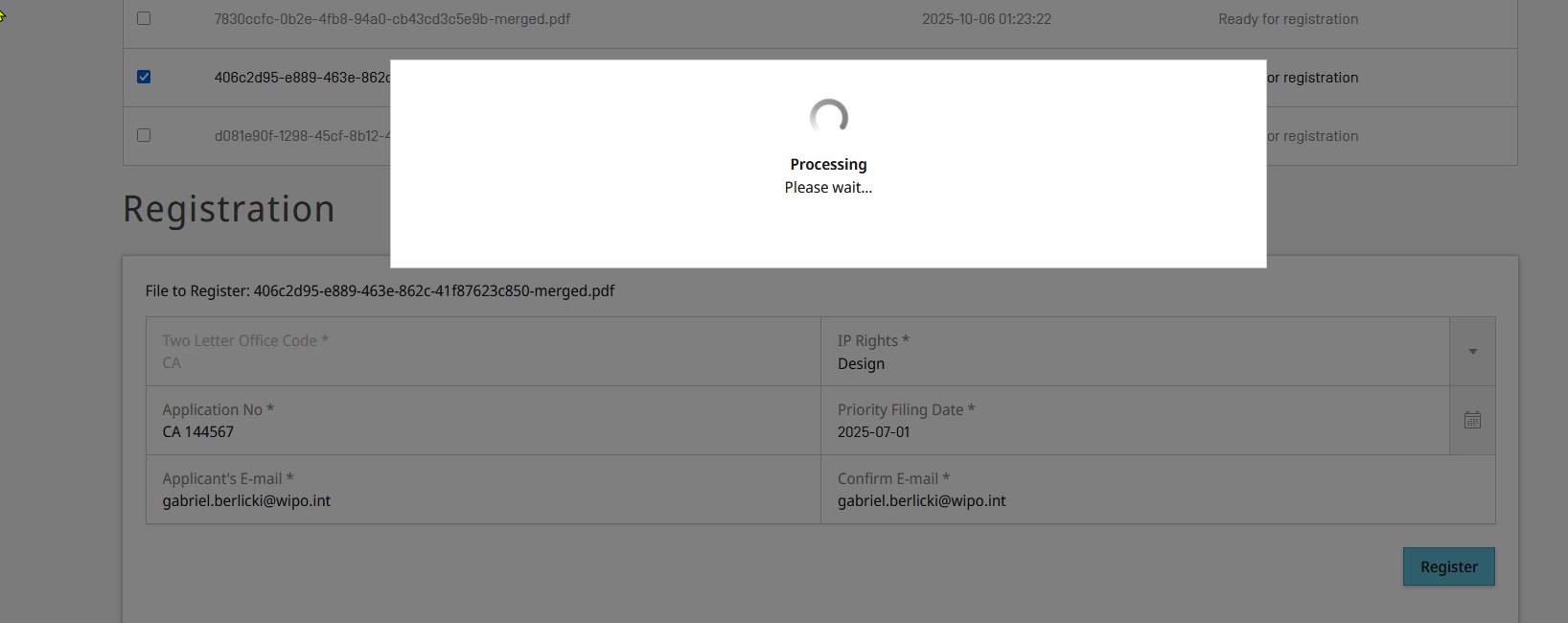 Image Removed
The screen will update, and the entry will be removed from the list:
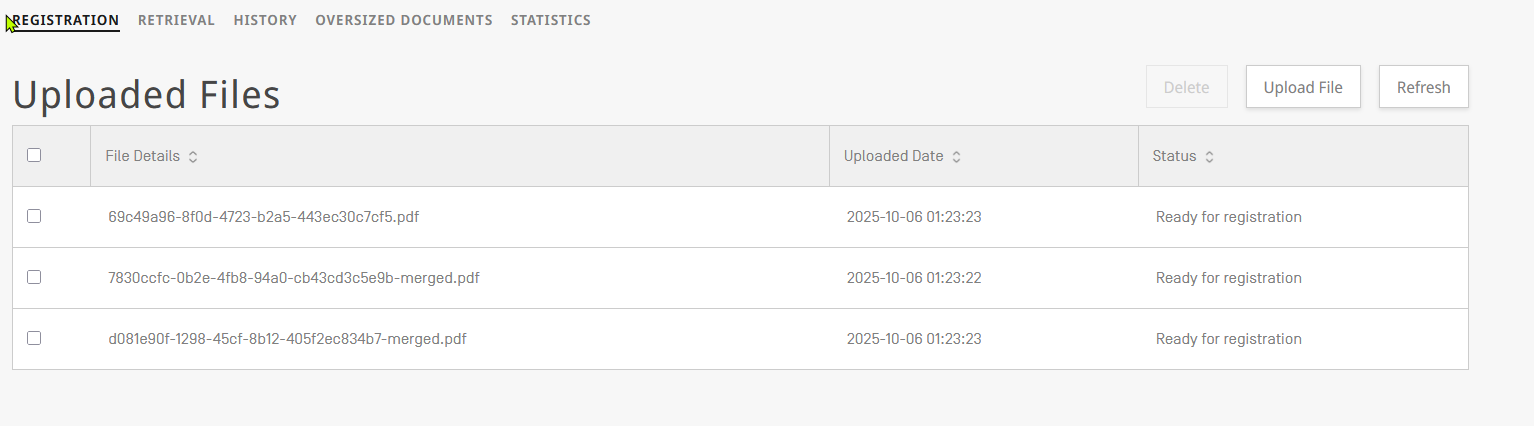 Image Removed
...
Then press the "Update" button | | Expand |
|---|
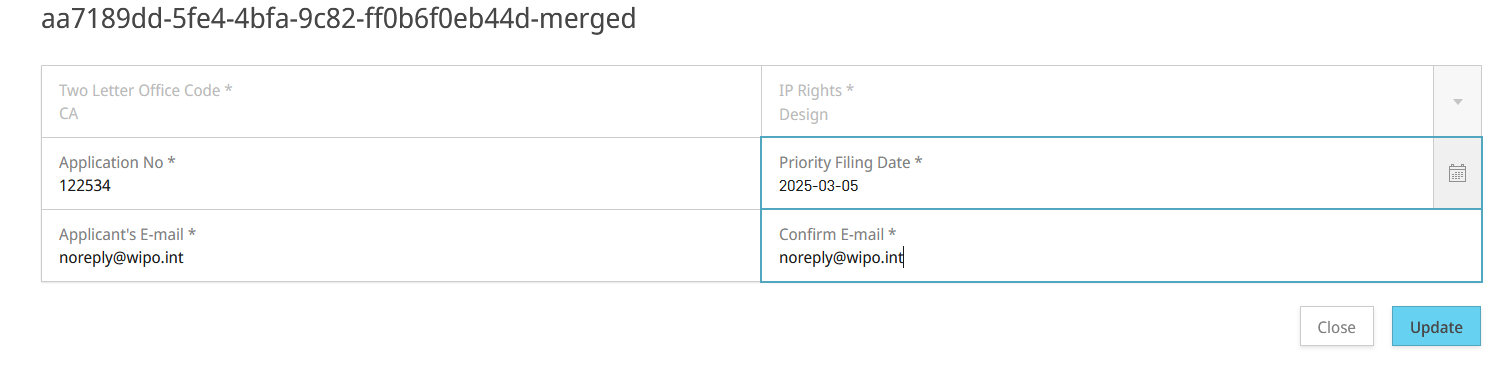 Image Added Image Added
|
|
| 9 | Then the entry in the initial form is updated with the information of the file |  Image Added Image Added
|
Generating the PDDP package
| 10 | Due to the requirements for the compliance with the Standard ST.92, before application can be registered in WIPO DAS, the user will have to "generate the PDDP package and push it to WIPO DAS", this just by pressing the corresponding button (which then triggers the processing dialog). | Info |
|---|
| This is not automatic, as in some cases there could be problems with the provided data (particularly the ST.26 sequence listing), so a series of validations are put in place and the user should check that the PDDP package can be generated, before registering the application. The validation is done on the server, so the file(s) is(are) pushed to the server and then checked. If everything is ok an "uploaded date" is generated |
| | Expand |
|---|
 Image Added Image Added
 Image Added Image Added
 Image Added Image Added
|
|
| 11 | OPTIONAL, if needed the user could download the generated PDDP file, by pressing the download arrow. | | Expand |
|---|
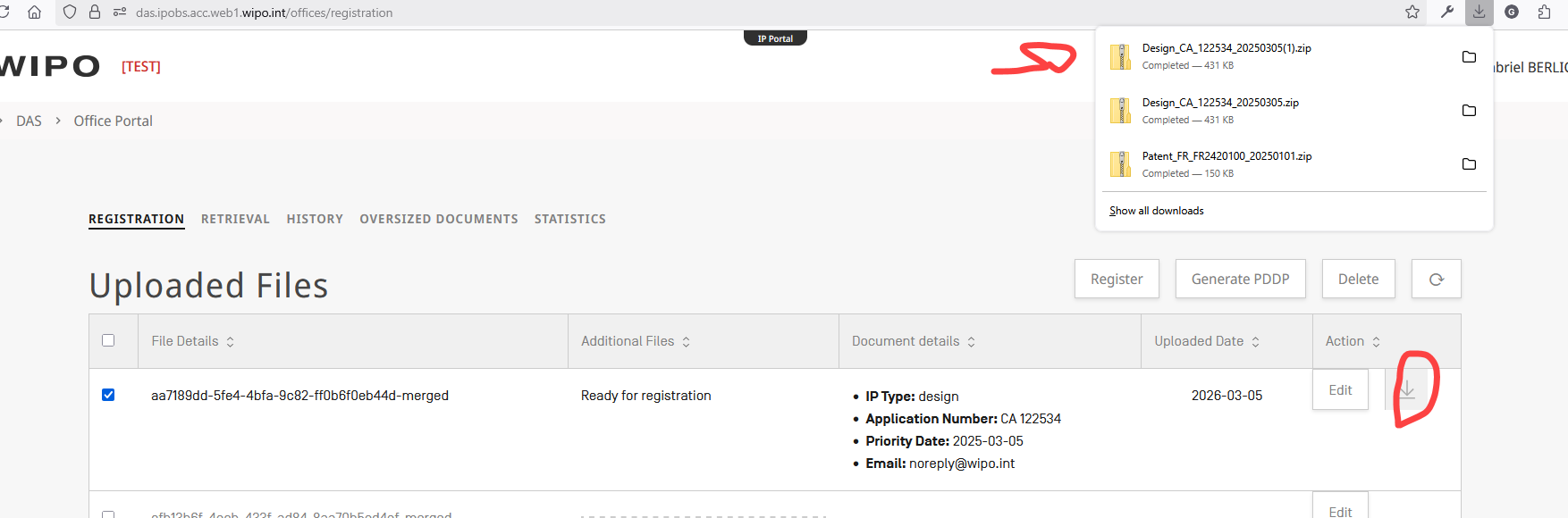 Image Added Image Added
|
|
| 12 | OPTIONAL, if needed the PDDP file can be checked by the user | | Expand |
|---|
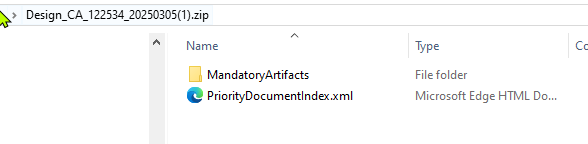 Image Added Image Added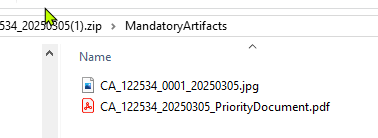 Image Added Image Added
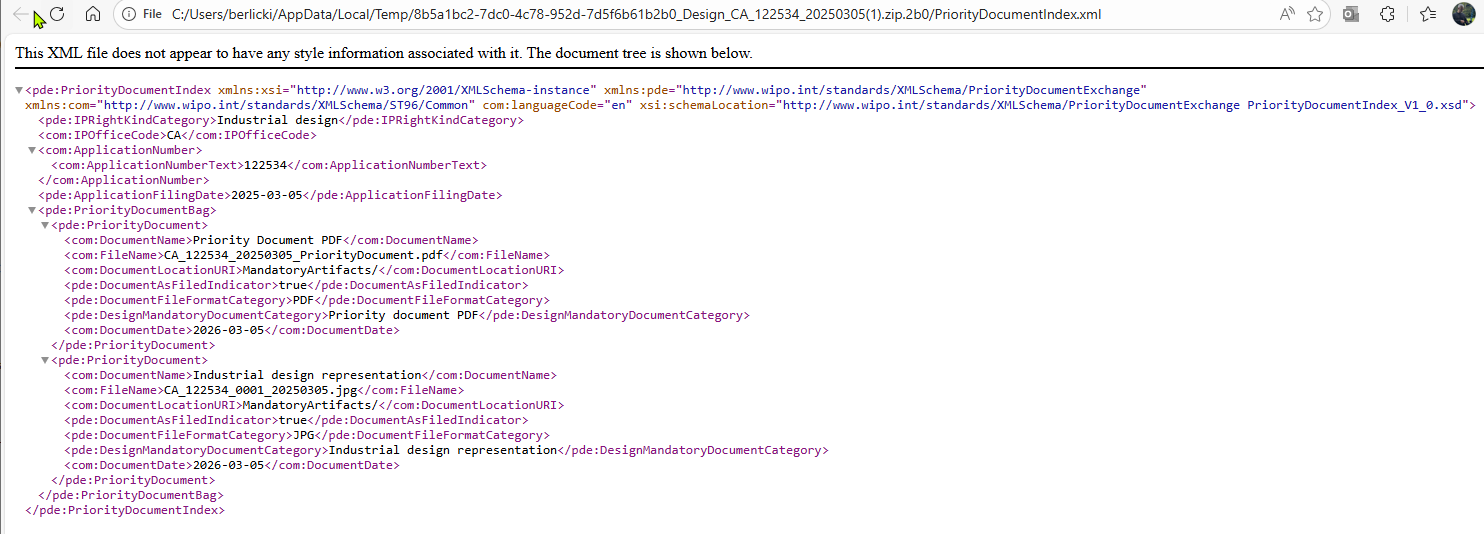 Image Added Image Added
|
|
Registering
| 13 | Once the PDDP file is generated and uploaded to DAS (see 10), the record is ready for registration, which is done by pressing in the "Registering" button | | Expand |
|---|
 Image Added Image Added
|
|
| 14 | The system start to process the information and trigger the registration process in WIPO DAS systems | | Expand |
|---|
 Image Added Image Added
|
|
| Children Display |
|---|
| page | b.- DAS Office Portal |
|---|
|
...
